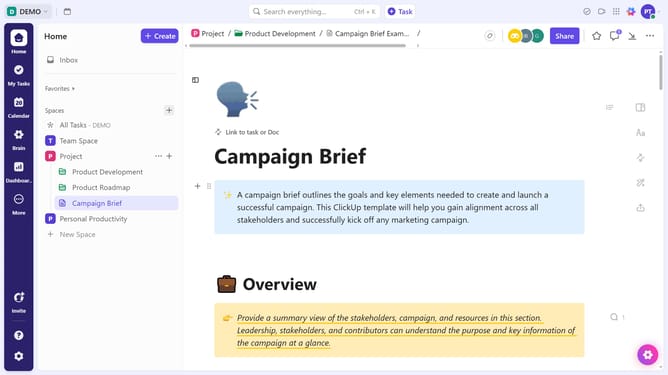
How to rename a subtask in ClickUp
Here is how to rename a subtask in clickup
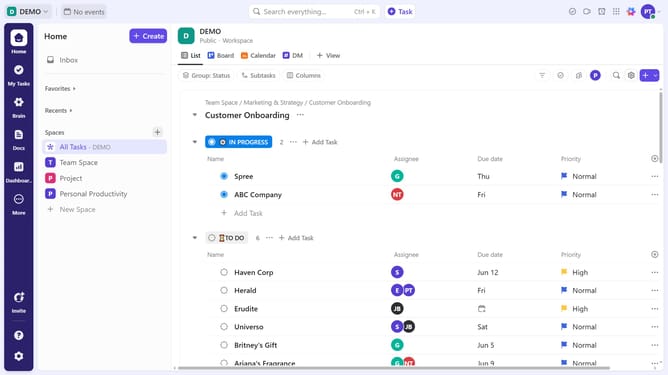
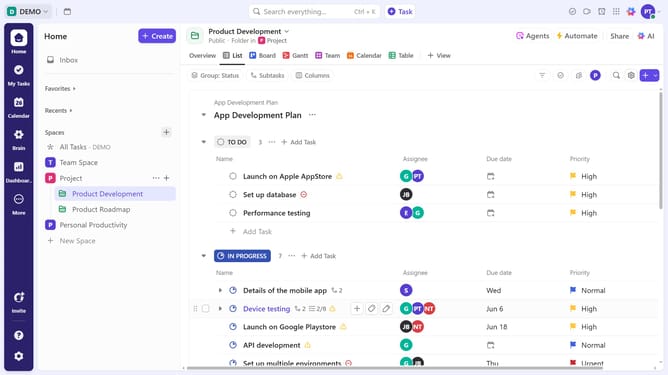
- First in the left sidebar, under the relevant Space, click on the Folder or List that contains the subtask
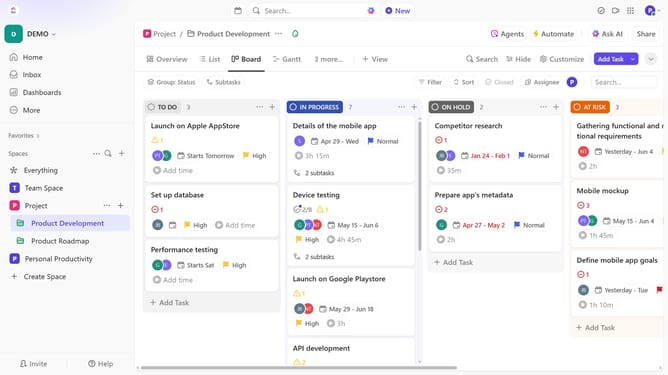
- Then in your preferred view, locate the task containing the subtask you want to rename
- Next click the expand subtasks button next to the task
- Then hover over the subtask and click on the "Rename" icon
- Finally type the new name for the subtask and press "Enter" or click outside the text box to confirm the new name
Why should you rename a subtask in ClickUp
ClickUp is a versatile productivity platform that streamlines project management for teams.
Renaming a subtask in ClickUp is a straightforward feature that enhances task clarity and organization.
By renaming a subtask, users can quickly align task labels with project objectives, making it easier to understand and prioritize tasks at a glance.
This small but significant feature boosts efficiency and ensures that all team members are on the same page, ultimately leading to more cohesive collaboration.
Last update