Mural
Mural is a visual collaboration platform for brainstorming, planning, and running remote workshops on a shared canvas.
Website
Industry
Design
Share this article:

How to open find and replace panel in Mural

Here is how to open find and replace panel in mural

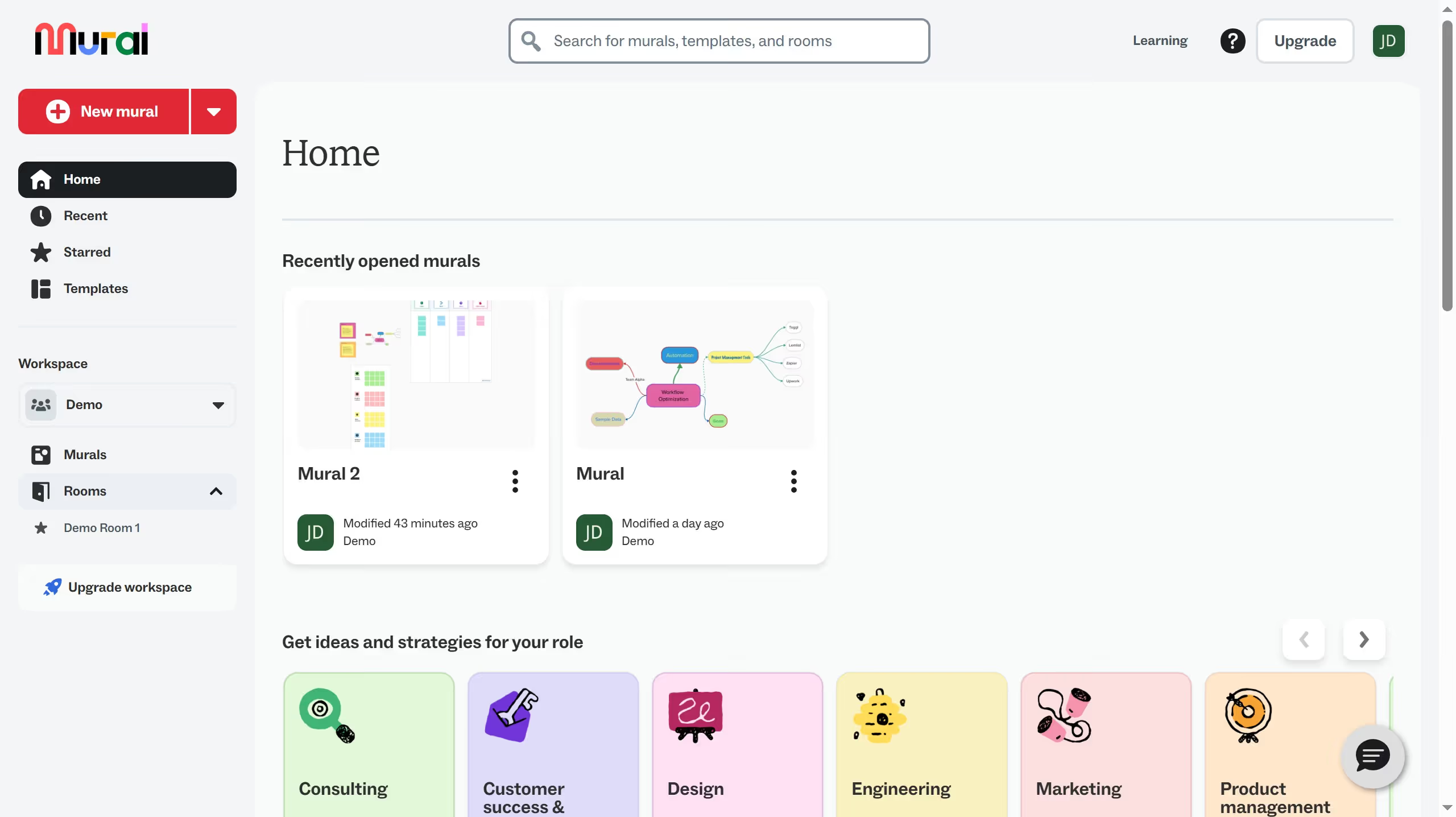
  1. First click on "Murals" in the sidebar navigation
  2. Then click on the mural filename that you want to manage to open it
  3. Next click on the "Actions" button in the top toolbar
  4. Then click on the "Open" tab in the actions menu dropdown
  5. After that scroll down in the actions menu
  6. Then click on the "Open find and replace panel" option to open it
  7. Finally view the opened Replace panel on the right side of the screen

Create your own interactive guide with Guideflow

Why should you open find and replace panel in Mural

Mural is an intuitive digital workspace designed to facilitate collaboration and unleash creativity.

One of its standout features is the "Find and Replace" panel, which can be opened with ease. This tool is a boon for efficiency, allowing users to swiftly locate and modify text across their virtual canvases.

The "Find and Replace" function saves time by streamlining edits, ensuring consistency, and enhancing productivity during brainstorming sessions or design sprints.

With this feature, Mural empowers teams to focus more on innovation and less on manual corrections.

Last update
March 13, 2026
Cursor MariaA cursor points to a button labeled "James."

Create your first demo in less than 30 seconds.