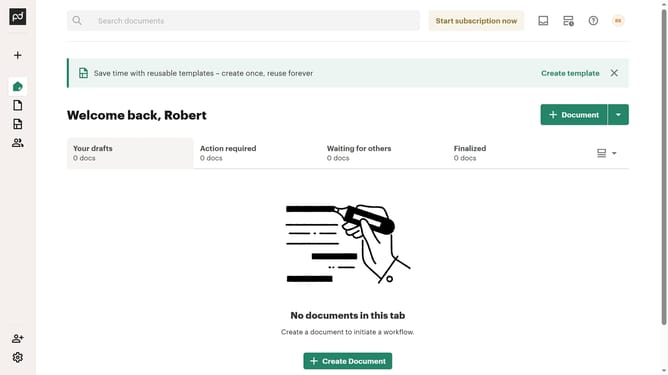
How to move a document to a different folder in PandaDoc
Here is how to move a document to a different folder in pandadoc
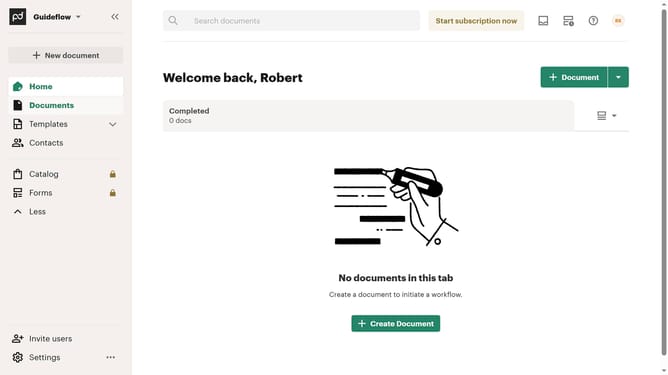
- First click on the "Documents" item in the left sidebar navigation menu
- Then click on the three-dot menu button next to the document you want to move
- Next click on the "Move" option from the dropdown menu that appears
- Then, click the folder you want to move the document into in the Move dialog to select it as the destination
- Finally click on the "Move here" button to confirm moving the document to the selected folder
Why should you move a document to a different folder in PandaDoc
PandaDoc is a versatile platform designed to simplify the creation, management, and storage of documents.
Effortlessly moving a document to a different folder in PandaDoc ensures that your files are always organized and easily accessible.
This feature streamlines your workflow, allowing for efficient management of large volumes of documents, while reducing clutter and enhancing retrieval speed.
By keeping documents neatly categorized, you improve team collaboration and maintain a seamless document management experience.
Last update