How to manage campaign folders in Constant Contact
Here is how to manage campaign folders in constant contact
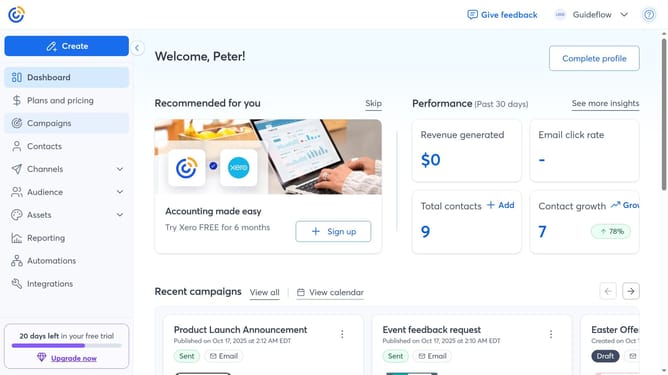
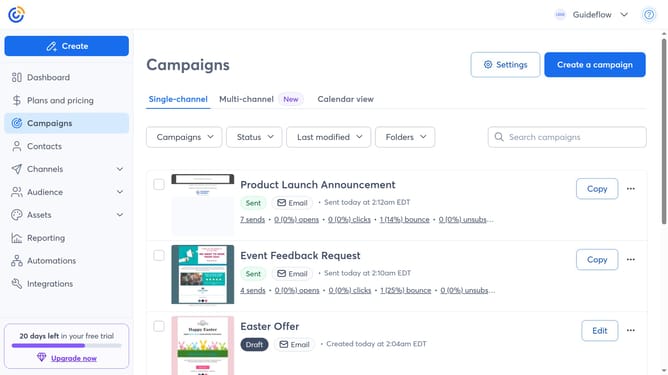
- First navigate to "Campaigns" from the left sidebar
- Next click on the "Folders" dropdown button in the filters bar
- Click on "Manage folders" option from the dropdown menu
- From here, you can create a new folder by clicking "New folder" button in the top-right corner
- Then enter a name for your new folder in the field and click "Add"
- For more options, click on the Click the three dots button next to a folder
- From the dropdown menu, you can rename, add a sub-folder, move, or delete the folder
Why should you manage campaign folders in Constant Contact
Constant Contact is a leading digital marketing tool designed to simplify email marketing for businesses of any size.
Managing campaign folders in Constant Contact streamlines your email marketing efforts by organizing campaigns effectively.
With organized folders, you enhance productivity by easily accessing past campaigns and insights.
This feature promotes a clutter-free workspace, making team collaboration smooth and efficient.
Last update