How to link a subtask to other tasks in ClickUp
Here is how to link a subtask to other tasks in clickup
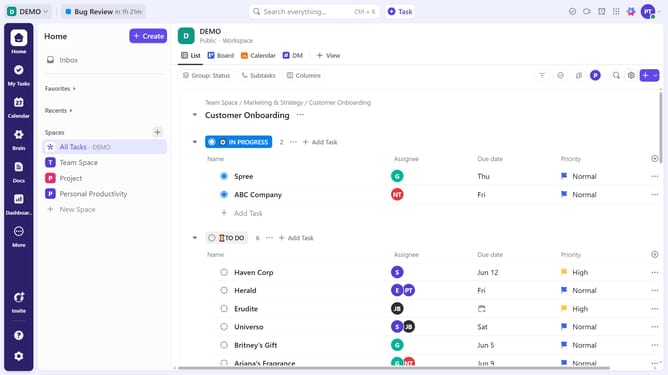
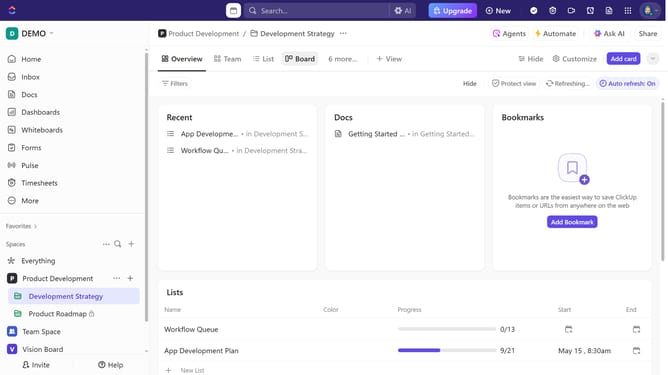
- First in the left sidebar, under the relevant Space, click on the Folder or List that contains the subtask
- Then in your preferred view, locate the task containing the subtask you want to link
- Next click on the subtasks dropdown menu under the task
- Click on the subtask you want to link from the expanded subtasks list
- Then click on the empty "Relationships" field in the task details panel
- Click on the "Link Task" button in the relationships popup
- Click on "Browse tasks" in the task selection dialog
- Finally, select the tasks you want to link the subtask to from the task list
- The subtask will now be connected to the selected task
Why should you link a subtask to other tasks in ClickUp
ClickUp is a versatile productivity platform designed to streamline workflows and boost team efficiency.
One of its standout features is the ability to link a subtask to other tasks. This feature enhances project management by providing a clear and organized structure. It ensures that all related tasks are easily accessible and interlinked, allowing for seamless navigation and management.
By linking subtasks, teams can better visualize dependencies, prioritize effectively, and ensure nothing falls through the cracks. This interconnectedness promotes transparency and collaboration, paving the way for successful project completion.
Last update