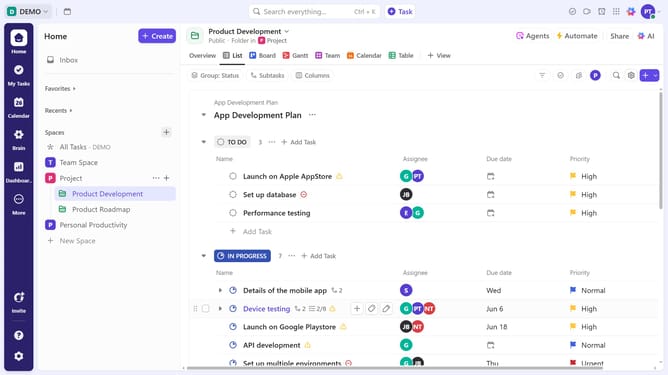
How to duplicate a subtask in ClickUp
Here is how to duplicate a subtask in clickup
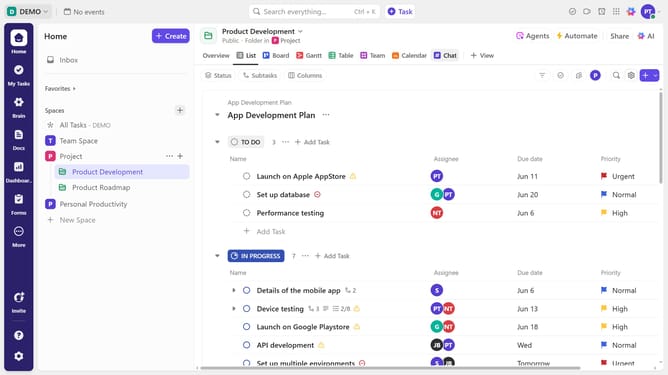
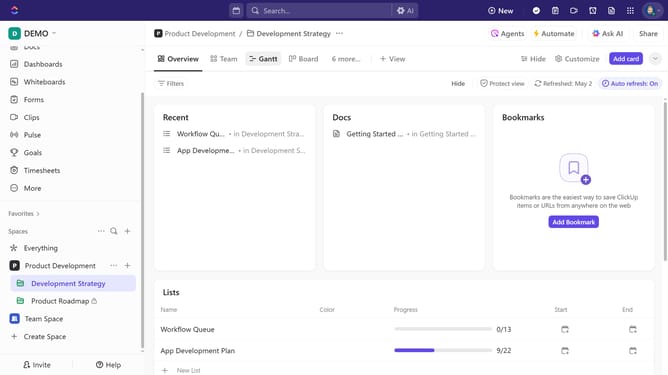
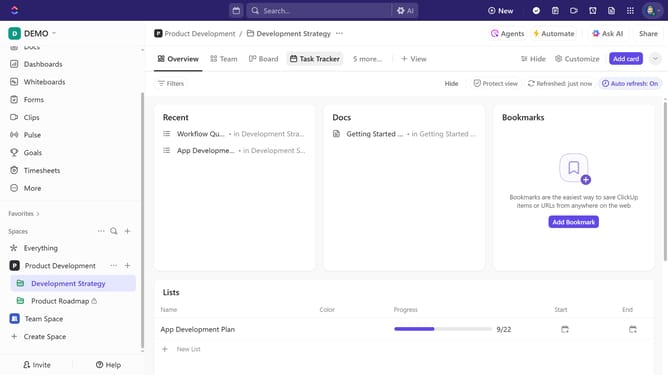
- First in the left sidebar, under the relevant Space, click on the Folder or List that contains the subtask
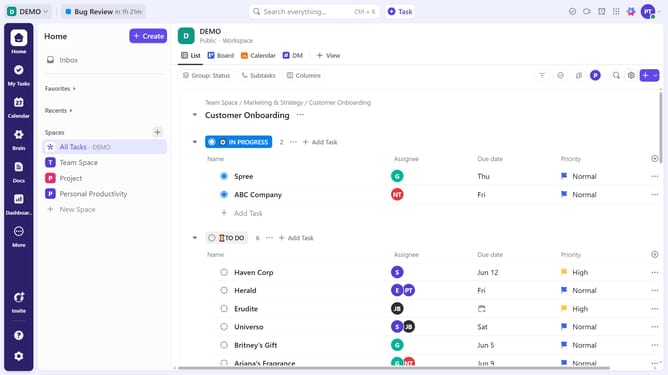
- Then in your preferred view, locate the task containing the subtask you want to duplicate
- Next click on the subtask dropdown menu under the task
- Click the "more options" menu (three dots) next to the subtask you want to duplicate
- Select the "Duplicate" option from the dropdown menu
- In the duplicate task dialog, enter a new name for the duplicated subtask
- Next click on the folder dropdown menu
- Then select your desire space and folder from the space options
- Next, decide whether to copy everything or customize the elements to be duplicated
- You may also choose to include task activity and send notifications if necessary
- Finally click the "Duplicate" button to complete the task duplication
Why should you duplicate a subtask in ClickUp
ClickUp is a versatile project management tool designed to streamline your productivity.
Duplicating a subtask in ClickUp is a powerful feature that allows users to efficiently replicate tasks without starting from scratch. This functionality is perfect for those recurring tasks that just need slight modifications each time.
By leveraging the subtask duplication feature, teams can save significant time and maintain consistency across projects, enhancing workflow efficiency and productivity.
Overall, it simplifies task management and empowers teams to focus on what truly matters.
Last update