Zoom
Zoom is a unified communications platform for video, phone, chat, and webinars. It helps teams connect, collaborate, and boost productivity with powerful, intuitive tools.
Website
Industry
Collaboration
Share this article:

How to delete a page from a document in Zoom Docs

Here is how to delete a page from a document in zoom docs

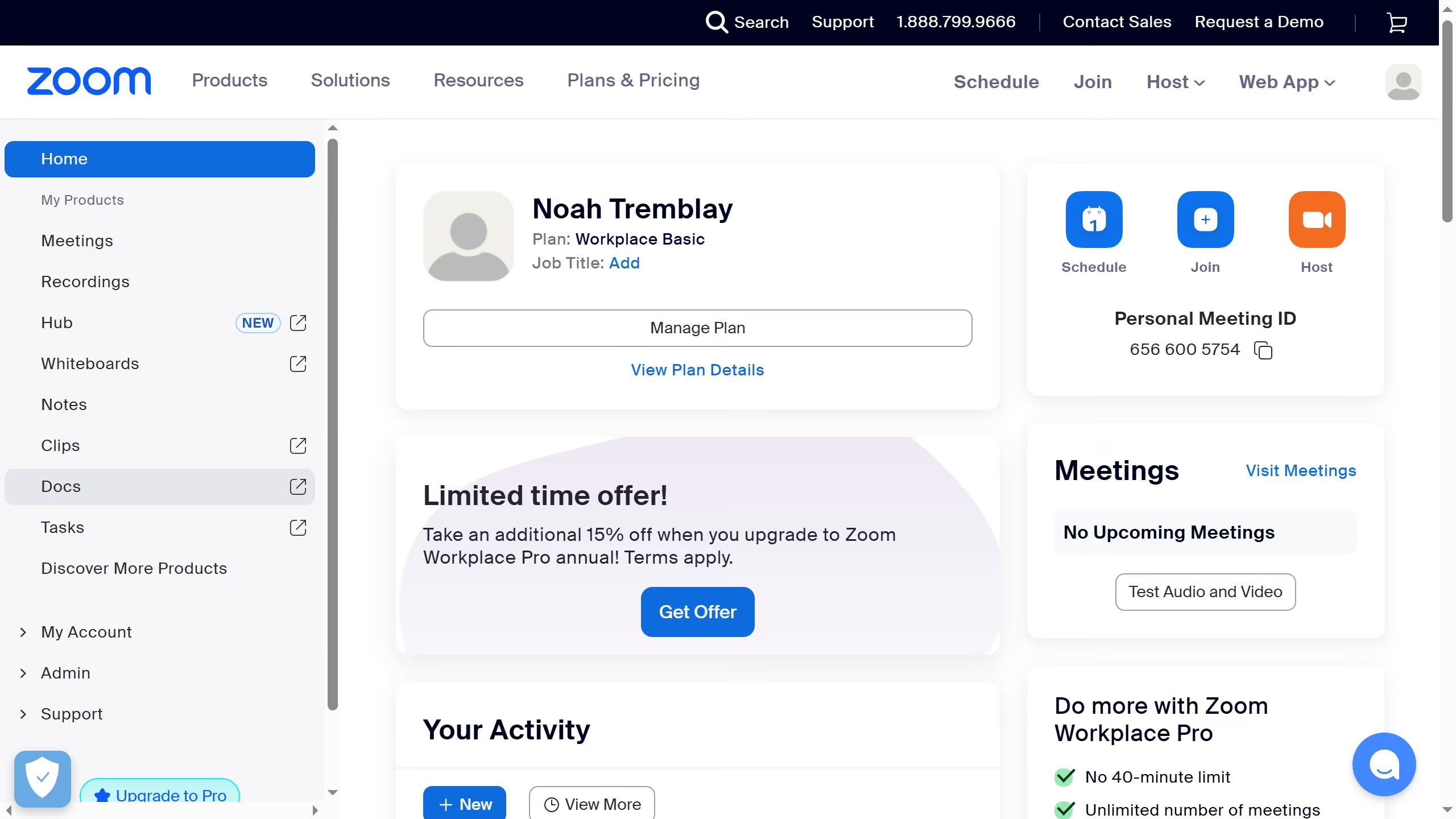
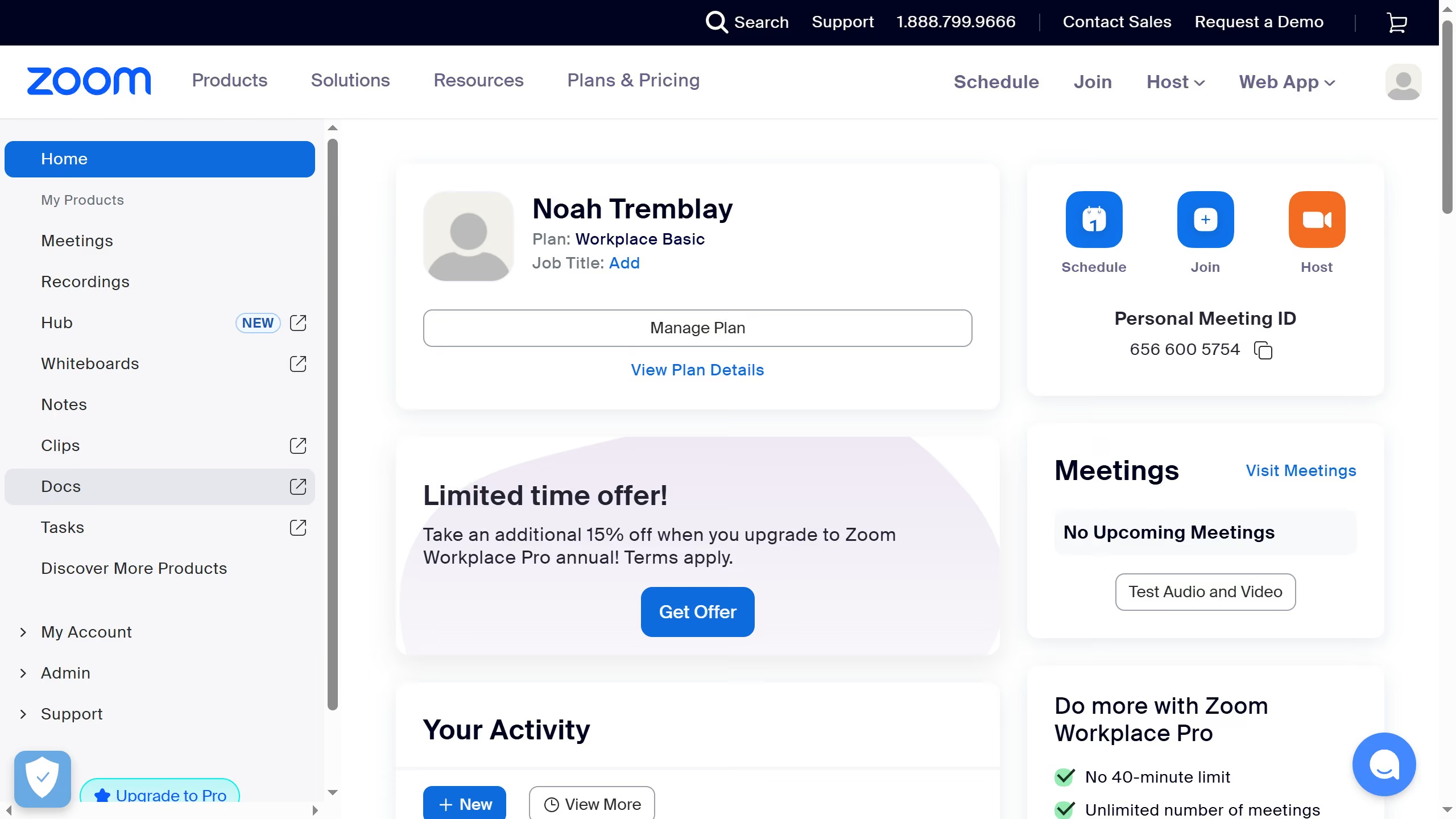
  1. First click on "Docs" in the left sidebar menu
  2. Then open the document containing the page you want to delete
  3. Next navigate to the page you want to remove
  4. Then click on the "More" button (three dots) in the top right corner
  5. Next click on "Delete" option in the dropdown menu
  6. Finally click on the "Delete" button in the confirmation dialog

Create your own interactive guide with Guideflow

Why should you delete a page from a document in Zoom Docs

Zoom is an exceptional platform designed to seamlessly connect people through video conferencing and collaboration tools.

Among its many features, Zoom Docs empowers users to efficiently manage documents, making collaboration smoother than ever.

Being able to delete a page from a document in Zoom Docs quickly resolves clutter and enhances focus, ensuring your documents remain streamlined and relevant.

This feature not only saves time but also boosts productivity by keeping your team aligned with up-to-date content, reflecting changes efficiently.


Last update
February 3, 2026
Cursor MariaA cursor points to a button labeled "James."

Create your first demo in less than 30 seconds.