How to customize a Calendar view settings in ClickUp
Here is how to customize a calendar view settings in clickup
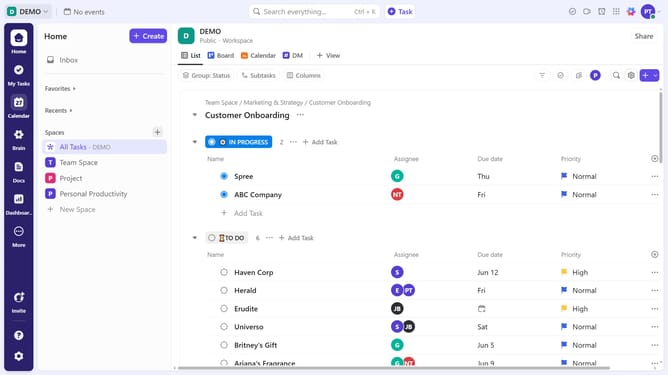
- First find and click on the Calendar view you want to customize in the Views Bar
- Next click on "Customize" button in the top right toolbar
- In the Customize view panel, you can modify the Calendar view name
- In the Customize View Panel, you can modify settings to tailor your Calendar view experience. Sync with external calendars, add fields, apply filters, enable subtasks, set the view as default, and more
- Next click on the layout options menu to customize the view layout
- In the "Page & Card" Layout section, you can adjust task dates, color-code tasks and choose your desire time format
- You can also toggle weekends, lock the view, display future recurring tasks, and more
- Scroll down and customize the Task visibility and view settings as needed
Why should you customize a Calendar view settings in ClickUp
ClickUp is a versatile productivity tool designed to streamline task management and enhance team collaboration.
Customizing the Calendar view settings in ClickUp allows users to visualize projects and deadlines in a way that best suits their workflow.
This feature enables teams to highlight important dates, prioritize tasks, and ensure no detail is overlooked.
By tailoring the Calendar view, users can enhance time management, maintain focus on key objectives, and improve overall productivity.
Last update