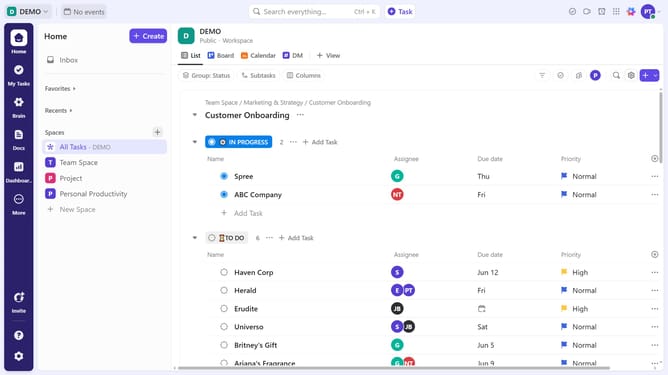
How to create a task from Calendar view in ClickUp
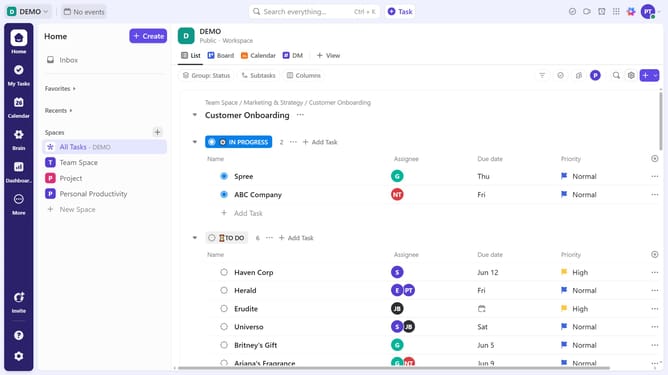
Here is how to create a task from calendar view in clickup
- First click on the Calendar view where you want to create a task
- Next navigate to the date you want to set the task's due date
- Then hover over the date and click the "+" icon to add a task
- Enter the name in the task name field
- Click on the flag icon to set task priority
- Select a priority level from the dropdown menu
- Click on the calendar icon to set the date
- In the calendar popup, select the start date
- You can also add a Time Estimate and Sprint points if needed
- Next click on the assignee icon to add task owners
- Select the user(s) to assign the task from the assignees dropdown
- Click on the List title field to change the task's location
- Select a list from the lists dropdown
- Finally click the "Save" button to create the task
- Once created the task will appear in your Calendar view
Why should you create a task from Calendar view in ClickUp
ClickUp is a versatile project management tool designed to streamline workflows and boost productivity.
The Calendar view feature in ClickUp allows users to effortlessly create tasks directly from their calendars. This functionality provides a seamless way to manage workflow, ensuring that important tasks are planned and visible at glance.
Using the Calendar view to create tasks enhances personal and team organization by aligning daily schedules with actionable goals. It promotes efficient time management and facilitates clear communication within teams by having a visual representation of workloads.
Last update