How to configure context window size for Azure (Entra ID) chat provider in n8n
Here is how to configure context window size for azure (entra id) chat provider in n8n
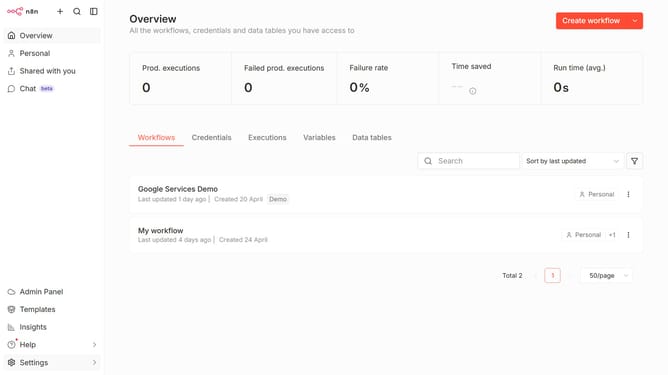
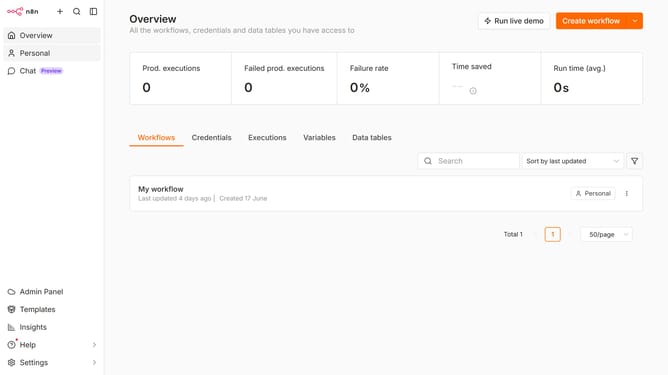
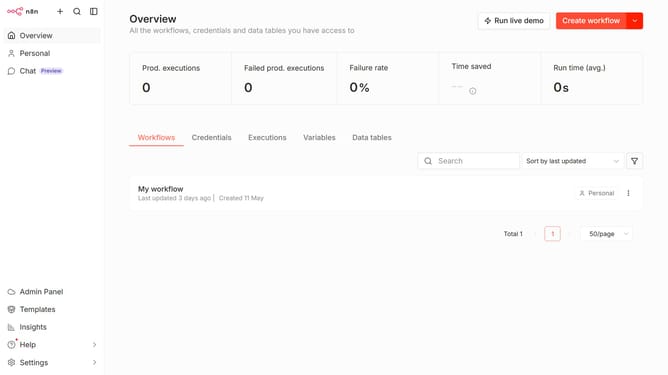
- First click on "Settings" in the left sidebar.
- Then click on "Chat" in the left sidebar.
- Then click on the three vertical dots menu for the "Azure" entry.
- Then click on the "Edit provider" button.
- Then enter the desired amount into the "Context window (messages)" input field.
- Finally click on the "Confirm" button.
Why should you configure context window size for Azure (Entra ID) chat provider in n8n
n8n is an innovative automation platform designed to connect a myriad of tools and enhance workflow efficiency.
When configuring the context window size for the Azure (Entra ID) chat provider within n8n, users can control the volume of conversational context used in chat interactions.
This feature is crucial for optimizing chat efficiency and personalizing user interactions. By adjusting the context window size, one can ensure that chatbots maintain relevant, concise, and coherent dialogues, significantly improving user experience.
Last update