How to apply the Shrink enter animation to a block on Pitch
Here is how to apply the shrink enter animation to a block on pitch
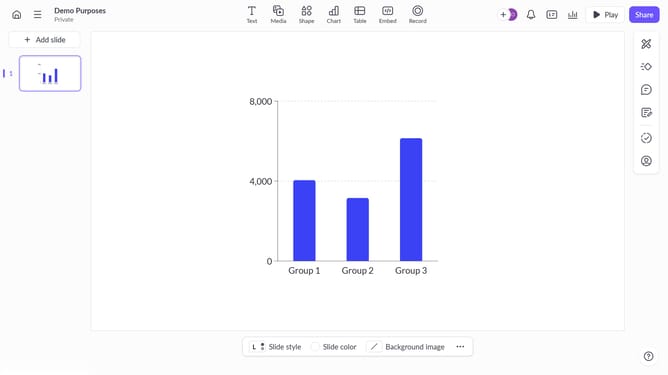
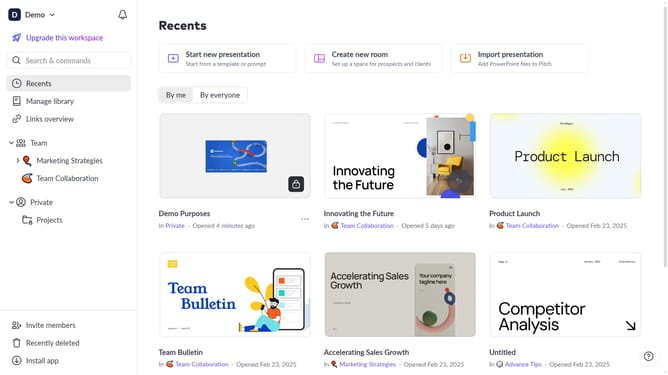
- First, open the presentation containing the block you want to animate
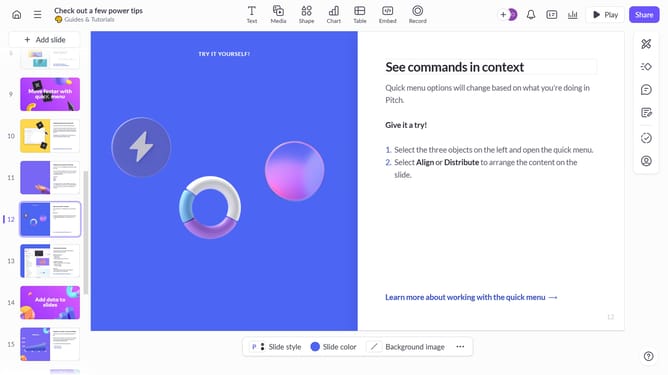
- From the left sidebar, select the slide containing the block
- Next, select the block you want to animate (such as a text block, image, shape, or other content block)
- In the right sidebar, click on the "Animate" option
- Then, select the "Enter" tab
- Finally, select "Shrink" from the available animation options
Why should you apply the Shrink enter animation to a block on Pitch
Pitch is a dynamic platform designed to elevate the way teams create and manage presentations collaboratively.
One of its striking features is the ability to apply the Shrink enter animation to a block, which brings your content to life effortlessly. This feature seamlessly enhances your presentation's flow, capturing your audience's attention from the moment your slides appear.
Using the Shrink enter animation not only adds a professional touch but also improves audience engagement by creating a captivating visual experience.
Last update