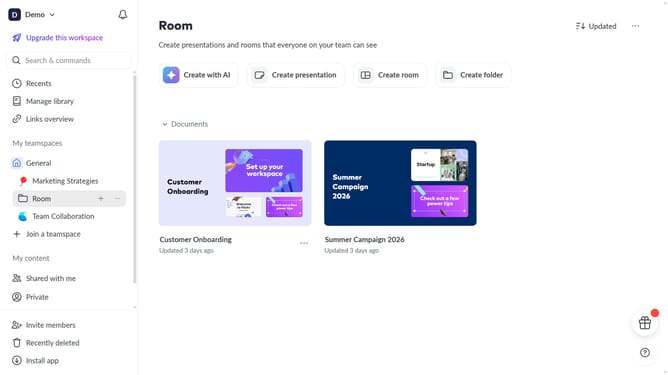
How to add an image using our integrations on Pitch.com
Here is how to add an image using our integrations on pitch.com
- First, click on the "Media" button in the top toolbar
- Then in the left sidebar, select Unsplash for images, Giphy for GIFs, IconSet for icons, Stickers or Brandfetch for logos
- Next click on the image to add it directly to your slide
- Your selected image has been added to your slide using integrations. Place it in your desired location on the slide
- To edit, click on the "More options" (three dots) in the toolbar
- Adjust its size , position, opacity as needed using the design panel
Why should you add an image using our integrations on Pitch.com
Pitch.com is an innovative platform designed to revolutionize how teams create stunning presentations with ease.
The seamless image integration feature on Pitch.com allows users to effortlessly enrich their presentations by adding images from various sources. This functionality empowers users to visually enhance their content, making their storytelling more captivating and engaging.
Integrating images not only clarifies concepts but also keeps the audience's attention, leading to more impactful and memorable presentations.
By simplifying the image addition process, Pitch.com ensures you spend less time on formatting and more on delivering your message effectively.
Last update