How to add an emoji reaction to a chat message in a Zoom meeting
Here is how to add an emoji reaction to a chat message in a zoom meeting
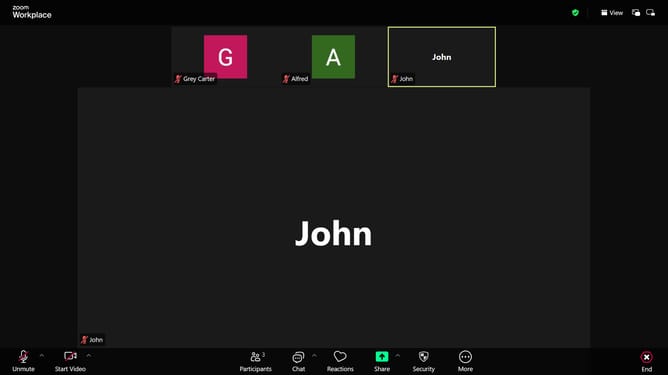
- In a Zoom meeting, click the Chat button in the bottom menu bar to open the chat panel
- Locate the message you want to react to in the Chat panel
- Then hover over the message and click on the emoji icon next the chat message
- Finally choose an emoji from the emoji picker
- Your reaction will appear just below the message for everyone to see
Why should you add an emoji reaction to a chat message in a Zoom meeting
Zoom is a versatile platform designed for seamless virtual communication and connection.
Adding an emoji reaction to a chat message in a Zoom meeting is a simple yet effective way to enhance your interaction. This feature allows users to express themselves quickly and visually, making conversations more engaging and lively.
Using emoji reactions fosters a sense of connection and understanding among participants, creating an interactive environment where feedback and emotions are communicated instantly and effectively.
Last update