Zoom
Zoom is a unified communications platform for video, phone, chat, and webinars. It helps teams connect, collaborate, and boost productivity with powerful, intuitive tools.
Website
Industry
Collaboration
Share this article:

How to turn on line grid in Zoom whiteboard

Here is how to turn on line grid in zoom whiteboard

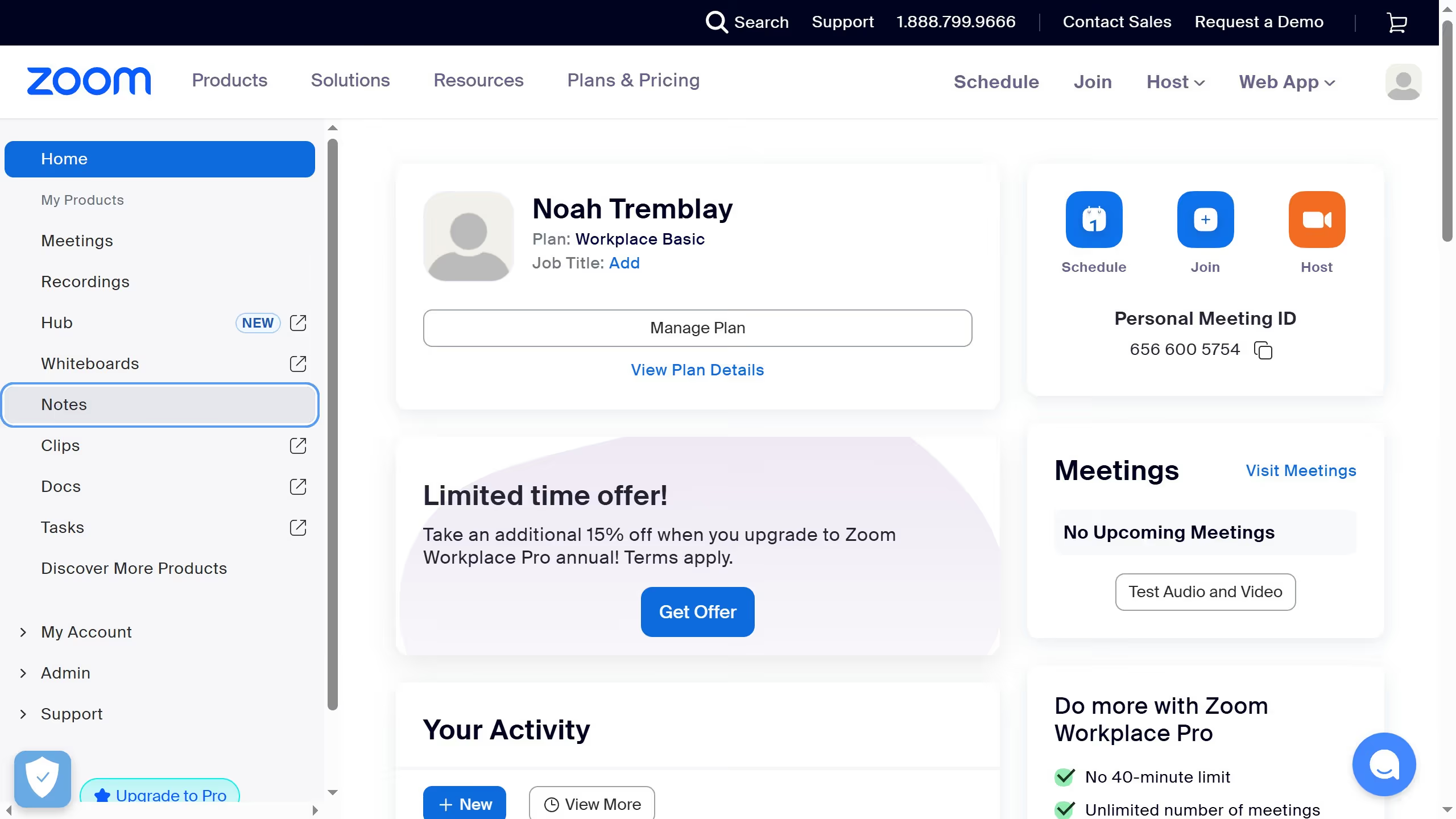
  1. First click on the "Whiteboards" tab in the top navigation menu
  2. Then open the whiteboard where you want to enable the grid
  3. Next click on the "More" button in the whiteboard toolbar
  4. Then click on "View" option in the dropdown menu
  5. Next click on "Grids and guides" submenu item
  6. Finally click on "Line grid" option in the grids menu

Create your own interactive guide with Guideflow

Why should you turn on line grid in Zoom whiteboard

Zoom is a versatile platform that enables seamless virtual communication and collaboration worldwide.

Enabling the line grid feature in the Zoom whiteboard offers structured support to enhance visual organization and presentation clarity.

Having a line grid helps maintain alignment and consistency, essential for precise drawings, notes, and collaborative brainstorming.

It fosters a more polished and professional visual output, which is beneficial in educational settings and professional meetings.


Last update
February 3, 2026
Cursor MariaA cursor points to a button labeled "James."

Create your first demo in less than 30 seconds.