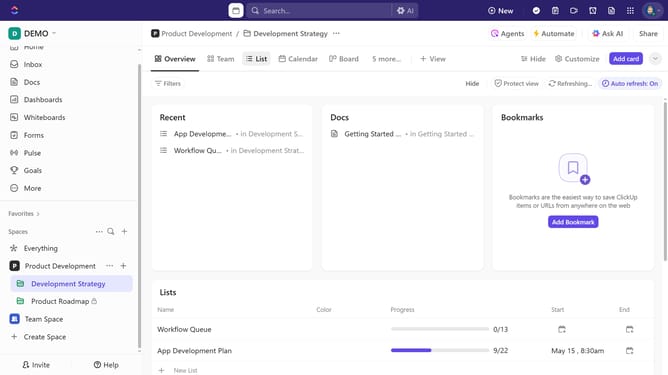
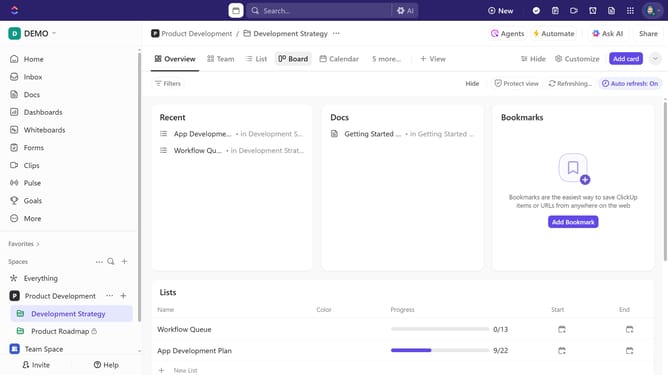
How to start a timer from the toolbar in ClickUp
Here is how to start a timer from the toolbar in clickup
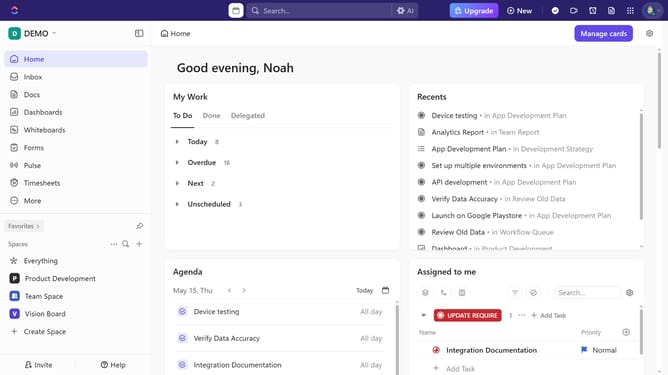
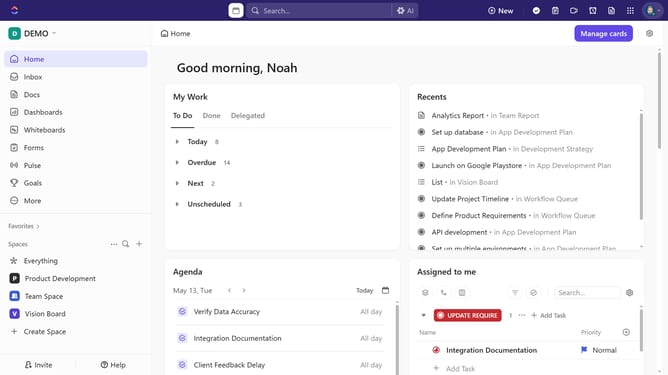
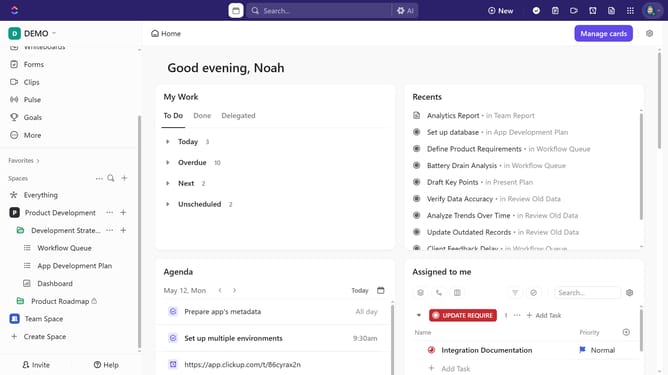
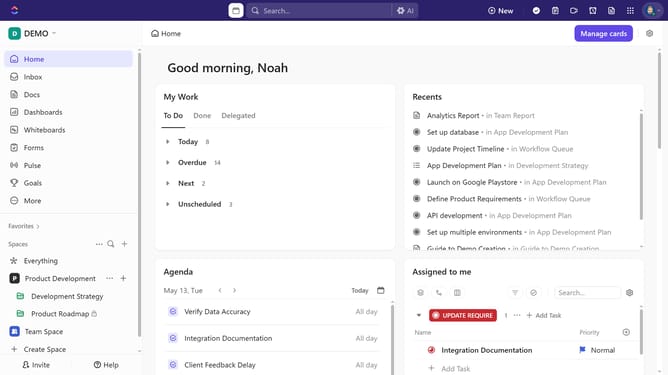
- First click the time tracking icon to open the Track Time modal
- Next click on the "Select task" dropdown in the time tracking panel
- Then, from the task list, select the task where you want to track time
- Finally click on the "start timer" button in the time entry popup
- Stop the timer when you're done, and the tracked time will be saved to the task
Why should you start a timer from the toolbar in ClickUp
ClickUp is an all-in-one productivity platform designed to streamline your work processes.
One standout feature is its ability to start a timer directly from the toolbar. This functionality is incredibly efficient for tracking time spent on tasks, ensuring you remain focused and organized.
Utilizing the timer feature allows for greater accountability and insight into how time is allocated, ultimately boosting productivity and task management.
By simply accessing the toolbar, you can easily integrate time tracking into your workflow, enhancing your project efficiency without any disruption.
Last update