Close
Close is a sales CRM platform for inside sales teams to manage leads, calls, and email outreach.
Website
Industry
Leadgen
Share this article:

How to merge custom fields on Close.com

Here is how to merge custom fields on close.com

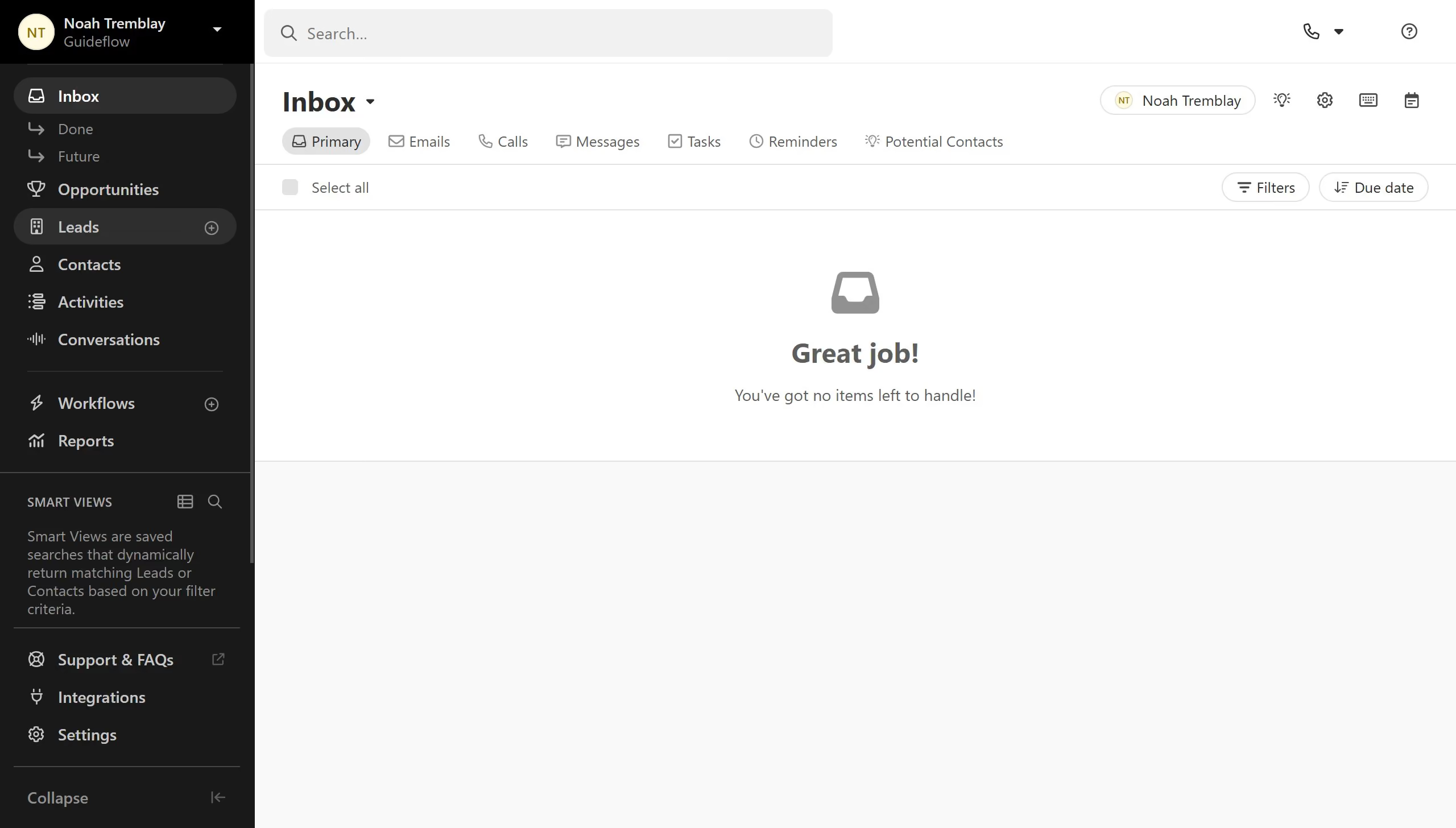
  1. First click on "Settings" menu item in the left sidebar
  2. Then click on "Custom Fields" option in the settings navigation menu
  3. Next click on the three-dot menu button next to the "First Name" field in the custom fields list
  4. Then click on "Merge" option from the dropdown menu
  5. Next set your settings on how you want the fields to be merged
  6. Then click on the "Merge" button to confirm the merge operation
  7. Finally click on the "OK" button to acknowledge the merge completion message

Create your own interactive guide with Guideflow

Why should you merge custom fields on Close.com

Close is a powerful CRM platform designed to help streamline your sales process effortlessly.

One of its standout features is the ability to merge custom fields, which offers a seamless way to consolidate data for more effective management. By merging custom fields, you can ensure your information stays organized and relevant, enhancing team productivity and ensuring data integrity.

This feature allows you to customize your CRM to reflect the unique needs of your business, promoting a more tailored approach to client relationships and communication.

Last update
May 6, 2026
Cursor MariaA cursor points to a button labeled "James."

Create your first demo in less than 30 seconds.