SurveyMonkey
SurveyMonkey is an online survey and feedback collection platform for customer insights.
Website
Industry
Marketing
Share this article:

How to mark comments as resolved in shared data views in SurveyMonkey

Here is how to mark comments as resolved in shared data views in surveymonkey

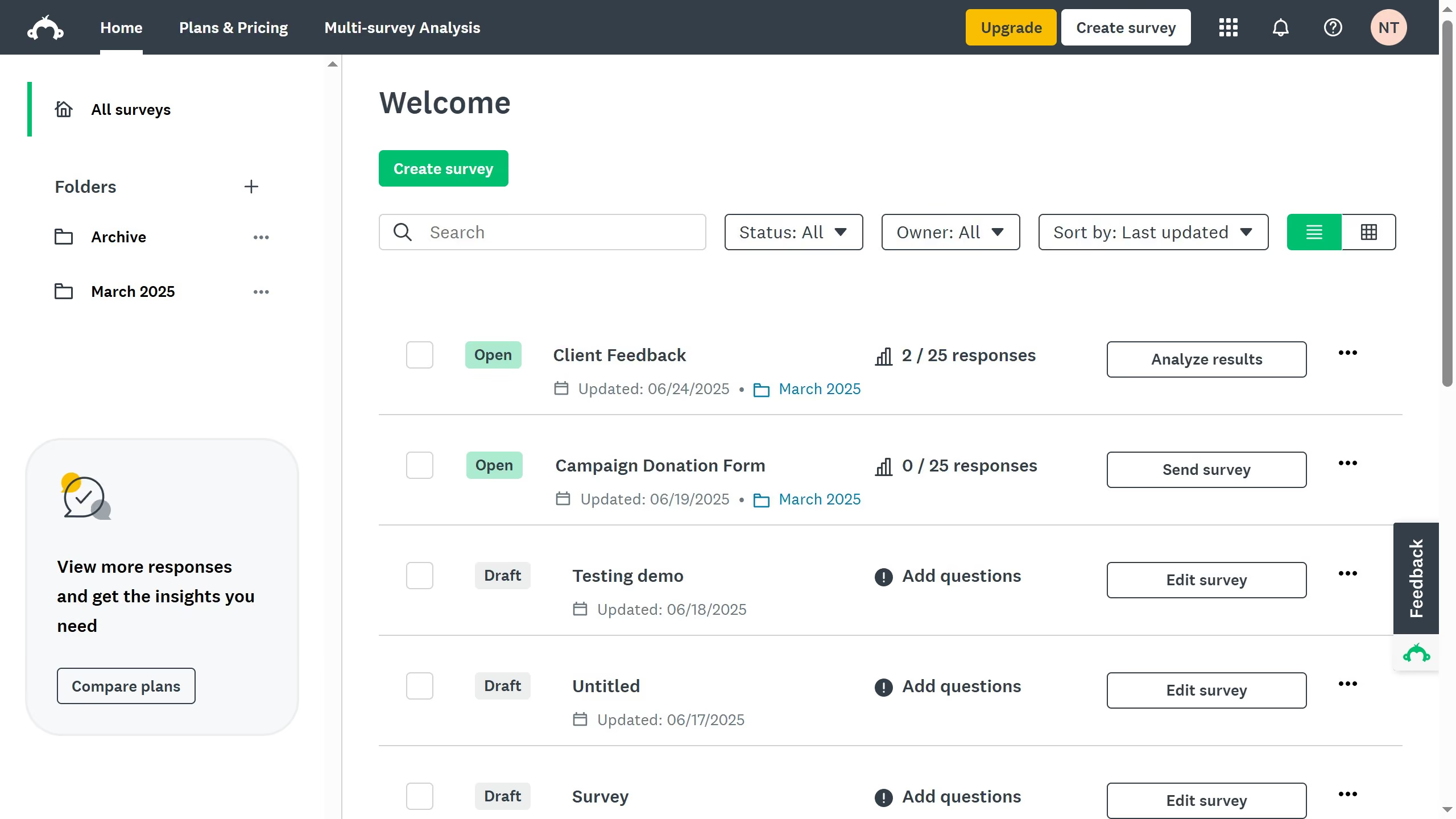
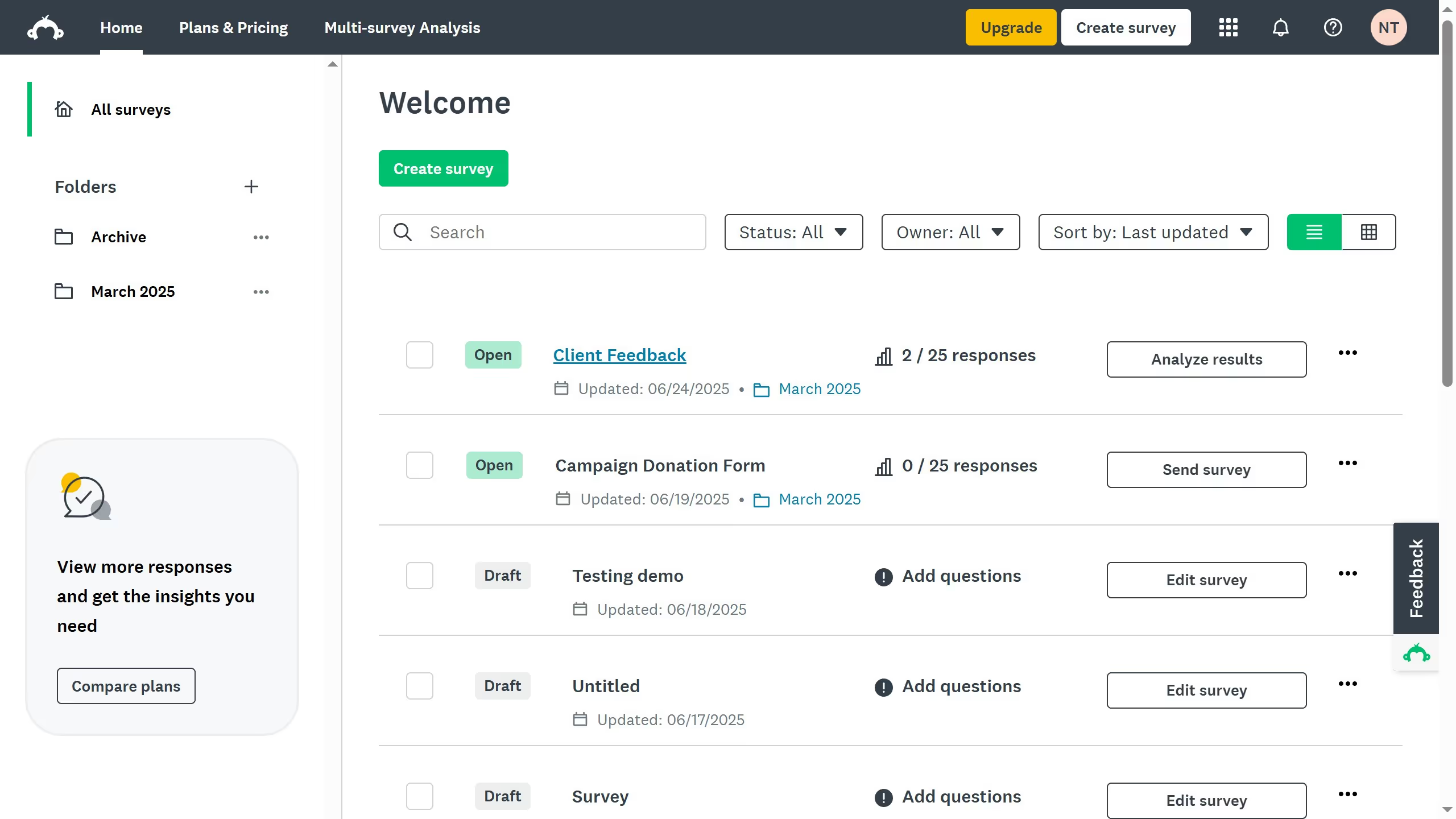
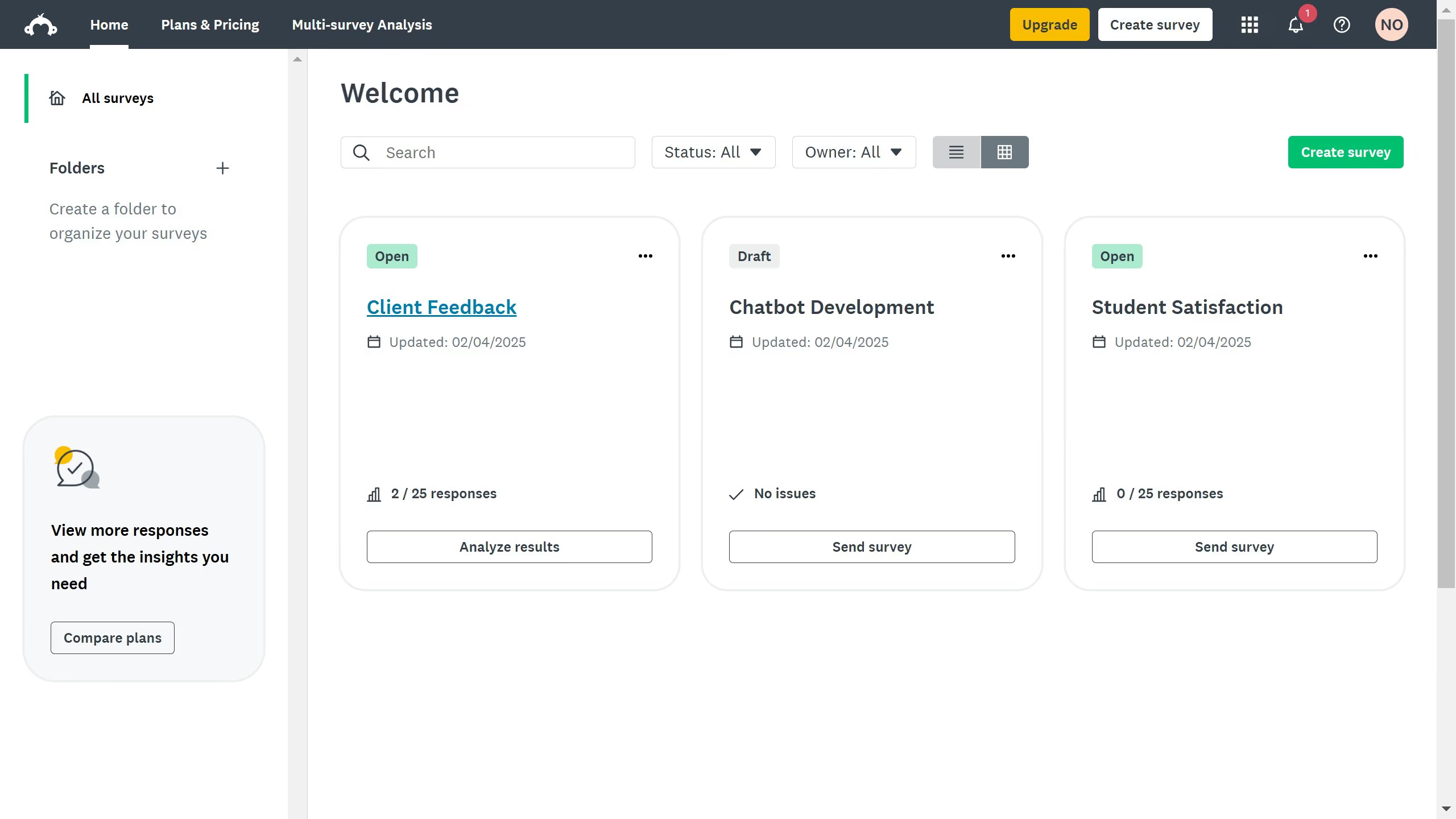
  1. First click the survey you want to edit from the survey list
  2. Then click on "ANALYZE RESULTS" tab in the survey navigation menu
  3. Next click on "Shared data" button in the analysis toolbar
  4. Click on the comment icon next to the shared data link
  5. Then click on the comment icon in the top right corner of the question with a comment
  6. Finally click the "Unresolved" button next to the comment to mark it as resolved

Create your own interactive guide with Guideflow

Why should you mark comments as resolved in shared data views in SurveyMonkey

SurveyMonkey is a powerful online tool that allows individuals and organizations to gather and analyze feedback quickly and efficiently.

Marking comments as resolved in shared data views in SurveyMonkey fosters efficient collaboration among team members by keeping track of which feedback has been addressed.

This feature enhances productivity by ensuring that team discussions remain organized, preventing the unnecessary revisiting of addressed topics, and facilitating a smoother workflow.

Ultimately, it streamlines the feedback process, ensuring every participant remains on the same page.


Last update
June 23, 2026
Cursor MariaA cursor points to a button labeled "James."

Create your first demo in less than 30 seconds.