How to manually add unsubscribe group recipients in Sendgrid
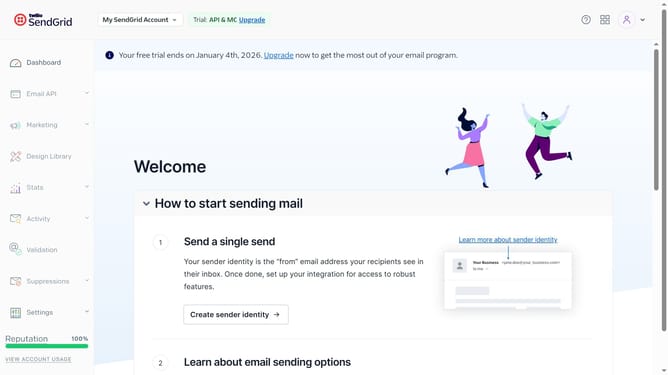
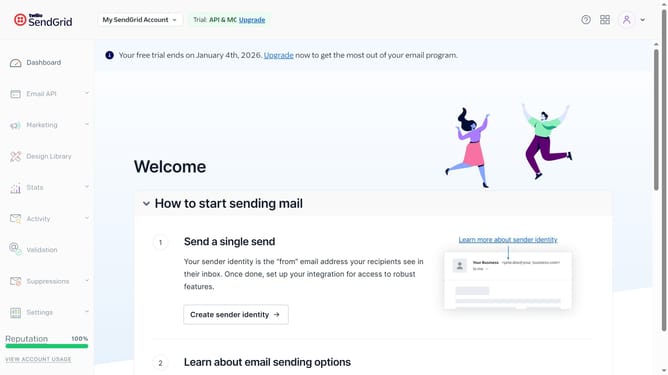
Here is how to manually add unsubscribe group recipients in sendgrid
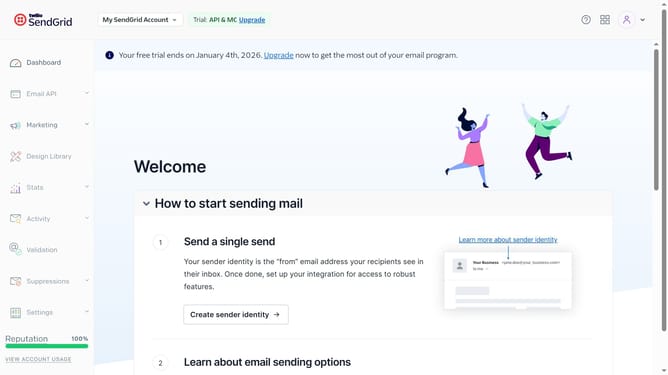
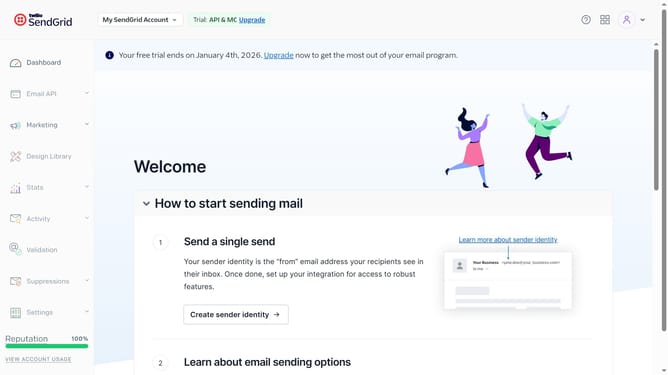
- First click on the "Marketing" dropdown in the left sidebar
- Next click on "Unsubscribe Groups" option in the Marketing submenu
- Locate the unsubscribe group you want to add recipients to
- Click on the menu button (three dots)
- Select "Manually Add" option in the dropdown menu
- Then enter the email address of the contact you want to add to this unsubscribe group
- Finally click the "Save" button to confirm
- The selected email address is now marked as unsubscribed for this group
Why should you manually add unsubscribe group recipients in Sendgrid
SendGrid is a dynamic cloud-based platform that empowers businesses by managing and delivering their email communications effectively.
Manually adding recipients to unsubscribe groups in SendGrid ensures your email list stays compliant with user preferences.
This feature allows you to respect recipients’ wishes by preventing any unwanted emails, thus enhancing customer satisfaction and maintaining a positive brand perception.
Employing this function not only upholds the integrity of your contact list but also improves overall deliverability rates by reducing complaints and spam reports.
Last update