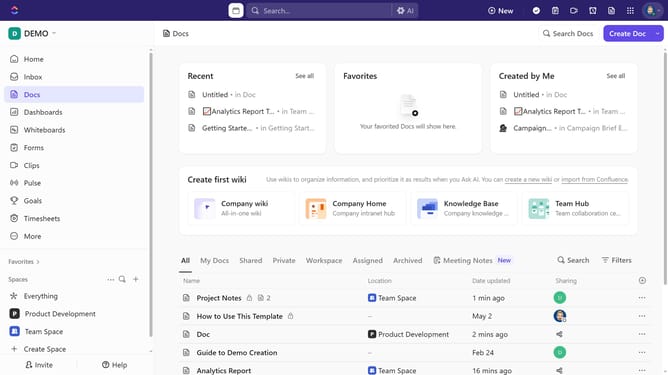
How to enable time tracking in ClickUp
Here is how to enable time tracking in clickup
- First click on the Workspace Avatar in the top left corner
- Next click on "App Center" option in the workspace dropdown menu
- In the App center, click on "All ClickApps" in the left sidebar under CLICKAPPS section
- Search for "Time Tracking" in the ClickApps list
- Then toggle the "Time Tracking" ClickApp ON to activate it
- Next, click the "Enable in" dropdown menu to choose where time tracking should be available
- Select the spaces by clicking the checkboxes next to them
- Finally, check the "Default new time entries to billable" checkbox based on your needs
Why should you enable time tracking in ClickUp
ClickUp is a versatile project management tool designed to streamline workflows and enhance productivity.
Enabling time tracking in ClickUp is an intuitive feature that allows users to monitor the time spent on various tasks effortlessly.
This capability provides valuable insights, aiding in accurate project estimations and improved time management.
By keeping track of time, teams can increase efficiency, make data-driven decisions, and achieve their goals effectively.
Last update