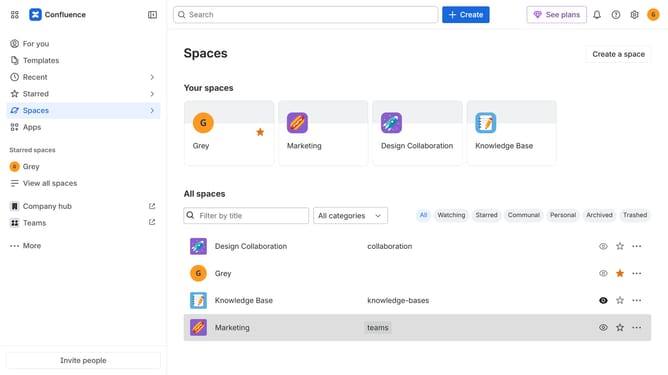
How to customize the header and footer in Confluence
Here is how to customize the header and footer in confluence
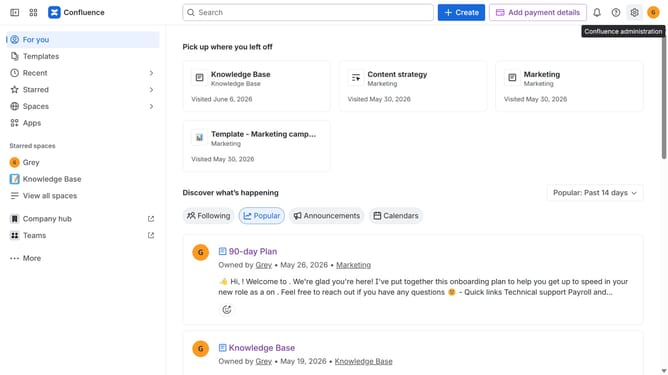
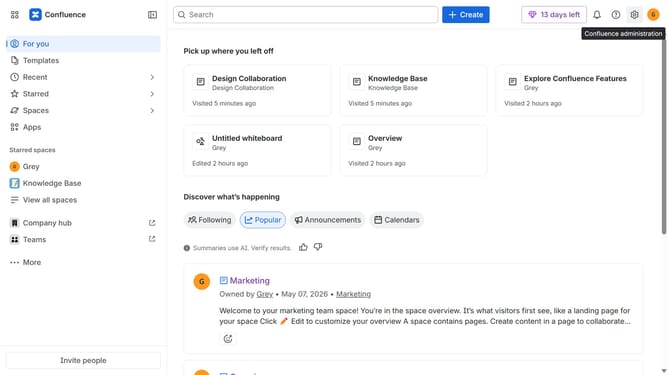
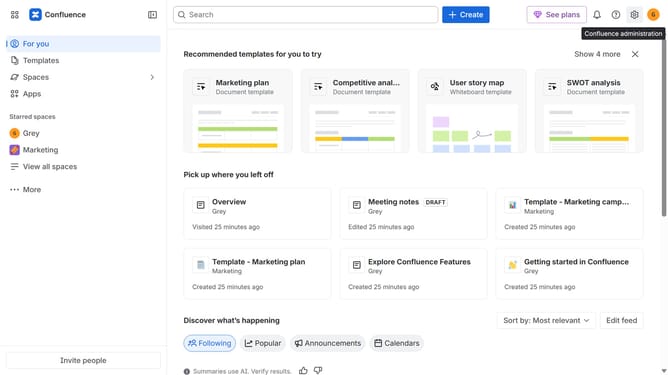
- First, click on the gear icon in the header to open Confluence administration
- Click on "Look and feel" in the settings menu
- Next click on "Header and footer" in the submenu
- In the "Header" text box, enter the content you want to display at the top of every page
- Then, in the "Footer" text box, enter the content you want to display at the bottom of every page
- Optionally, use wiki markup to add text, links, macros, or images
- Finally click on the "Save" button to confirm
Why should you customize the header and footer in Confluence
Confluence is a powerful collaboration tool designed to enhance knowledge sharing and teamwork.
The ability to customize the header and footer in Confluence allows users to tailor their workspace with a unique look and feel, reinforcing brand identity and visual consistency. By personalizing these elements, teams can ensure that important information, such as contact details or navigation links, is easily accessible across all pages.
This feature enhances user experience by making the workspace more intuitive and streamlined, ultimately supporting productivity and collaboration. In essence, customizing headers and footers not only caters to aesthetic preferences but also strengthens organizational communication.
Last update