How to connect two elements on a flowchart in Zoom Docs
Here is how to connect two elements on a flowchart in zoom docs
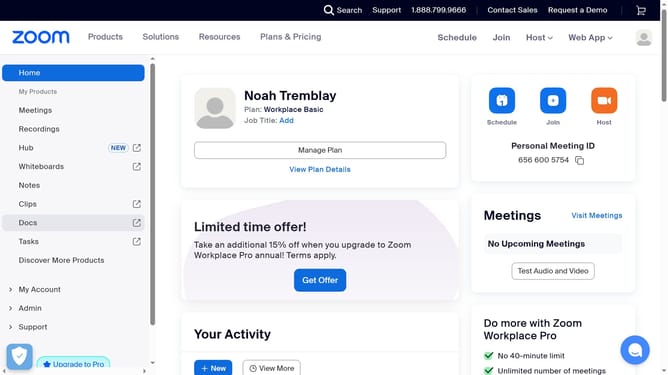
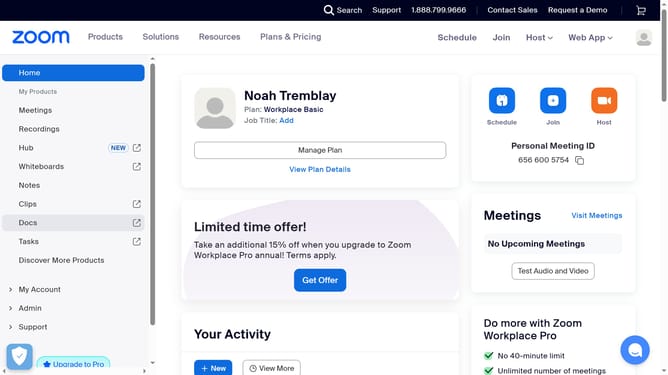
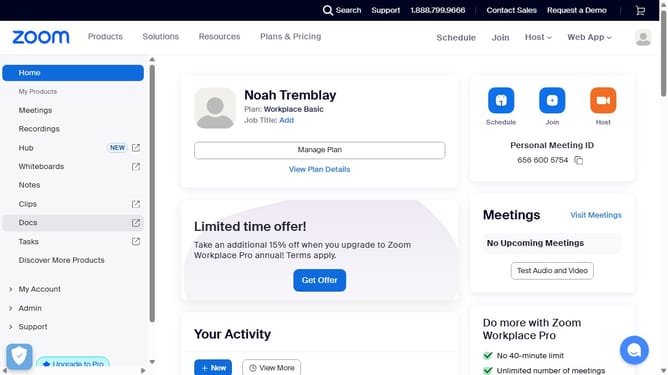
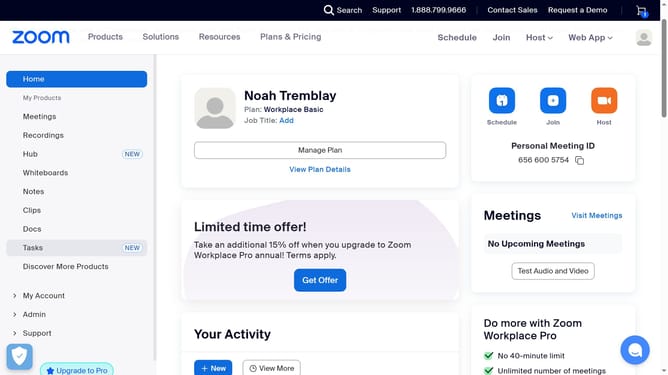
- First click on the "Docs" item in the left sidebar menu
- Then open the document containing the flowchart you want to edit
- Next click the flowchart to select it
- Click the "Edit" button in the top toolbar to enter edit mode
- Select the "Line" tool from the left toolbar
- Click the "Elbowed arrow" option from the line style submenu
- Click the first element box to start drawing the connection
- Finally drag the line to the second element to complete the connection
Why should you connect two elements on a flowchart in Zoom Docs
Zoom is the go-to platform for seamless virtual communication and collaboration.
Connecting two elements on a flowchart in Zoom Docs enhances your document's clarity and functionality, making complex processes easy to visualize.
This feature streamlines information flow, helping teams align their understanding and decisions.
By simplifying the way data is presented, Zoom Docs elevates your productivity, ensuring everyone remains on the same page.
Last update