How to configure context window size for DeepSeek chat provider in n8n
Here is how to configure context window size for deepseek chat provider in n8n
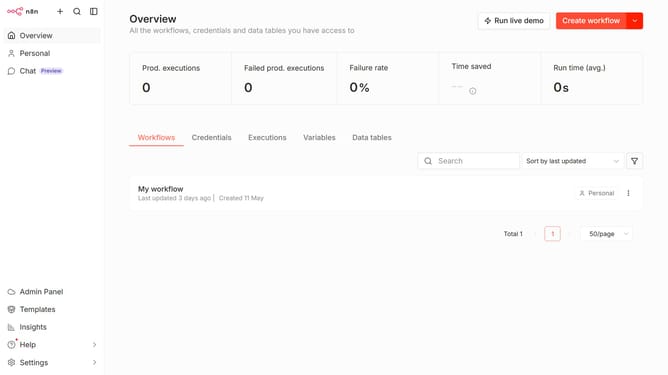
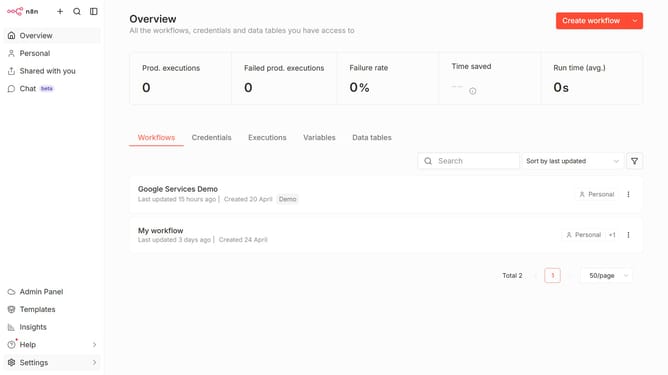
- First click on "Settings" item in the left sidebar
- Then click on "Chat" item from the expanded left sidebar menu
- Then click on the ellipsis button on the right side of Deepseek
- Then click on "Edit provider" button
- Then input the desired amount into the "Context window (messages)" input field
- Finally click on the "Confirm" button
Why should you configure context window size for DeepSeek chat provider in n8n
n8n is an innovative workflow automation tool designed to connect various apps and services seamlessly.
By configuring the context window size for the DeepSeek chat provider within n8n, users can fine-tune the amount of previous conversation history used to inform current interactions.
This feature ensures that chatbots deliver more accurate and contextually relevant responses, enhancing user experience.
Adjusting the context window size is particularly beneficial for dynamic environments where understanding previous exchanges is crucial for meaningful communication.
Last update