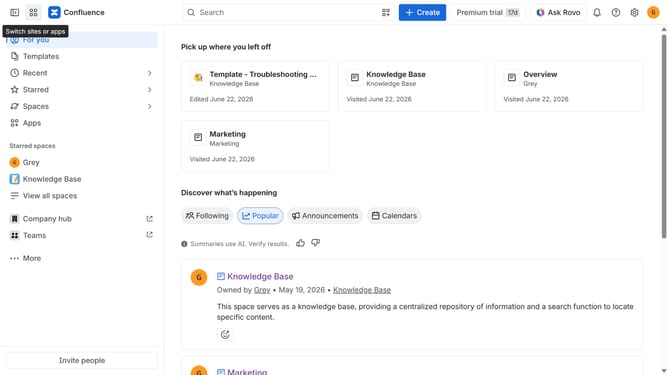
How to change the user role used by Company Hub access defaults in Confluence
Here is how to change the user role used by company hub access defaults in confluence
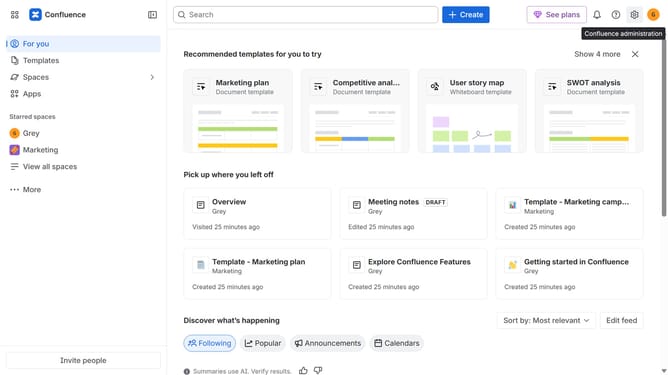
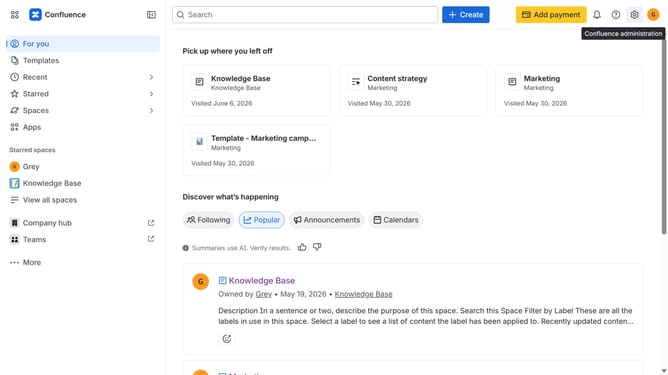
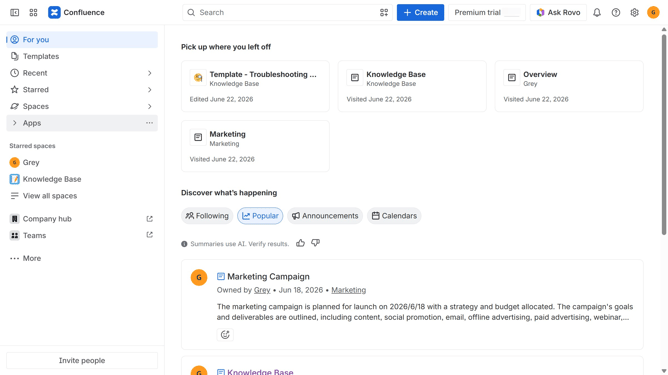
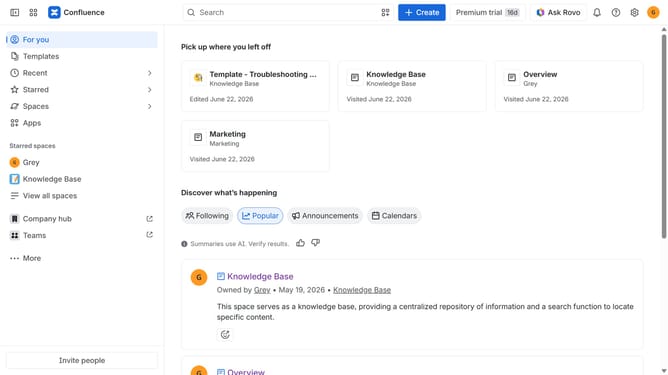
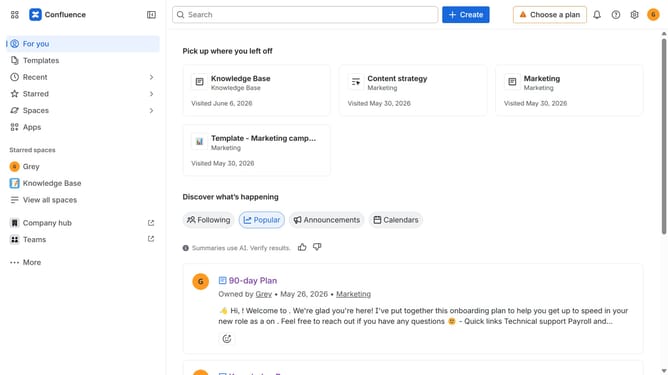
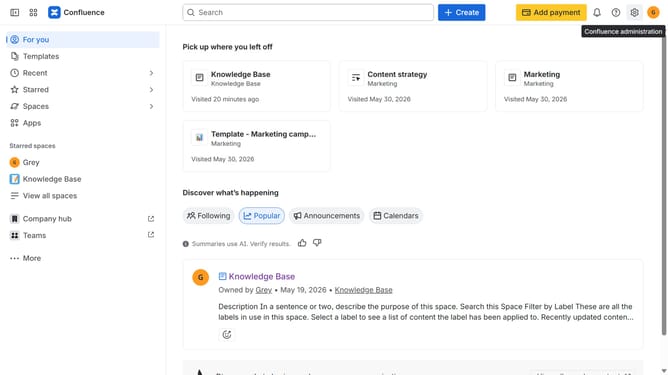
- First click on the settings icon in the top right corner to open confluence administration
- In the sidebar, click on "Permissions"
- Next, click on "System operations" in the submenu
- Locate the "Company Hub access defaults" system operation for All Confluence users
- After that, click on the role dropdown next to it
- Then, select the new role you want to use from the dropdown menu
- Finally click on the "Change role" button to confirm
Why should you change the user role used by Company Hub access defaults in Confluence
Confluence is a dynamic collaboration platform designed to enhance team communication and project management.
Changing the user role used by Company Hub access defaults in Confluence is a feature that allows for tailored access control, ensuring that team members have the appropriate level of access to information. This feature enhances security by allowing administrators to easily adjust permissions as team dynamics evolve.
Utilizing this capability ensures efficient workflow by granting the right access to the right teammates. By fine-tuning user roles, companies can maintain organized information flow, maximizing productivity and collaboration.
Last update