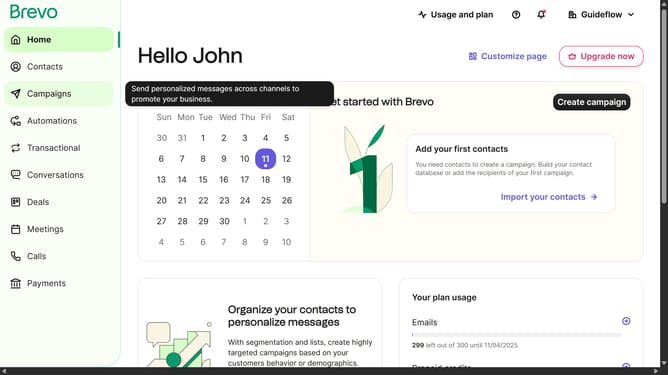
How to bring in contacts from your computer to Brevo
Here is how to bring in contacts from your computer to brevo
- In the left sidebar, click on the "Contacts" menu item
- In the top right corner, click the "Import contacts" button
- In the import dialog, click on the "Contacts" card option
- Click the "Continue" button to proceed with contact import
- Click the "Import from a file" option
- Click on the file upload area to select your contacts file
- After uploading the file, click the "Confirm your file" button
- Click on the dropdown menu in the "CONTACT ATTRIBUTE" column
- From the dropdown menu, select "CONTACT ID - Number" option
- Click the "Confirm mapping" button at the bottom of the mapping screen
- Click on the checkbox next to the "Contacts" list in the Example folder
- Next click the "Confirm your list" button to confirm the list to put your contacts
- Click the checkbox to confirm agreement with the import conditions
- Finally, click the "Confirm your import" button to complete the process
Why should you bring in contacts from your computer to Brevo
Brevo is an intuitive platform designed to streamline your communication needs.
Effortlessly bringing in contacts from your computer to Brevo not only saves time, but also consolidates your contact list in one easily accessible place.
By centralizing contacts, you enhance the efficiency of your outreach while reducing the likelihood of errors and miscommunications.
This seamless integration allows you to focus more on meaningful interactions rather than administrative tasks, thus optimizing your productivity.
Last update