Linkedin
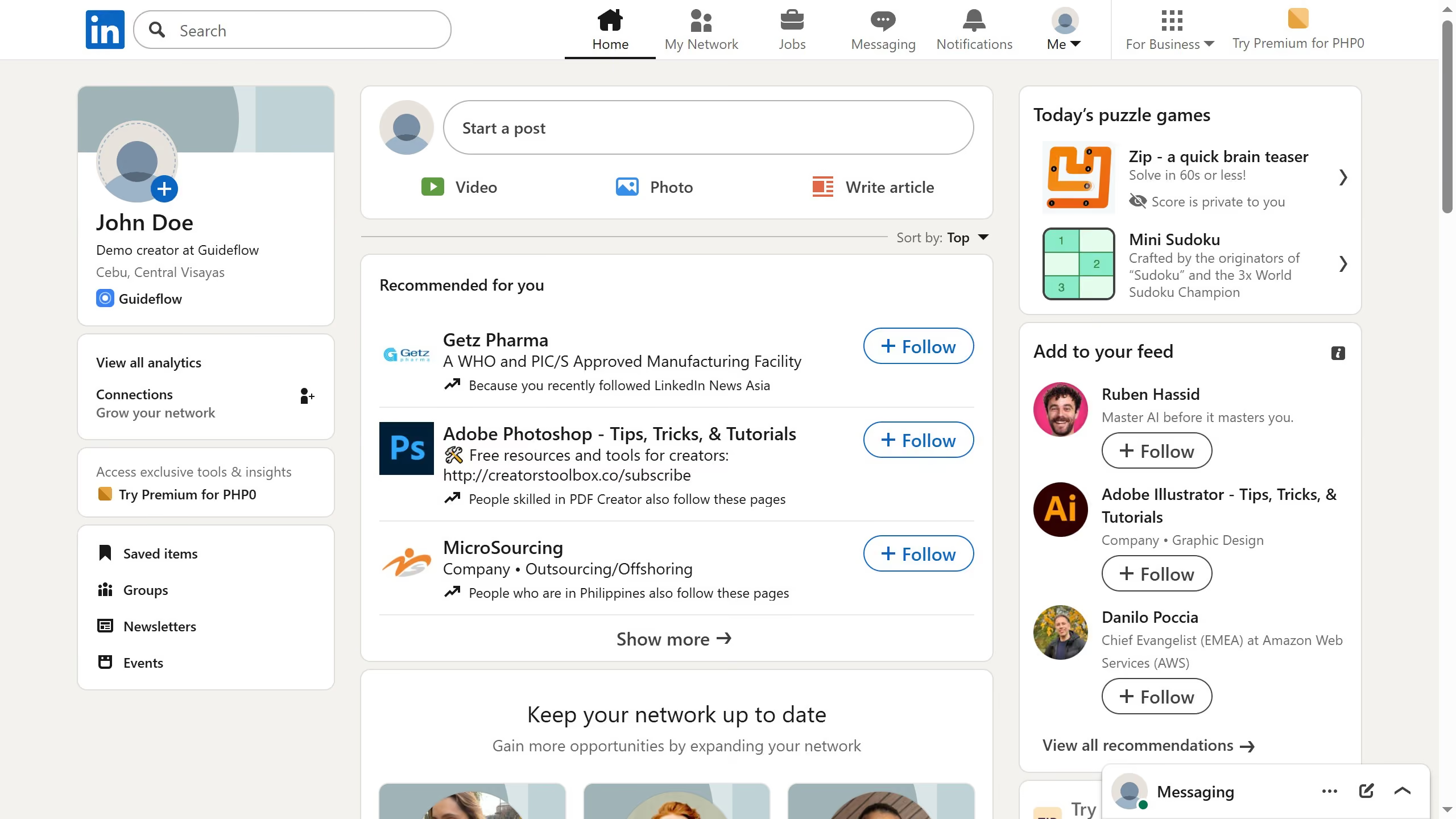
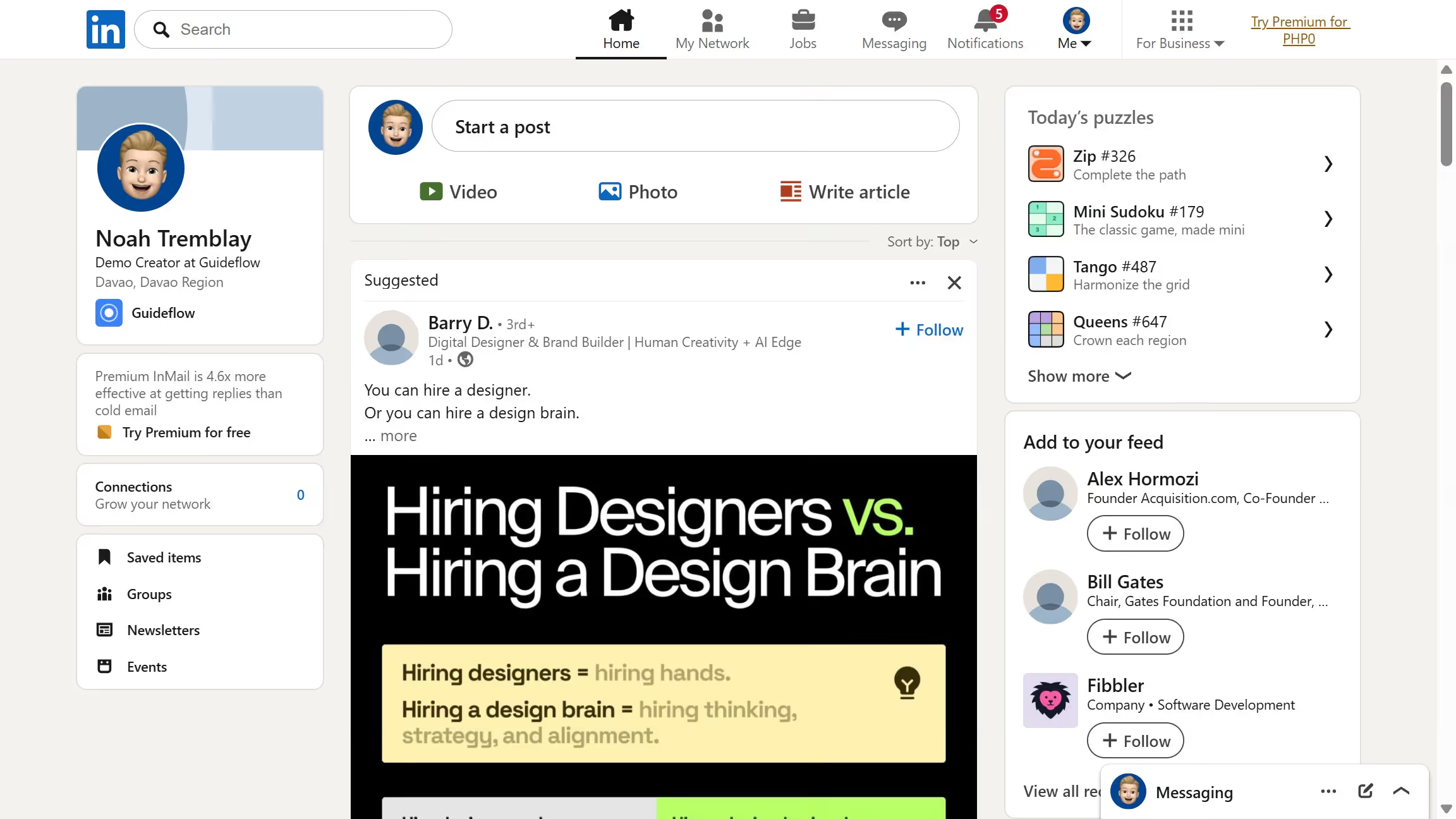
LinkedIn is a professional networking platform that helps individuals and businesses connect, share opportunities, and grow careers. It offers tools for recruiting, marketing, sales, and learning, with over 1 billion members worldwide, including executives from every Fortune 500 company.
Website
Industry
Leadgen
Share this article:

How to turn off push trending conversations notifications on LinkedIn

Here is how to turn off push trending conversations notifications on linkedin

  1. First click on "Me" button in the top navigation menu
  2. Then click on "Settings & Privacy" option in the dropdown menu
  3. Next click on "Notifications" option in the left sidebar
  4. Then click on "Posting and commenting" option in the main content area
  5. Next click on "Trending conversations" option in the notification settings list
  6. Finally click on the "Push notifications" toggle switch to turn it off

Create your own interactive guide with Guideflow

Why should you turn off push trending conversations notifications on LinkedIn

LinkedIn is a professional networking platform designed to connect business professionals around the globe.

Managing notifications effectively can significantly enhance your LinkedIn experience. The feature to turn off push trending conversations notifications allows users to customize their notification settings.

By choosing to disable these alerts, users can maintain focus on essential updates that are most relevant to them, leading to a more personalized, streamlined feed.

This results in a refined and efficient professional network interaction, saving you time and enhancing productivity.


Last update
March 16, 2026
Cursor MariaA cursor points to a button labeled "James."

Create your first demo in less than 30 seconds.