How to turn off in-app comments and reactions notifications on LinkedIn
Here is how to turn off in-app comments and reactions notifications on linkedin
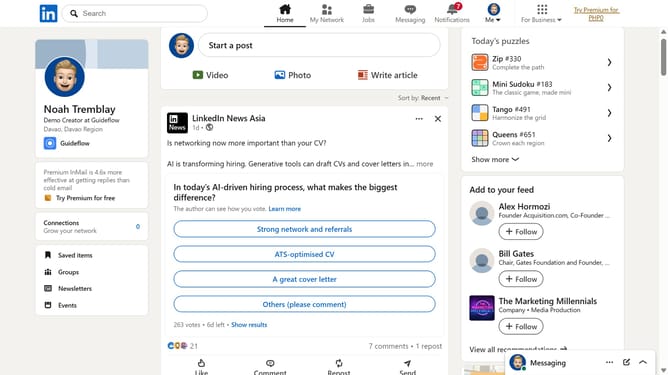
- First click on "Me" dropdown menu in the top navigation bar
- Then click on "Settings & Privacy" option from the dropdown menu
- Next click on "Notifications" option in the left sidebar
- Then click on "Posting and commenting" option in the main content area
- Next click on "Comments and reactions" option in the notification settings list
- Finally toggle the "In-app notifications" switch to turn it off
Why should you turn off in-app comments and reactions notifications on LinkedIn
LinkedIn is the premier platform for professional networking and career opportunities.
You can enhance your focus by turning off in-app comments and reactions notifications on LinkedIn, allowing you to manage notifications and attend to more pressing tasks without distraction.
This feature is beneficial for streamlining your LinkedIn experience, ensuring that your interactions remain meaningful and productive rather than overwhelming.
Ultimately, by tailoring your notification settings, you can maintain a clutter-free environment conducive to achieving your professional goals.
Last update