How to set an expiration period for shared email links in Mixmax
Here is how to set an expiration period for shared email links in mixmax
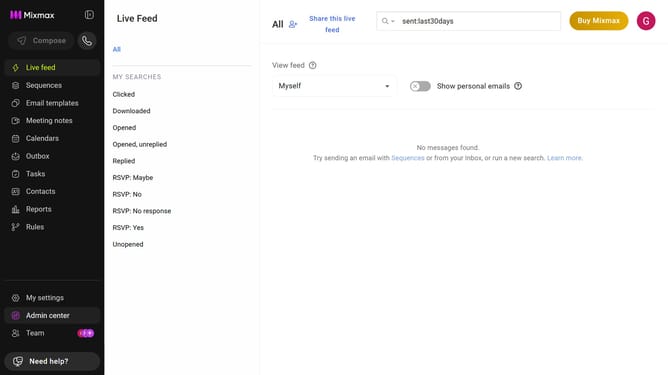
- First, click on "Admin center" in the sidebar menu
- In the sidebar, click on "Roles"
- Next click on the "Mixmax" tab
- Locate the "Shared Emails" section
- Then, select the input field to set the expiration period
- Finally enter your preferred duration
Why should you set an expiration period for shared email links in Mixmax
Mixmax is a powerful email productivity platform designed to enhance communication and streamline workflows.
Setting an expiration period for shared email links in Mixmax offers remarkable control over how long sensitive information remains accessible, ensuring administrative oversight and heightened security.
This feature is particularly beneficial for maintaining data privacy by automatically limiting access to shared resources, contributing to a safer communication environment.
By using Mixmax's expiration settings, users can confidently share links knowing they will self-destruct after a designated time, fostering compliance and bolstering trust with recipients.
Last update