How to disable push event attendee updates notifications on LinkedIn
Here is how to disable push event attendee updates notifications on linkedin
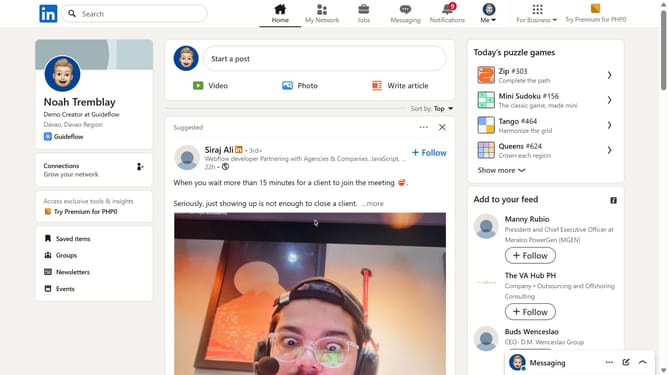
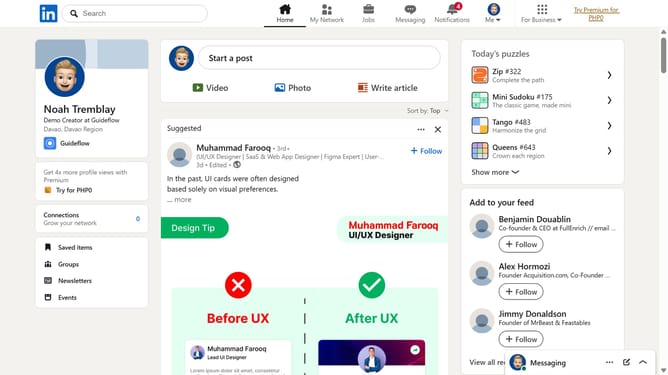
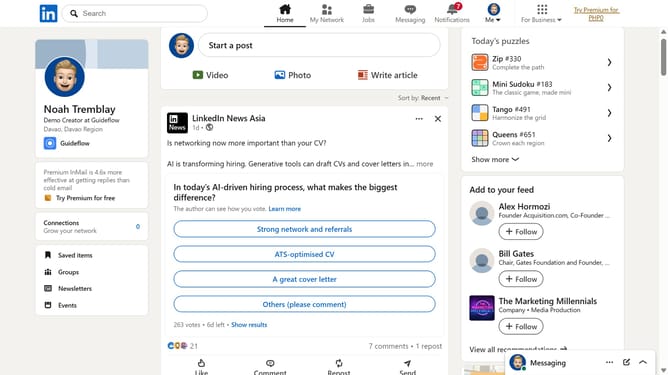
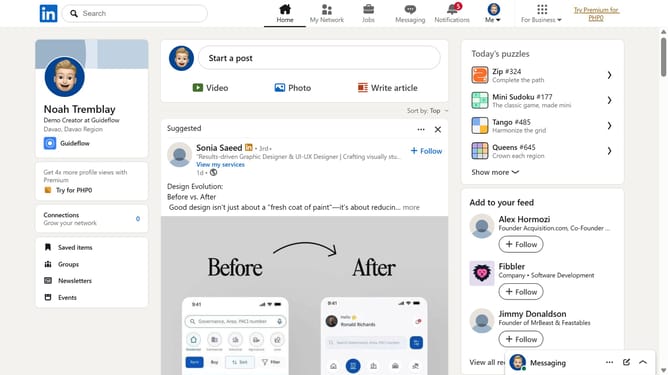
- First click on the "Me" dropdown menu in the top navigation bar
- Then click on "Settings & Privacy" option in the dropdown menu
- Next click on "Notifications" section in the left sidebar
- Then click on "Attending events" option in the main content area
- Next click on "Event attendee updates" option in the notifications list
- Finally click on the "Push notifications" toggle switch to turn it off
Why should you disable push event attendee updates notifications on LinkedIn
LinkedIn is the premier platform for professional networking and career development.
Disabling push event attendee updates notifications on LinkedIn can streamline your experience, allowing you to maintain focus without the constant influx of alerts.
This feature provides users the ability to tailor their notification settings, emphasizing priorities while minimizing distractions.
By customizing alerts, professionals can engage with content that truly matters, enhancing productivity and staying informed on their own terms.
Last update