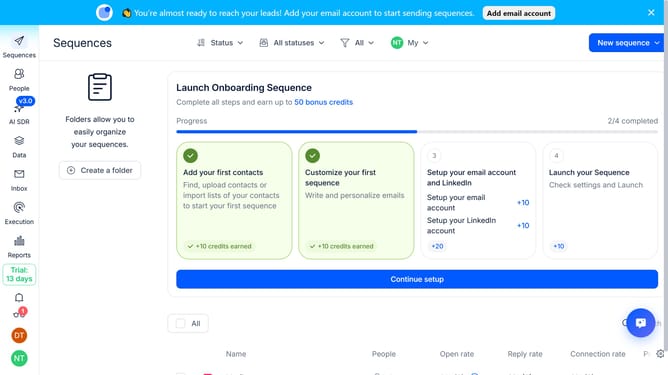
How to disable plain text mode in Reply
Here is how to disable plain text mode in reply
- First click on the user profile icon in the bottom left of the screen
- Then click on "Settings" in the user profile dropdown menu
- Next, click on the "Emails" option in the left sidebar menu
- Then click on the dropdown button next to the "Default tracking" option
- Next, switch off the "Plain text mode" option
- Then, click on the "Save settings"
- Finally, click on the "Confirm" button to save your changes
Why should you How to disable plain text mode in Reply
Reply.io is a powerful sales engagement platform designed to streamline communication and boost productivity.
Disabling plain text mode in Reply allows for richer email formatting, enabling you to create visually appealing and engaging messages. By using HTML formatting, you can enhance the look and feel of your emails with elements like images, links, and styled text.
This feature can help capture your audience's attention more effectively, making your communications not only professional but also more memorable. Enhance your outreach with dynamic and impactful content by switching off plain text mode in Reply.
Last update