How to add contacts to an unsubscribe group in Sendgrid
Here is how to add contacts to an unsubscribe group in sendgrid
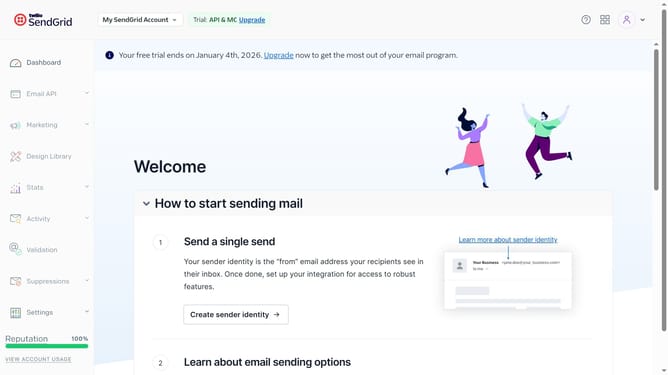
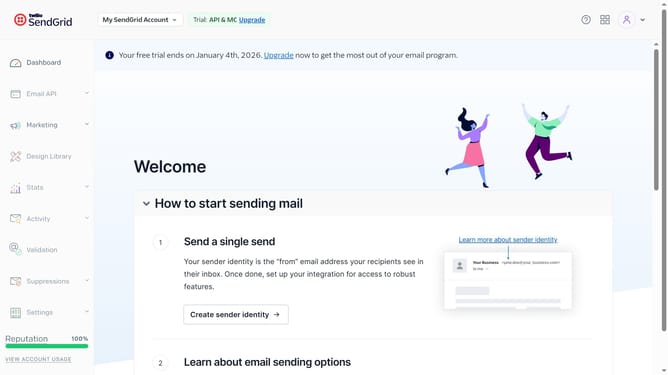
- First click on the "Marketing" dropdown in the left sidebar
- Next click on "Unsubscribe Groups" option in the Marketing submenu
- Locate the unsubscribe group you want to add recipients to
- Click on the menu button (three dots)
- Select "Manually Add" option in the dropdown menu
- Then enter the email address of the contact you want to add to this unsubscribe group
- Finally click the "Save" button to confirm
- The selected email address is now marked as unsubscribed for this group
Why should you add contacts to an unsubscribe group in Sendgrid
SendGrid is a powerful platform for optimizing your email communication and delivering successful marketing campaigns.
One of its key features is the ability to add contacts to an unsubscribe group seamlessly, ensuring your email list remains targeted and compliant. This feature helps in managing recipient preferences efficiently and enhances user experience by respecting their choice to discontinue certain email streams.
Implementing this feature not only boosts your email engagement by targeting genuinely interested recipients, but also protects your sender reputation by reducing spam complaints, allowing your email outreach to maintain a healthy status.
Last update