How to unarchive a chat in ChatGPT
Here is how to unarchive a chat in chatgpt
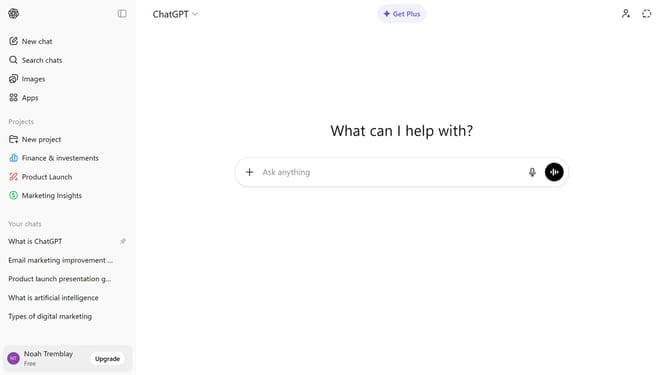
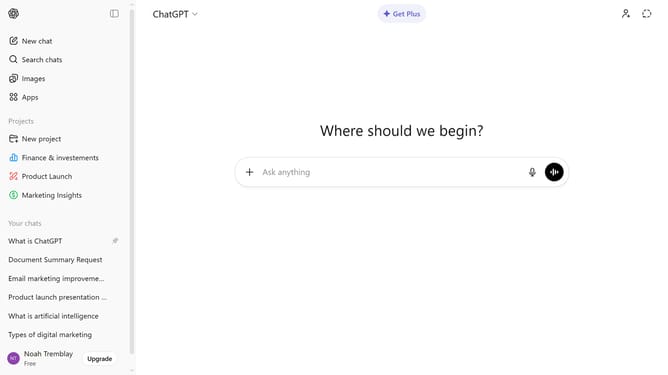
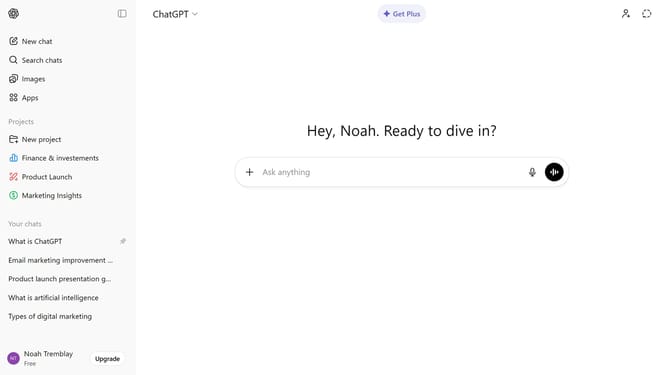
- First click on your profile section in the bottom left corner of the sidebar
- Next click on "Settings" option in the expanded user menu
- Click on "Data controls" option in the settings sidebar menu
- Click on "Manage" button next to "Archived chats" in the Data controls section
- Then locate the chat you want to unarchive
- Finally click on the unarchive icon button to restore the conversation
- The chat will now be restored to your active chat list
Why should you unarchive a chat in ChatGPT
ChatGPT is an advanced AI designed to enhance interactive communication and information retrieval.
Unarchiving a chat in ChatGPT enables users to effortlessly access past conversations, ensuring that valuable information is always within reach.
This feature is particularly beneficial for those who frequently revisit discussions for reference or decision-making, providing continuity and context.
Ultimately, it enhances productivity by keeping important data readily available without cluttering the current chat flow.
Last update