How to add a start date from Task view in ClickUp
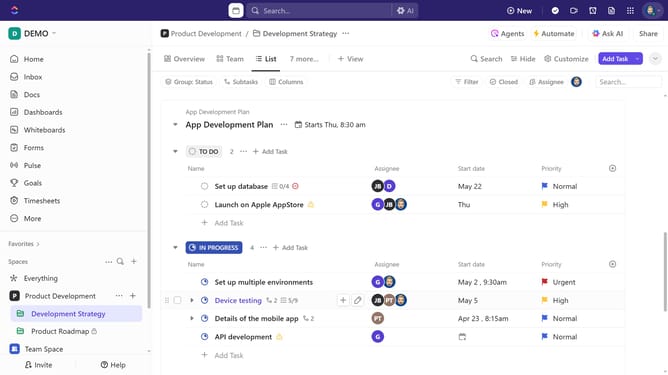
Here is how to add a start date from task view in clickup
- First find and click the task for which you want to set a start date
- Next click on the "Dates" field in the task details
- Click on "Start date" field in the date picker popup
- Then select a start date from the date picker
- To add a specific time, click "Add time"
- Select your preferred time from the dropdown menu
- Optionally, set a due date if needed
Why should you add a start date from Task view in ClickUp
ClickUp is a comprehensive project management tool designed to streamline workflows and enhance productivity for teams of all sizes.
One of its standout features is the ability to add a start date directly from the Task view. This allows users to set timelines with precision, ensuring that every task begins exactly when needed.
Utilizing start dates in ClickUp helps in better resource allocation and time management. It aids in maintaining project momentum by providing clear, actionable timelines, ultimately leading to more organized and efficient project execution.
Last update