Monday.com
Monday.com is a work operating system that helps teams plan, track, and deliver work with customizable workflows and collaboration features.
Website
Industry
Collaboration
Share this article:

How to manage dashboard permissions in Monday.com

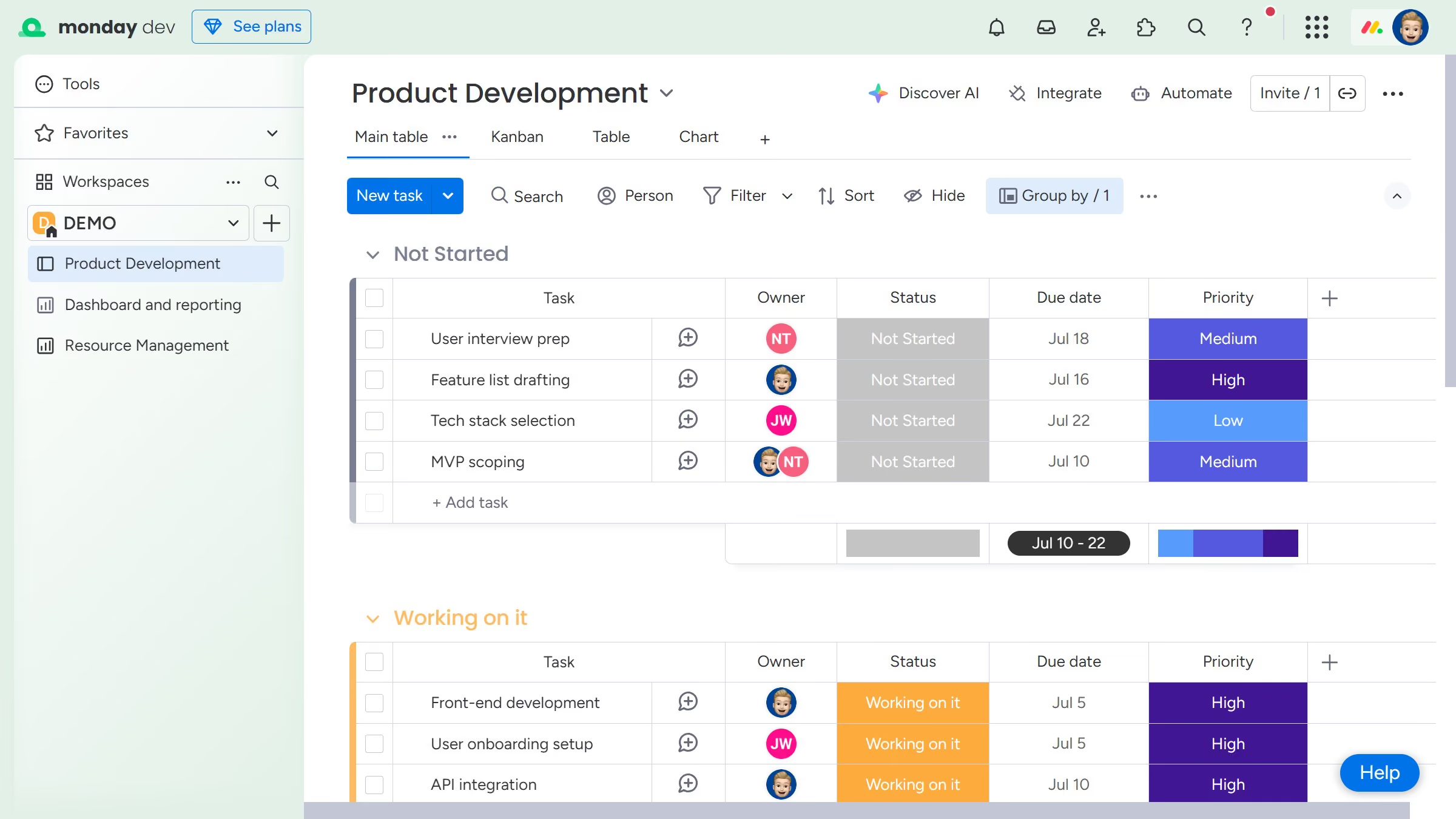
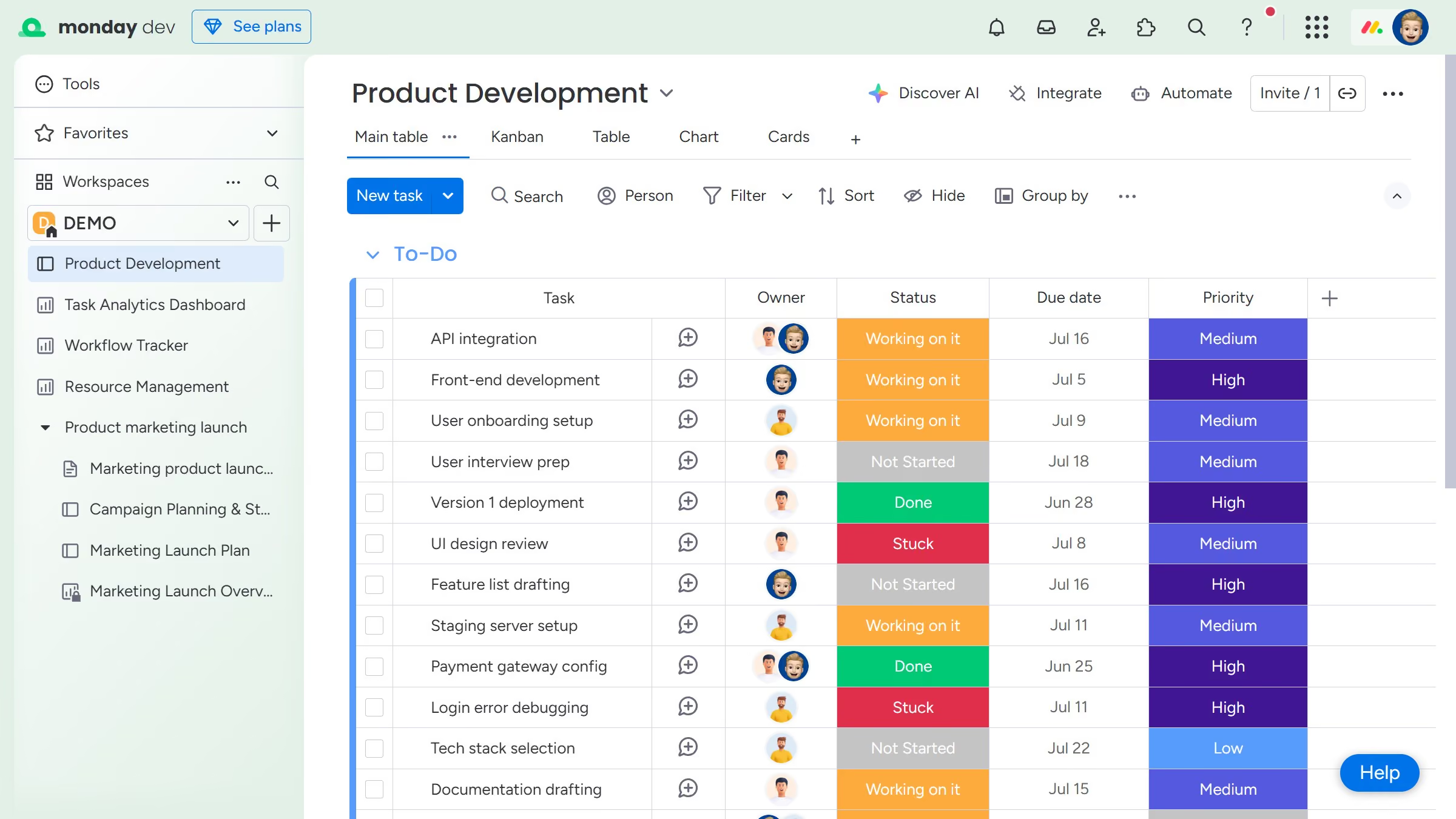
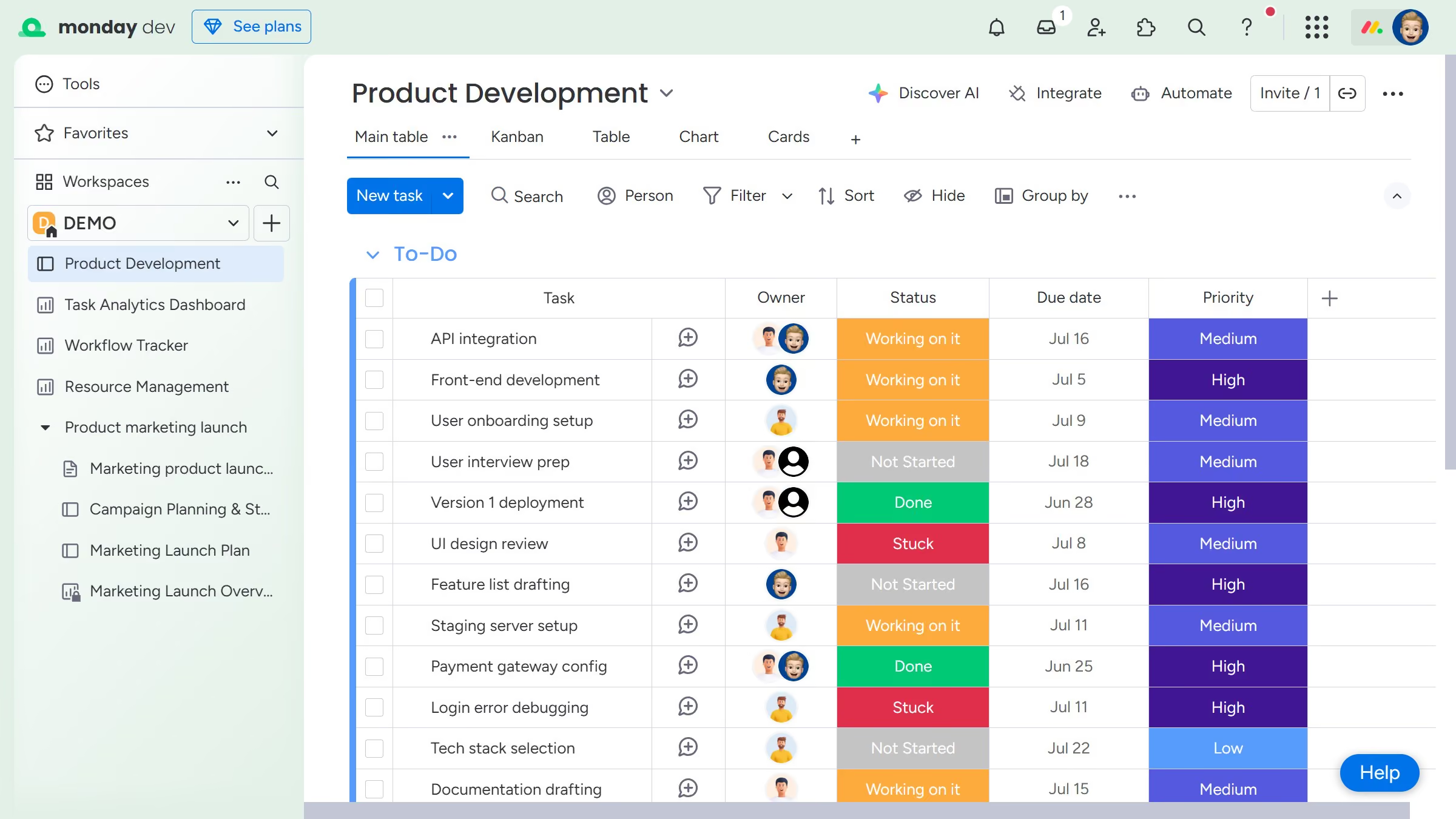
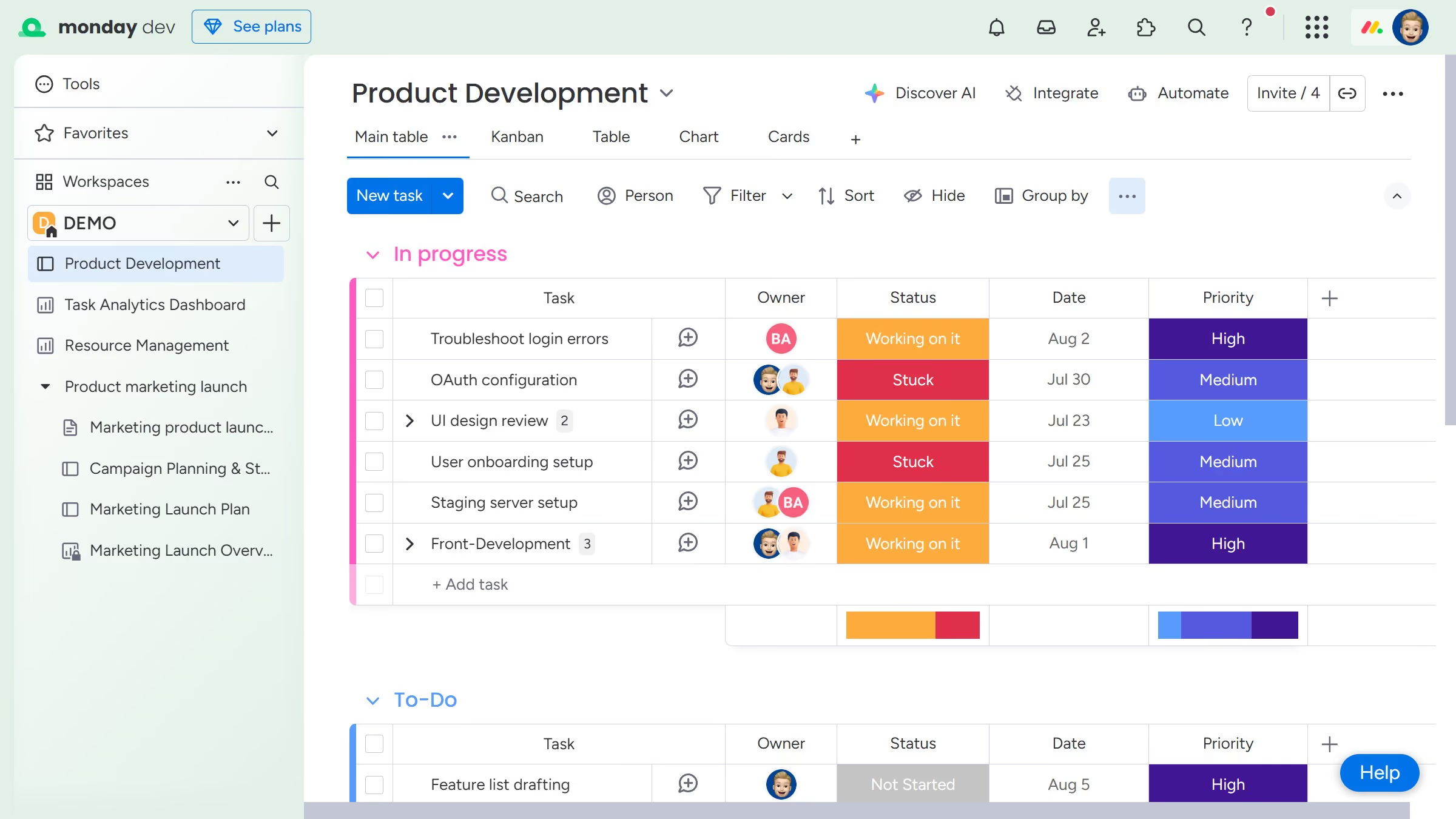
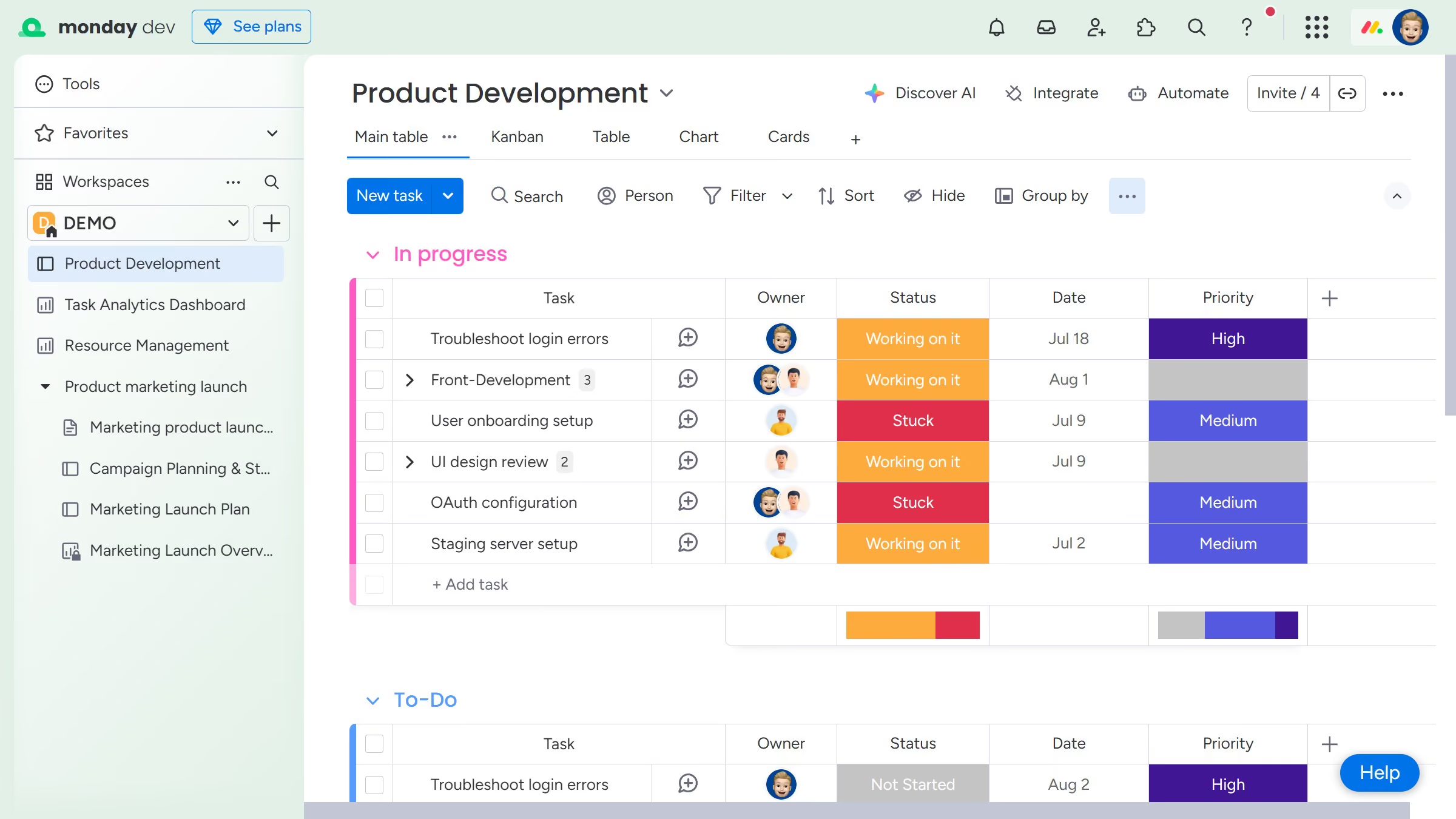
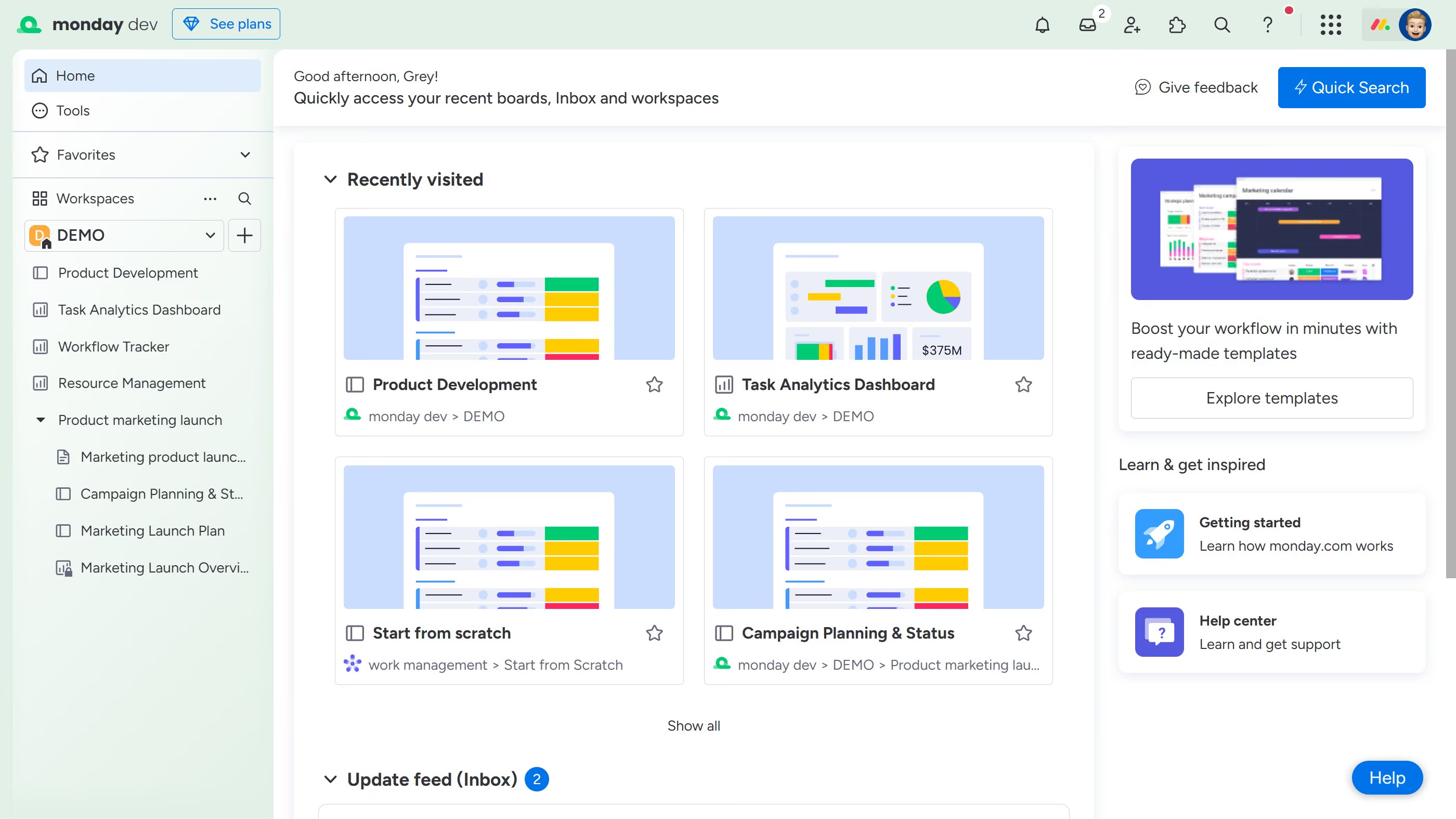
Here is how to manage dashboard permissions in monday.com

  1. First navigate to the dashboard you want to update the permissions for
  2. Next click the more options menu (three dots) in the top-right corner of the dashboard
  3. Then change the dashboard type, select "Change type to Private" or "Change to Main" if needed
  4. Next click on the "Invite" button in the dashboard header
  5. Select "Dashboard members" from the Invite dropdown menu
  6. Then, in the team members dialog, manage who has access to the dashboard and adjust their permission levels as needed
  7. You can assign someone as an owner by clicking the “crown” icon next to their name
  8. To remove access, click the “X” icon next to their name
  9. Finally once you're done, click the "X" to return to the dashboard

Create your own interactive guide with Guideflow

Why should you manage dashboard permissions in Monday.com

Monday.com is a powerful work operating system designed to help teams streamline their workflow with ease and flexibility.

Managing dashboard permissions in Monday.com allows you to control who can view or edit dashboards, ensuring sensitive information is protected while still fostering collaboration.

This feature is particularly beneficial as it maintains the integrity of data and project insights, while empowering team members with the appropriate access needed to efficiently do their jobs.

By managing permissions effectively, you create a balanced environment where transparency and security go hand in hand.

Last update
July 14, 2026
Cursor MariaA cursor points to a button labeled "James."

Loo oma esimene demo vähem kui 30 sekundiga.