


You finished a model. You are ready to print. Then the software fights you: unsupported file formats, a slicer that will not read your export, settings you do not understand, and a print that fails halfway through. The gap between a finished design and a printer-ready job is where most time gets lost.
That gap exists because "3d printing software" is not one thing. It is three overlapping categories that people mash together: slicer software that turns a model into machine instructions, CAD software for 3D printing that builds the geometry in the first place, and browser-based tools that combine both. Pick the wrong category and every step downstream feels harder than it should.
The stakes are rising because the market is. The global 3D printing market reached $34.45 billion in 2026 and is forecast to hit $69.26 billion by 2031 at a 14.99% CAGR, according to Mordor Intelligence (2026). Software and services are among the fastest-growing components, with services alone projected at a 16.22% CAGR through 2031. More printers means more people choosing tools, and more people choosing wrong.
This guide fixes that. If you evaluate tools the way a product manager evaluates onboarding, you care about time to first value, file compatibility, and low maintenance across releases. The same logic applies here. The right 3d printer software depends on whether you need to design, slice, or do both, and the sections below map each tool to the workflow it fits best.
What's inside
This guide compares seven 3d print software tools across three workflows: slicer-first, CAD-first, and browser-based. It is written for anyone choosing a tool to design, prepare, or slice models, including hobbyists, engineers, makers, and product teams. We selected tools based on four criteria that decide real-world fit: ease of use and onboarding speed, file compatibility across formats like STL, OBJ, 3MF, STEP, and IGES, platform support across Windows, macOS, and Linux, and workflow alignment with your printer stack. Pricing and G2 ratings are included where verified. Every tool here is a serious, widely used option, not filler.
TL;DR
- Best free slicer for most users: UltiMaker Cura, open-source, 400+ settings, huge profile marketplace.
- Best CAD software for 3D printing: Shapr3D, intuitive parametric modeling across Mac, iPad, and Windows.
- Best browser-based, beginner-friendly option: Womp, model-to-print workflow with nothing to install.
- Best commercial slicer for precision: Simplify3D, one-time license with deep support-structure control.
- Best open-source CAD for engineering parts: FreeCAD, full parametric control for technical validation.
- Best slicer for hands-on control: PrusaSlicer, open-source, broad printer support, organic supports.
- Best slicer for ecosystem owners: Bambu Studio, project-based workflow tuned for Bambu Lab printers.
What is 3d printing software?
3d printing software is any tool that helps you design a 3D model, prepare it for printing, and convert it into instructions a printer can execute. The category spans three types, and most workflows use at least two of them.
- **Slicer software:** Takes a finished 3D model and converts it into layer-by-layer instructions (G-code) for a specific printer. This is your print preparation software. Examples include UltiMaker Cura, Simplify3D, PrusaSlicer, and Bambu Studio.
- CAD software for 3D printing: Builds the geometry itself, with control over dimensions, constraints, and export format. This is where technical validation happens before slicing. Examples include Shapr3D and FreeCAD.
- Browser-based 3D creation tools: Combine modeling and print readiness in one web app, no install required. Womp fits here.
Key things the category handles:
- File compatibility: Good software reads and writes common formats. STL and OBJ are the mesh standards for slicing. 3MF is the modern container that carries color and metadata. STEP and IGES are the CAD interchange formats for precise, editable geometry.
- Cross-platform support: Many tools run on Windows, macOS, and Linux, though CAD tools vary more than slicers.
- Recommended profiles and settings: A slicer ships with recommended profiles for common printers and materials, so you get print readiness without tuning every value by hand.
- Print preparation: Support generation, bed adhesion, orientation, and infill all live in the slicer stage.
The free vs commercial question runs through the whole category. Most slicers and several strong CAD tools are free or open-source. Commercial tools compete on print quality control, support, and precision tuning rather than raw access.
When to use 3d printing software
The right tool depends on where you are in the model-to-print workflow. These three situations cover most decisions.
Prepare a model for printing
If you already have a finished model, a .stl or .3mf file from a marketplace or a colleague, you need slicer software, not a CAD tool. A slicer handles orientation, supports, infill, and G-code generation. This is the fastest path when your job is turning a completed design into a printer-ready job. Pick a slicer that ships recommended profiles for your printer so setup stays short.
Design a part before slicing
If you are building geometry from scratch, especially a functional part with real dimensions and tolerances, start with CAD software for 3D printing. Geometry quality and export format matter here: a clean solid model exported as STEP keeps precision, while a mesh export as STL or OBJ locks it for slicing. Getting technical validation right at the CAD stage prevents failed prints later.
Choose a low-friction workflow
If setup speed matters more than advanced controls, a browser-based or beginner-friendly tool cuts onboarding time to near zero. No install, no driver setup, no platform mismatch. This fits classrooms, quick prototypes, and anyone who wants to go from idea to ordered print without learning a desktop CAD suite first. Advanced control can come later once the workflow is familiar.
Comparison table
Here are the seven tools side by side. The table is sorted by relevance to the broad "3d printing software" search, starting with the most widely used slicer.
| # | Product | Intent | Key use case | Pricing | G2 rating |
|---|---|---|---|---|---|
| 1 | UltiMaker Cura | Slicer | Free, open-source slicing with a huge profile marketplace | $0 | 4.7/5 |
| 2 | Shapr3D | CAD | Intuitive parametric CAD for print-ready geometry | Free; Pro $299/year | 4.8/5 |
| 3 | Womp | Browser-based | Web modeling plus model-to-print ordering | Free; Pro from $9.99/mo | Not listed |
| 4 | Simplify3D | Slicer (commercial) | One-time-license slicing with deep support control | $199 one-time | 4.2/5 |
| 5 | FreeCAD | CAD (open-source) | Parametric engineering modeling, fully free | Free | 4.2/5 |
| 6 | PrusaSlicer | Slicer | Open-source slicing with broad printer support | Free | Not listed |
| 7 | Bambu Studio | Slicer | Project-based slicing tuned for Bambu Lab printers | Free | Not listed |
1. UltiMaker Cura
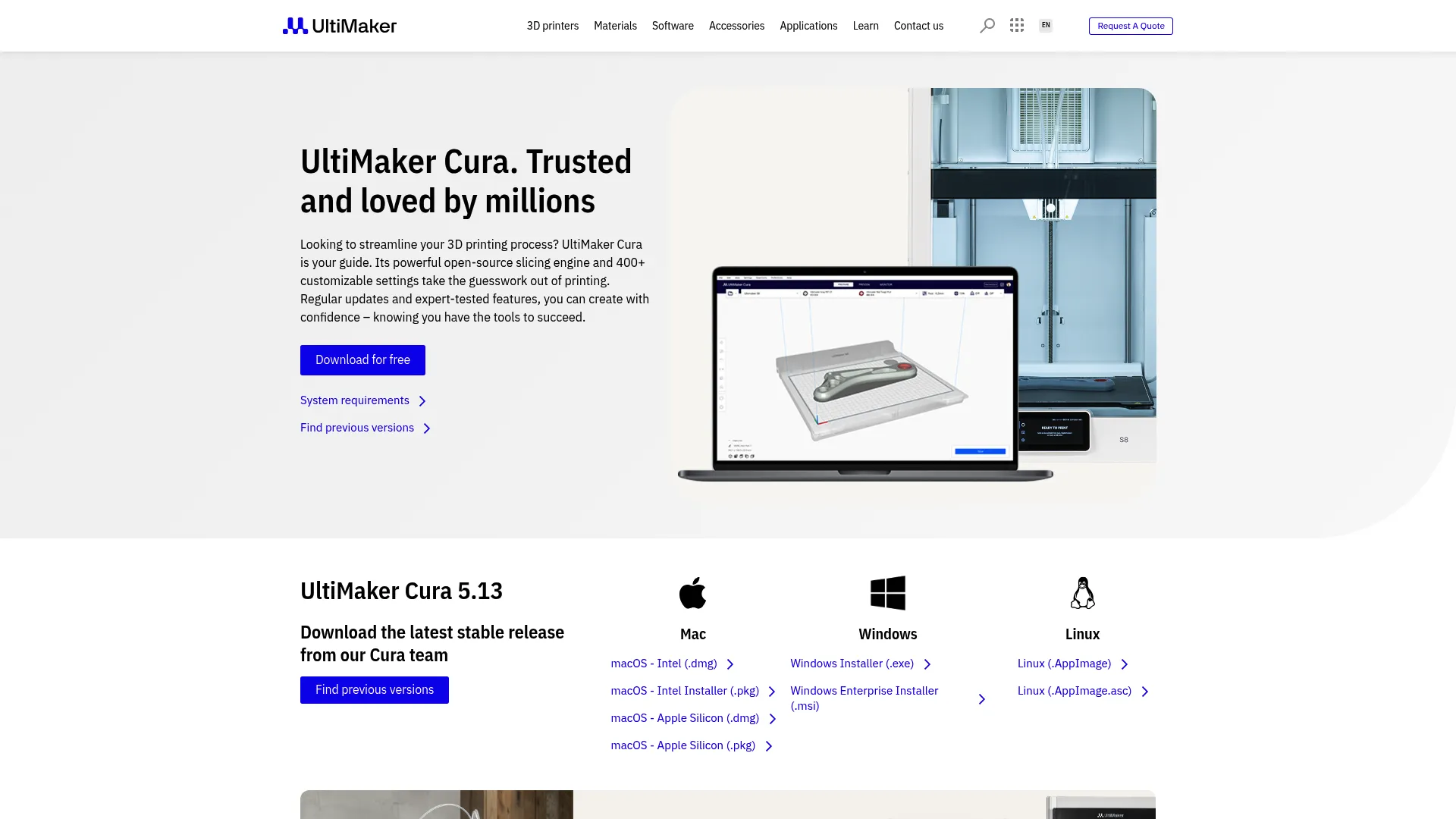
UltiMaker Cura is the default slicer for a huge share of the 3D printing world, and for good reason. It is free, open-source, and mature. You import a model, choose a printer profile, and get a print-ready job in minutes. Underneath that simplicity sits a slicing engine with more than 400 settings for anyone who wants to tune every layer. It is the tool most people reach for first when preparing a model for printing.
Best for: Individuals and teams who want a free, capable slicer that scales from one-click printing to deep manual tuning.
Key strengths
- Open-source slicing engine: A proven, community-tested core that handles FDM print preparation reliably across a wide range of printers.
- 400+ customizable settings: Start with recommended profiles for print readiness, then switch to custom mode when you need precise control over quality.
- Marketplace ecosystem: A built-in marketplace for material profiles and plugins extends the tool without leaving the app.
Why choose UltiMaker Cura: It is the safest first pick in the category. The learning curve is gentle because recommended profiles do the heavy lifting, but the ceiling is high because the custom settings go deep. For a product-minded buyer, that means fast time to value with no cost barrier and no lock-in, since the file formats and profiles stay open.
UltiMaker Cura pricing: The core UltiMaker Cura application is free and open-source, priced at $0. UltiMaker also references a Cura Enterprise version with added stability and security features, though no public price is listed on the product page. For most users, the free version covers the full print preparation workflow.
2. Shapr3D

Shapr3D is CAD software for 3D printing built around a fast, intuitive modeling experience. It runs on Mac, iPad, Windows, and Vision Pro, which makes it unusually flexible for a serious CAD tool. You design geometry with 2D sketching and constraints, then move into direct and history-based parametric modeling. When the part is ready, you export it in a slicer-friendly format and hand it off. It is a CAD-first entry point for anyone who cares about clean, dimensioned geometry.
Best for: Teams and individuals who need approachable but real parametric CAD for product, industrial, and concept design.
Key strengths
- Free plan with most modeling features: You can build and export real geometry without paying, which lowers the barrier to a CAD-first workflow.
- Parametric and direct modeling: 2D sketching with constraints plus both history-based and direct 3D editing supports proper technical validation before slicing.
- Visualization and file support: Rendering, an AR viewer, and broad import/export handle the geometry handoff into your print preparation software.
Why choose Shapr3D: If your job starts at design intent rather than a finished mesh, this is the cleaner entry point. The interface is fast enough for concept work and precise enough for functional parts, and the cross-platform support means you are not locked to one machine. Export as STEP to keep editable precision, or as STL to lock it for slicing.
Shapr3D pricing: Shapr3D offers a free plan with most modeling features. The Pro plan is $299 per year, billed annually and excluding VAT. An Enterprise plan is quote-based through their sales team. The free tier is a genuine starting point, not a crippled trial.
3. Womp
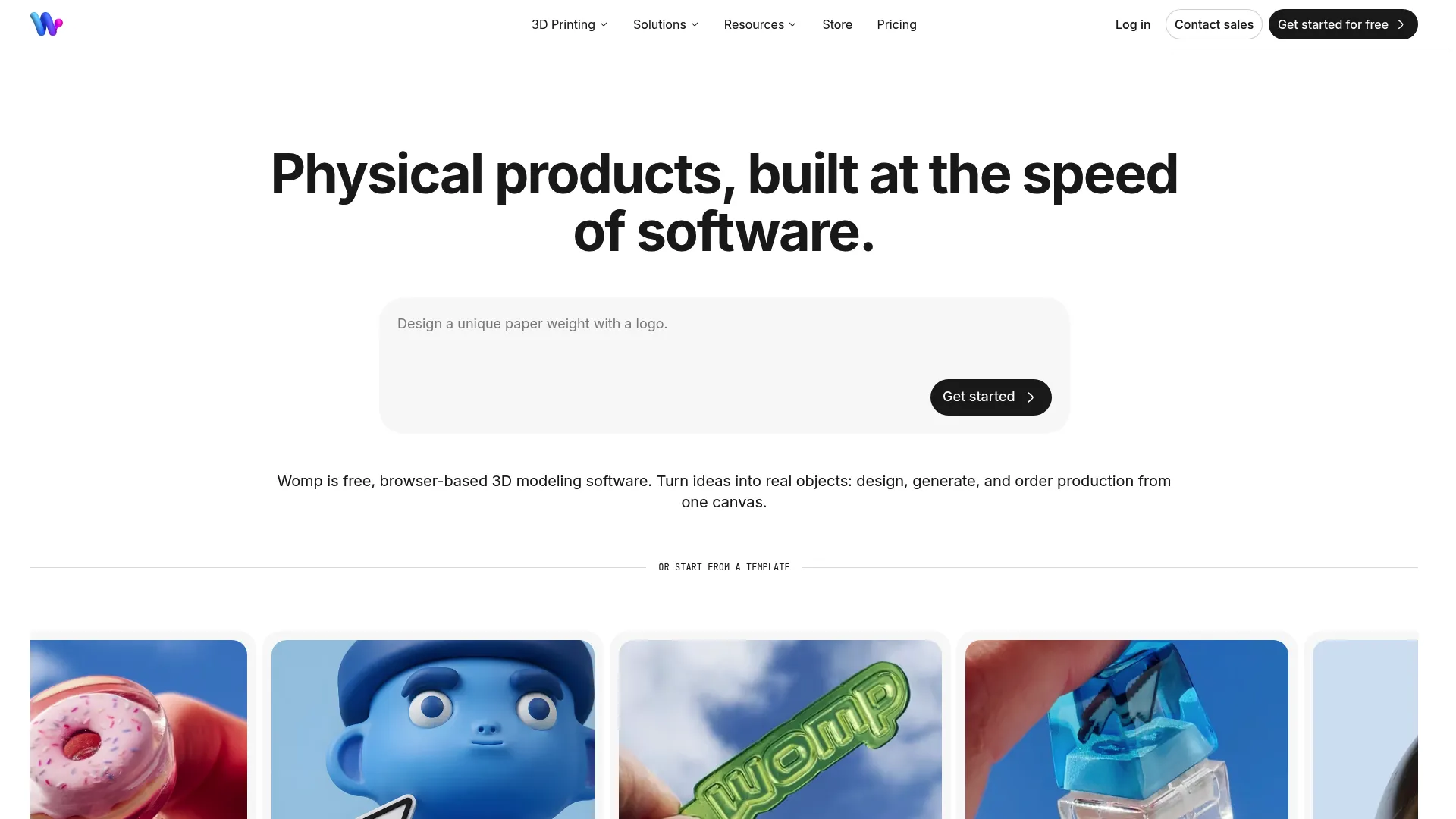
Womp is browser-based 3D modeling and printing in one place. There is nothing to install: you open a tab, create or generate a model, and move straight into a design-to-print workflow that includes instant printing quotes and ordering. That makes it the lowest-friction option here for a full model-to-print workflow. It suits people who want to make a physical object without learning a desktop CAD suite first.
Best for: Creators and teams who want browser-based 3D design plus integrated printing with minimal setup.
Key strengths
- Browser-based modeling: Works anywhere with a browser, so onboarding is near instant and platform mismatches disappear.
- Design-to-print workflow: Modeling and print readiness live in the same tool, so you never wrestle with exporting and importing between apps.
- Instant quotes and ordering: Get a printing quote and order the physical part directly, closing the loop from idea to object.
Why choose Womp: A cloud workflow beats desktop-heavy software when setup speed and accessibility matter more than deep manual control. For classrooms, quick prototypes, or a first foray into 3D creation, browser-based access removes the biggest onboarding wall in the category. Everything runs in the browser, so there is no driver setup and no cross-platform friction.
Womp pricing: Womp offers a free Starter plan at $0 per month. The Pro plan is $9.99 per month billed annually ($119.99 per year), or $12.99 billed monthly. A Team plan is $19.99 per seat per month, billed annually at $239.88 per seat per year. The free plan is enough to explore the full modeling experience.
4. Simplify3D

Simplify3D is commercial slicer software aimed at users who prioritize print quality and control. It is a one-time purchase rather than a subscription, which appeals to buyers tired of recurring fees. The tool focuses on the slicing workflow, printer profile support, and detailed support-structure customization. If your prints keep failing on supports or surface quality, this is the category where paying can pay off.
Best for: Makers and teams who want a one-time-purchase slicer with advanced control over print quality and supports.
Key strengths
- Precise slicing workflow: Fine-grained control over the print preparation stage, aimed at consistent, high-quality output.
- Printer profile support: Configurable profiles across a broad range of machines, so you can dial in behavior per printer.
- Support-structure customization: Detailed control over support materials and placement, which is where difficult prints usually succeed or fail.
Why choose Simplify3D: The case is precision and ownership. If you have outgrown default profiles and want manual command over supports and quality, the paid, one-time license removes subscription friction while giving you the control that free tools handle differently. It fits users who treat print quality as a measurable output, not an afterthought.
Simplify3D pricing: Simplify3D is a one-time license at $199 USD per user. There is no subscription and no free tier. Volume discounts and an education discount are available. For a tool you keep permanently, the math favors heavy users who slice often.
5. FreeCAD

FreeCAD is an open-source parametric 3D CAD modeler built for real-world engineering work. It gives you full control over geometry, constraints, and file compatibility, and it costs nothing. The tradeoff is a steeper learning curve than consumer CAD tools, which is exactly what makes it powerful for technical validation. If you need editable, dimensioned parts and you are comfortable investing time to learn the interface, FreeCAD rewards that investment.
Best for: Engineers and individuals who need a free, open-source CAD tool for precise parametric 3D modeling.
Key strengths
- Parametric 3D modeling: Full history-based parametric control, so you can change a dimension and have the model rebuild correctly.
- Sketcher with constraint solver: A proper constraint engine for accurate, dimensioned geometry that holds up under technical validation.
- Broad file support: Imports and exports many CAD and engineering formats, including STEP and IGES, so parts move cleanly into other tools.
Why choose FreeCAD: This is the tool for people who want maximum control and zero licensing cost. The steeper learning curve is the price of depth, not a flaw, and for engineering use cases the parametric rigor matters more than a friendly onboarding flow. It is cross-platform and open-source, so there is no lock-in on your files or your machine.
FreeCAD pricing: FreeCAD is free to use. The project runs on voluntary sponsorship tiers starting at 1 USD or 1 EUR per month, rising through Bronze, Silver, and Gold levels, but no payment is required to use the full software. Every feature is available at no cost.
6. PrusaSlicer
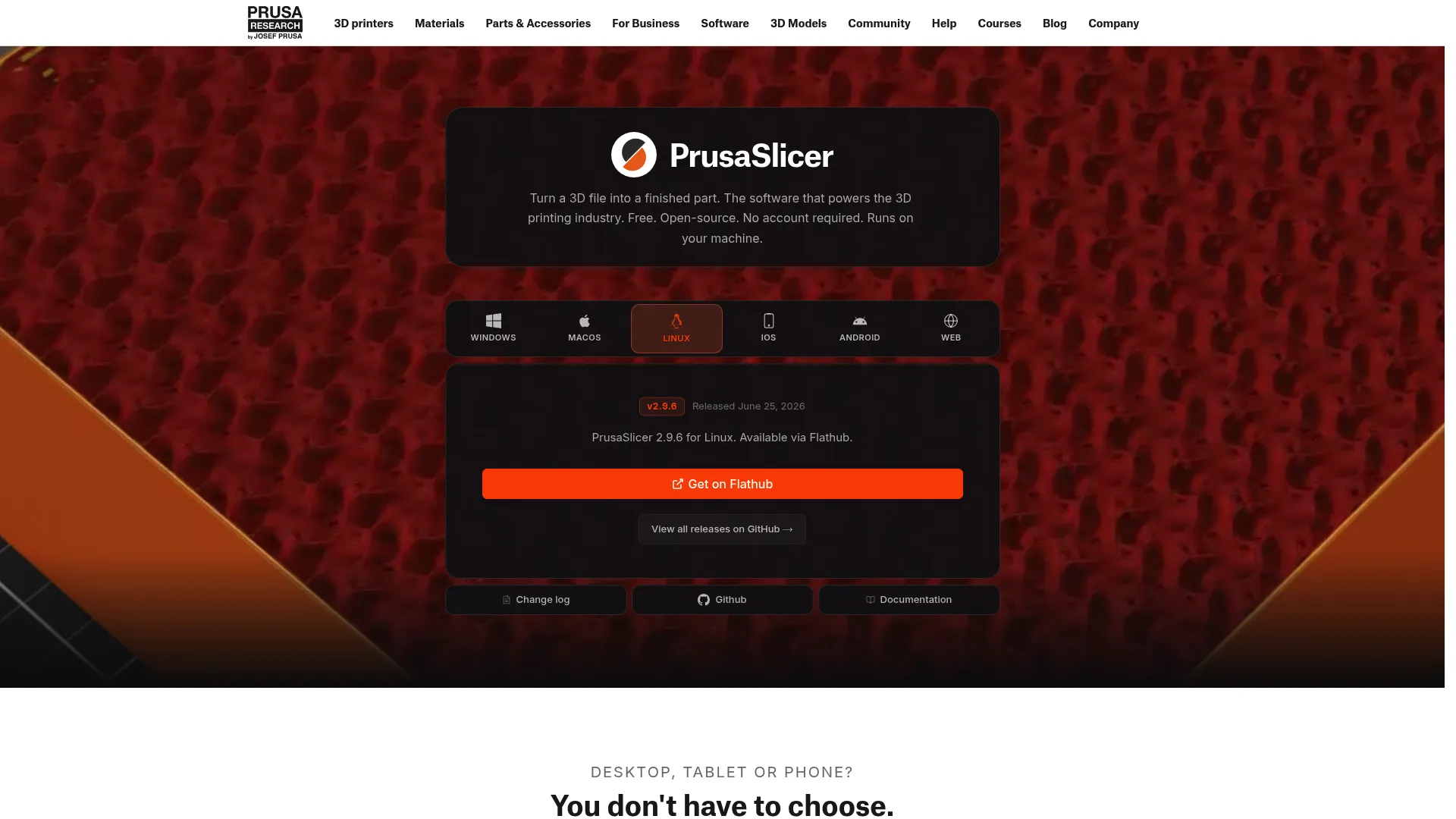
PrusaSlicer is free, open-source slicer software from Prusa Research. It is a serious alternative in the slicer category, especially for users who want hands-on control and broad printer support beyond Prusa's own machines. It runs on Windows, macOS, and Linux, and it includes advanced print preparation tools like organic tree supports, paint-on supports, and multi-material color painting. It sits comfortably between beginner-friendly and expert-grade.
Best for: Users who want a free, open-source slicer for FDM or SLA printing, especially Prusa printer owners.
Key strengths
- Cross-platform desktop app: Runs on Windows, macOS, and Linux, so your workflow moves with you.
- Organic and paint-on supports: Tree supports and paint-on support tools give you precise, efficient support placement on complex models.
- Multi-material and color painting: Assign filament changes at specific layers for multi-color or multi-material prints.
Why choose PrusaSlicer: It is the slicer for people who want to get their hands into the settings without paying. The open-source roots mean active development and a strong community, and the printer support extends well past Prusa hardware. If UltiMaker Cura is the broad default, PrusaSlicer is the equally serious alternative with a slightly different feature emphasis.
PrusaSlicer pricing: PrusaSlicer is free and open-source, priced at $0. Prusa Research maintains it as a free product with no paid tiers on the official page. All of its print preparation features are available at no cost.
7. Bambu Studio
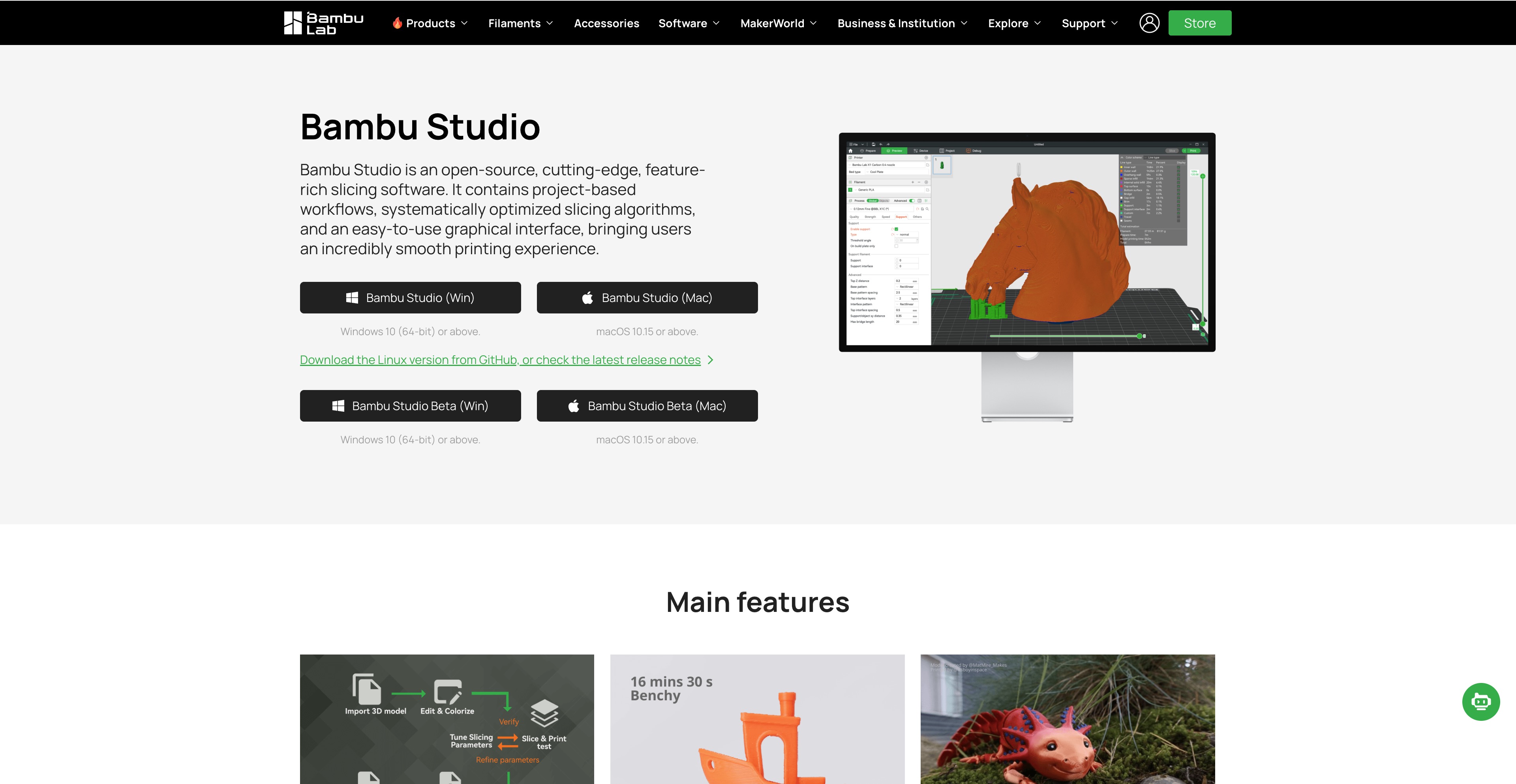
Bambu Studio is Bambu Lab's official slicing software for preparing and managing 3D prints. It uses a project-based workflow with multi-plate support and optimization tuned for high-speed printing. If you own a Bambu Lab printer, this is the slicer built to match your hardware, which means less tuning and tighter device alignment out of the box. It is a practical, efficient choice for owners in that ecosystem.
Best for: Bambu Lab 3D printer owners who want the official slicer built for their machines.
Key strengths
- Project-based workflow: Organize prints as projects rather than one-off files, which keeps multi-part jobs tidy.
- Multi-plate support: Manage several build plates in one project for efficient batch printing.
- High-speed print optimization: Tuned to get the most out of fast printers with settings aligned to the hardware.
Why choose Bambu Studio: The value is device alignment. When your slicer and printer come from the same source, print preparation gets simpler because the defaults already fit your machine. It is open-source and feature-rich, and for ecosystem owners it removes the guesswork that generic slicers sometimes introduce. If you are outside that ecosystem, a broader slicer may fit better.
Bambu Studio pricing: Bambu Studio is presented as a downloadable, open-source product on the official Bambu Lab page. No public price is listed, and the software is offered with feature descriptions rather than paid tiers, consistent with its open-source positioning.
Considerations before you choose
Before you commit, run your options through this short checklist. It maps to how a product-minded buyer evaluates any tool: fit, friction, and future cost.
File compatibility
Confirm the tool reads and writes the formats you actually use. Slicers need STL, OBJ, and increasingly 3MF. CAD tools should handle STEP and IGES for precise, editable geometry. A mismatch here creates rework on every single project, so verify it before anything else.
Cross-platform support
Check that the tool runs on your operating system. Most slicers cover Windows, macOS, and Linux, but CAD tools vary. If your team mixes machines, cross-platform support prevents someone getting locked out of the workflow.
Onboarding speed and workflow fit
Decide whether you need slicer-first, CAD-first, or browser-based. A slicer will not design a part, and a CAD tool will not slice it. Matching the tool to your actual workflow is the single biggest driver of time to value. Beginner-friendly tools with recommended profiles get you printing fastest.
Free vs commercial
Most of the category is free or open-source, and for many users that is genuinely enough. Pay for commercial software when you need specific print quality control, support responsiveness, or precision tuning that justifies the cost. Do not pay for features you will not use.
Printer ecosystem alignment
If your printer has an official slicer, it usually offers the smoothest defaults. Weigh that convenience against the flexibility of a broad, printer-agnostic tool. Both are valid; the right answer depends on whether you own one machine or many.
Conclusion
There is no single best 3d printing software, because the category is really three workflows wearing one name. Match the tool to the job and the friction disappears.
For preparing finished models, start with UltiMaker Cura: free, deep, and the safest default in the slicer category. PrusaSlicer is the equally serious open-source alternative, and Bambu Studio is the efficient choice if you own that hardware. If you need commercial precision and one-time licensing, Simplify3D earns its price for heavy slicing.
For designing parts before you slice, Shapr3D is the intuitive, cross-platform CAD-first pick, while FreeCAD gives engineers full parametric control at zero cost. And when onboarding speed matters most, Womp lets you model and order a print entirely in the browser, beginner to advanced.
The practical next step: identify whether your job starts at design or at a finished file. If you are printing a model you already have, download UltiMaker Cura today and slice your first job. If you are designing from scratch, start with the CAD tool that fits your platform. The fastest path to a good print is choosing the right workflow first. For teams thinking about how tools like these fit a broader stack, the same evaluation discipline that guides account based marketing software tools selection applies here too: fit first, features second.
FAQs
CAD software for 3D printing builds the geometry, letting you design a part with precise dimensions and constraints. Slicer software takes that finished model and converts it into G-code, the layer-by-layer instructions your printer executes. You design in CAD, then slice for printing. Many workflows use one of each.
For slicing finished models, UltiMaker Cura is the most beginner-friendly because recommended profiles get you printing with minimal setup. For designing from scratch with the least friction, Womp is beginner-friendly since it runs entirely in the browser with nothing to install. Both let you reach a first successful result quickly.
Most slicers are cross-platform. UltiMaker Cura and PrusaSlicer both run on Windows, macOS, and Linux. FreeCAD is also cross-platform for CAD work. Shapr3D covers Mac, iPad, Windows, and Vision Pro, and Womp runs in any browser, so it works on every platform without an install.
For slicing, look for STL and OBJ, the standard mesh formats, plus 3MF, the modern container that carries color and metadata. For CAD work and precise geometry handoff, STEP and IGES matter because they preserve editable, dimensioned models. Good file compatibility across these formats prevents rework at every stage of the workflow.
For most users, yes. Free and open-source slicers like UltiMaker Cura and PrusaSlicer cover the full print preparation workflow, and FreeCAD handles serious parametric CAD at no cost. Commercial tools like Simplify3D make sense when you need specific print quality control, support responsiveness, or precision tuning worth paying for.
Usually yes. CAD tools design geometry; slicer software prepares it for printing. A common workflow is designing in a CAD tool like Shapr3D or FreeCAD, exporting as STL or STEP, then slicing in UltiMaker Cura or PrusaSlicer. Browser-based tools like Womp combine both steps in one place if you prefer a single app.
Womp is the standout browser-based option. It runs entirely in the browser with no install, combines modeling with a design-to-print workflow, and offers instant printing quotes and ordering. That makes it the fastest way to go from an idea to a physical object without learning a desktop CAD suite first.
For commercial slicing with precision control, Simplify3D offers a one-time license and detailed support-structure customization. UltiMaker also offers a Cura Enterprise version with added stability and security features for organizations. Shapr3D provides a quote-based Enterprise plan for teams needing CAD at scale. The right pick depends on whether your commercial need is slicing, CAD, or both.