Make
Make is a no-code automation platform for teams to connect apps, build workflows, and automate repetitive tasks across business processes
Website
Industry
Collaboration
Share this article:

How to manage daily running schedule for an OpenAI scenario in Make

Here is how to manage daily running schedule for an openai scenario in make

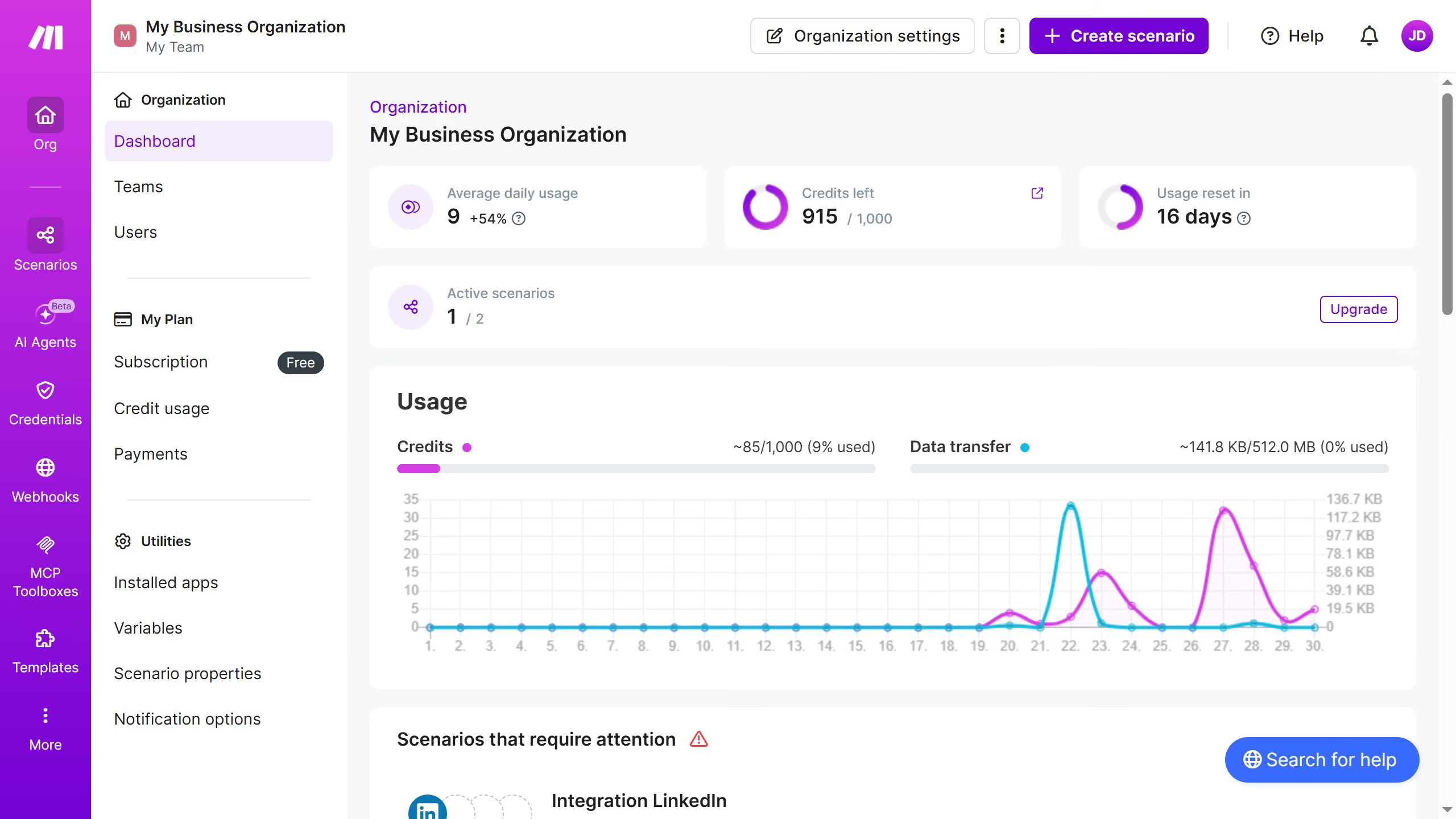
  1. First click on "Scenarios" in the left sidebar
  2. Then click on the OpenAI scenario from the list
  3. Then click on the "Options" button
  4. Next select "Scheduling" item from the dropdown menu
  5. Click on the "Run scenario" dropdown menu in the "Schedule settings" modal
  6. Then select "Weekly" item from the dropdown menu
  7. Finally click on the "Save" button

Create your own interactive guide with Guideflow

Why should you manage daily running schedule for an OpenAI scenario in Make

Make is a versatile automation platform designed to streamline workflows and enhance productivity.

Managing a daily running schedule for an OpenAI scenario in Make allows for seamless automation, ensuring tasks run consistently and efficiently without manual intervention.

The benefit of this feature lies in its ability to optimize routine processes, freeing up time and resources for more creative endeavors.

Utilizing daily scheduling in Make not only maximizes efficiency but also ensures your AI-driven tasks are executed reliably, fostering improved outcomes.

Last update
July 14, 2026
Tutorials

Built to impress

Why leading companies build with Guideflow

More tutorials
Cursor MariaA cursor points to a button labeled "James."

Loo oma esimene demo vähem kui 30 sekundiga.