Confluence
Confluence is a team workspace platform for companies to create, organize, and collaborate on documents, project plans, and internal knowledge in one shared place.
Website
Industry
Collaboration
Share this article:

How to install Rewind Backups in Confluence

Here is how to install rewind backups in confluence

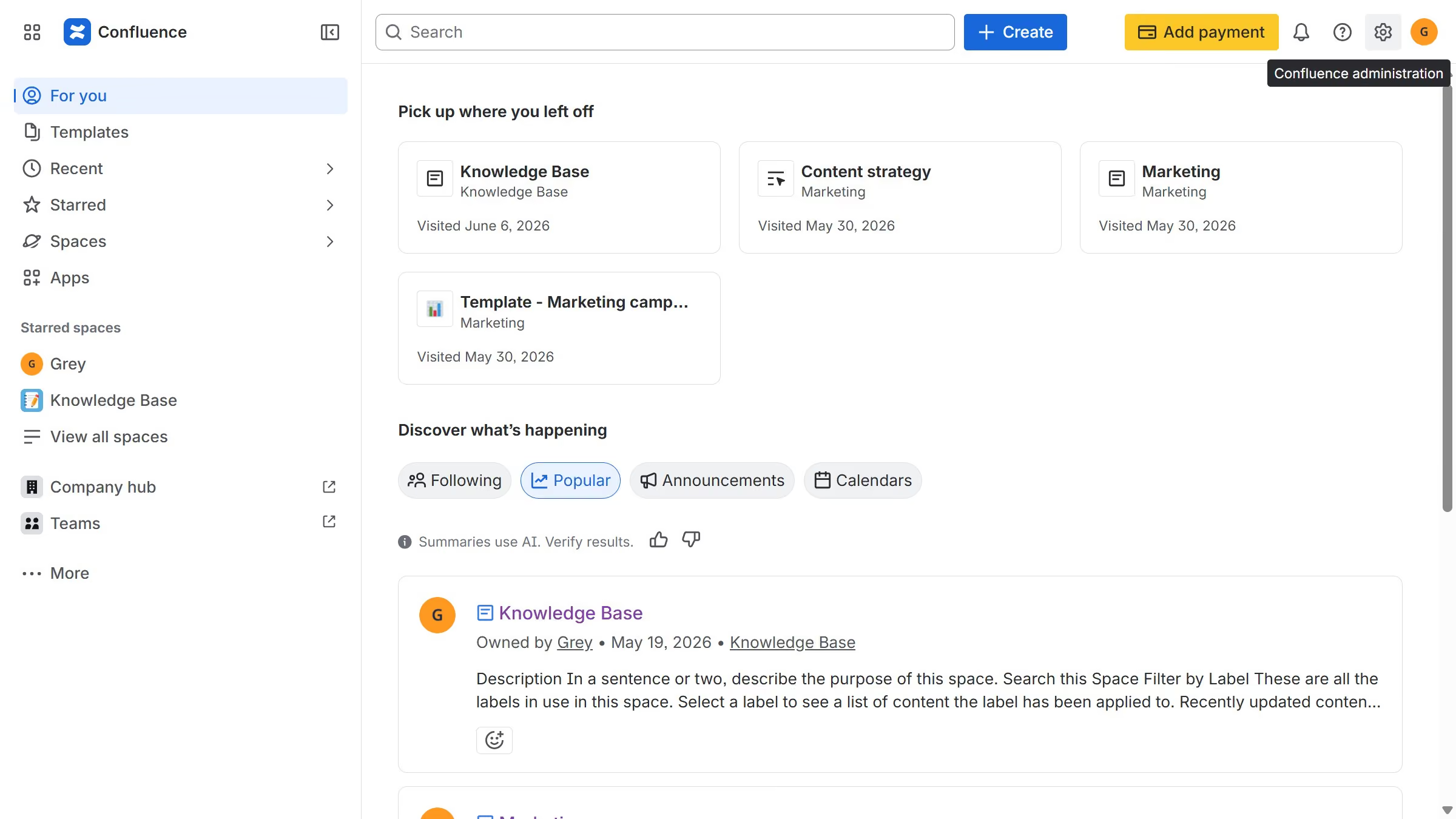
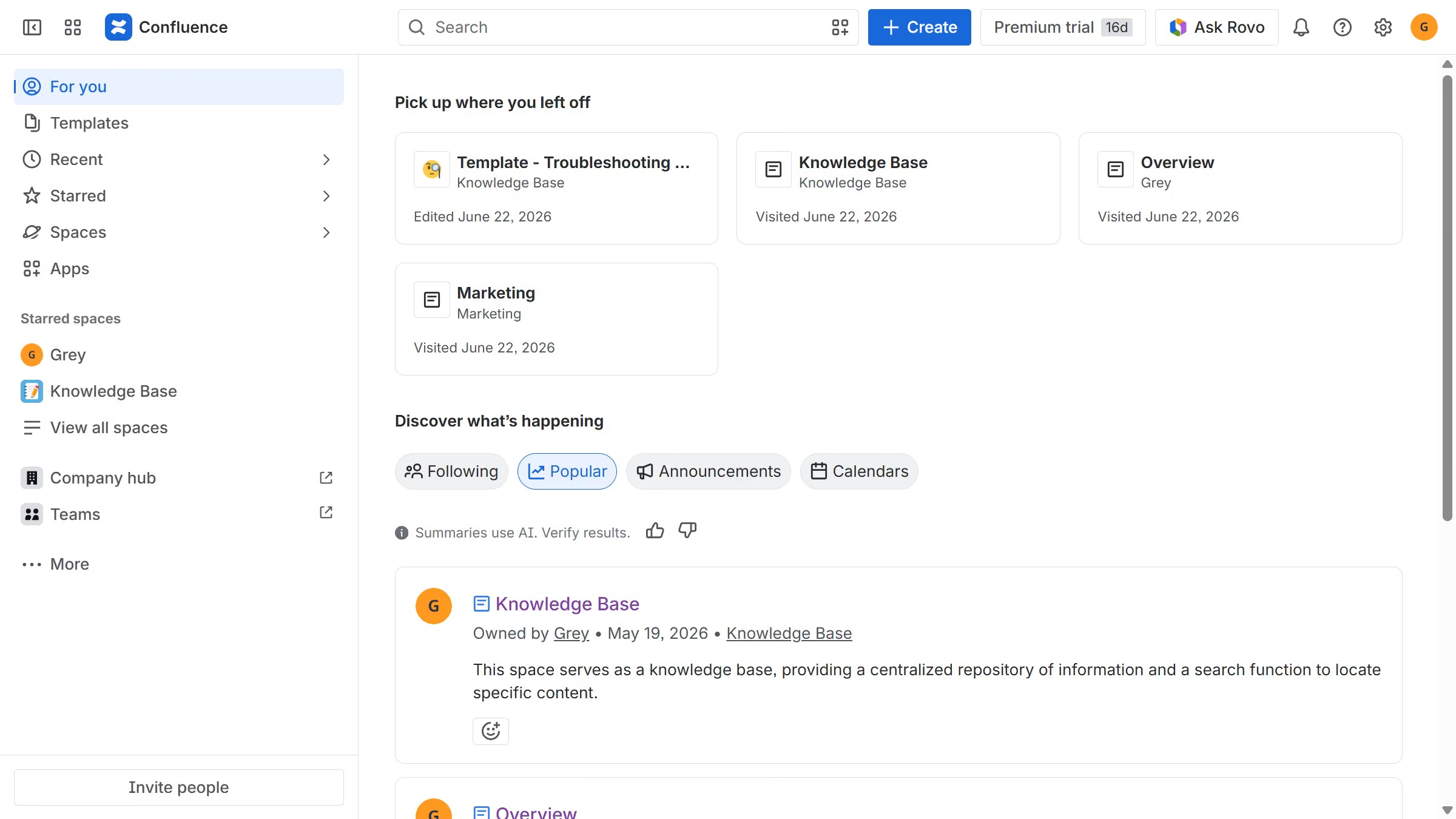
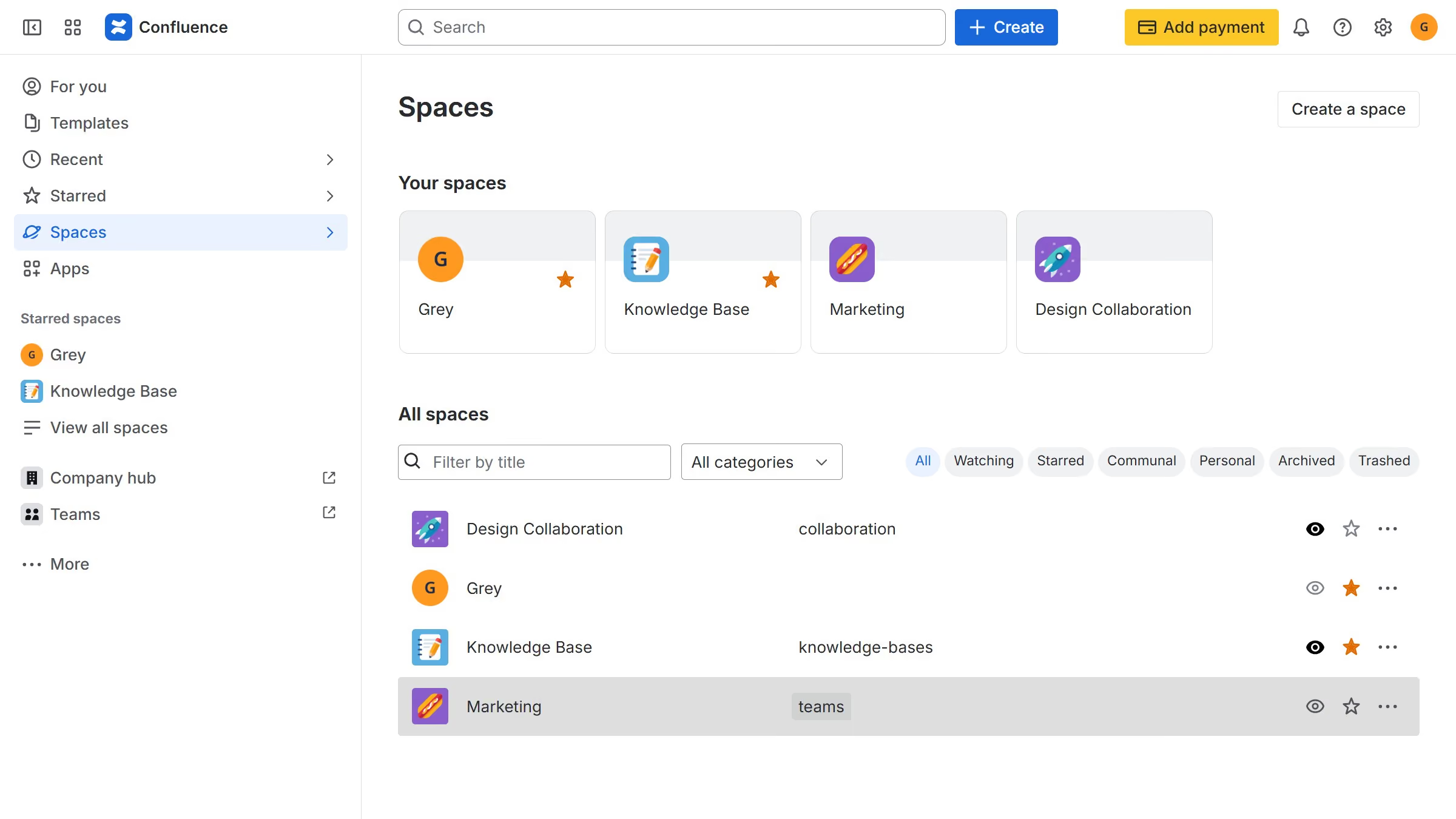
  1. First click on "Apps" in the navigation
  2. Next, select the "Explore more apps" option
  3. From the list, locate "Rewind Backups for Confluence" and click on it to open the app details page
  4. After that, click on the "Try it free" button
  5. Select the app edition and confirm the Confluence site where the app will be installed
  6. Then click on the "Review" button to proceed
  7. Review the app details, permissions, and other information
  8. Finally, click on the "Start free trial" button

Create your own interactive guide with Guideflow

Why should you install Rewind Backups in Confluence

Confluence is a robust workspace tool designed to foster team collaboration and efficient project management.

Installing Rewind Backups within Confluence enhances data security by automatically preserving the integrity of your collaborative efforts. This feature seamlessly integrates with your Confluence environment, ensuring that your valuable content is protected against unforeseen data loss.

Utilizing Rewind Backups offers peace of mind, as it not only safeguards your data but also streamlines recovery processes, making it an essential addition to any collaborative setup. Embrace this feature for a reliable backup solution that preserves the continuity of your projects.

Last update
July 14, 2026
Cursor MariaA cursor points to a button labeled "James."

Loo oma esimene demo vähem kui 30 sekundiga.