Trello
Trello is a flexible work management tool that helps teams ideate, collaborate, organize workflows, and track progress. Its boards, lists, and cards make it easy to plan, prioritize, and manage projects in a visual and rewarding way.
Website
Industry
Collaboration
Share this article:

How to move cards with custom fields to another board in Trello

Here is how to move cards with custom fields to another board in trello

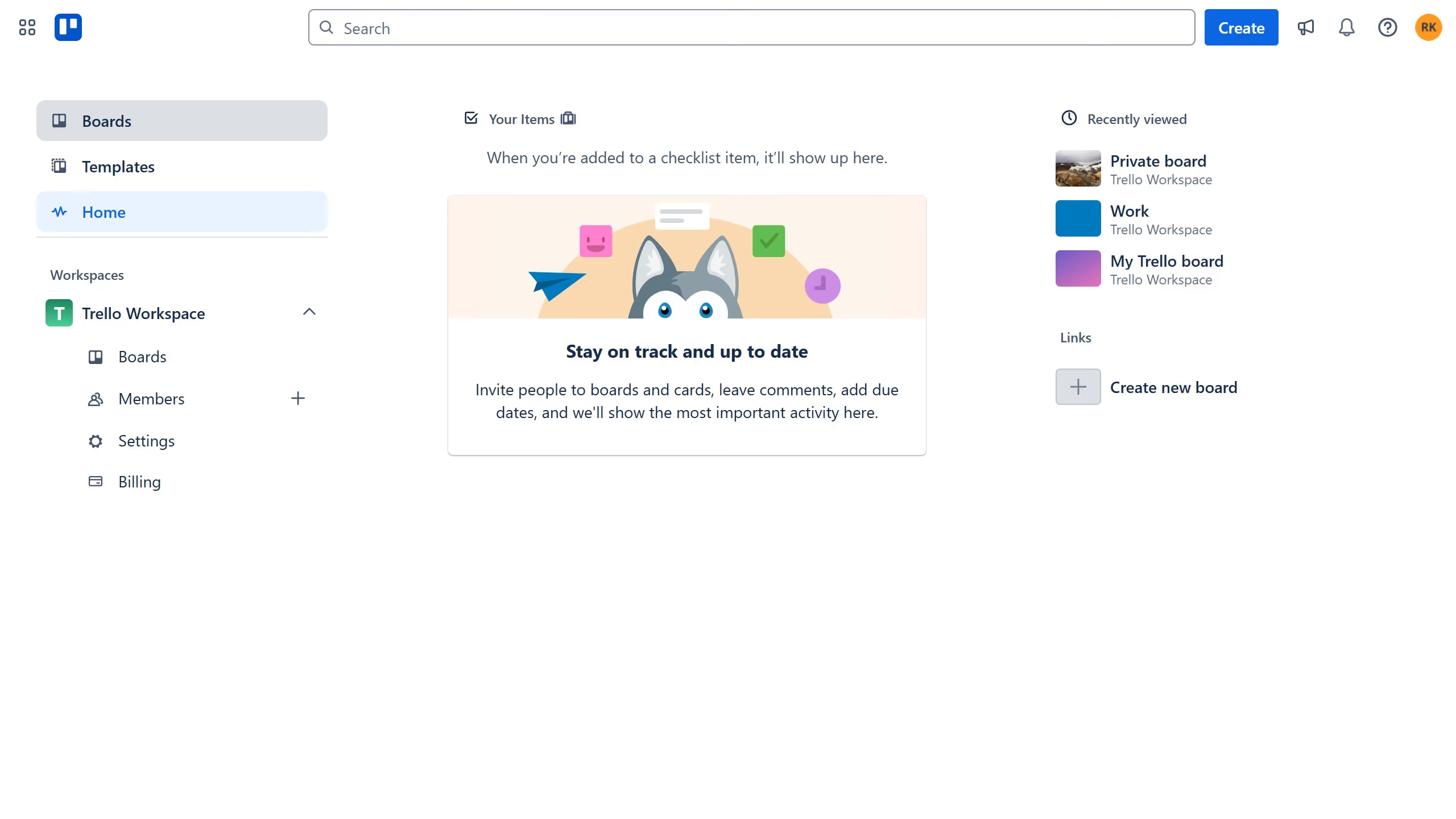
  1. First click on the board in the workspace area that contains the card you want to move to a different board
  2. Then click on the card you want to move
  3. In the card options menu, click on the "More" button (three dots)
  4. Select "Move" from the dropdown menu
  5. In the move dialog, click on the "Board" dropdown
  6. Select the destination board from the dropdown list where you want the card to be moved
  7. Click on the "List" dropdown in the move dialog
  8. Select the list name from the dropdown menu where you want to move the card
  9. Click on the "Position" dropdown
  10. Select your desired position for the card from the position dropdown menu
  11. Finally click the "Move" button to confirm and transfer the card with its custom fields to the selected board

Create your own interactive guide with Guideflow

Why should you move cards with custom fields to another board in Trello

Trello is a versatile project management tool designed to keep teams organized and productive.

Moving cards with custom fields to another board in Trello enhances workflow flexibility and efficiency. This feature allows for seamless transitions of tasks that contain personalized information, ensuring that no critical data is lost in the process.

Utilizing this functionality enables teams to adapt quickly to changing project needs, facilitating more streamlined communication and collaboration across different boards.

Last update
July 14, 2026
Cursor MariaA cursor points to a button labeled "James."

Loo oma esimene demo vähem kui 30 sekundiga.