Monday.com
Monday.com is a work operating system that helps teams plan, track, and deliver work with customizable workflows and collaboration features.
Website
Industry
Collaboration
Share this article:

How to change another user’s notification settings in Monday.com

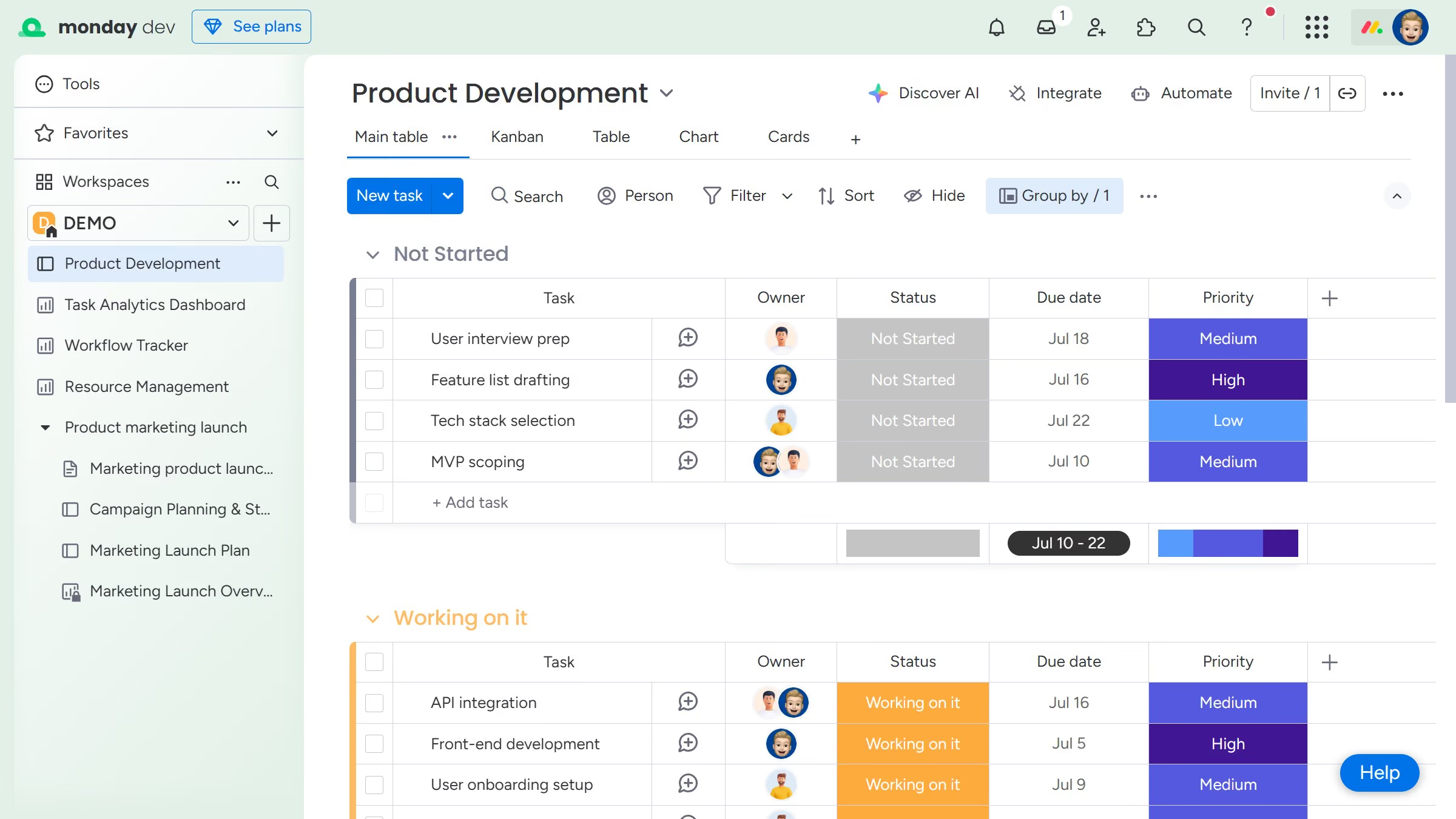
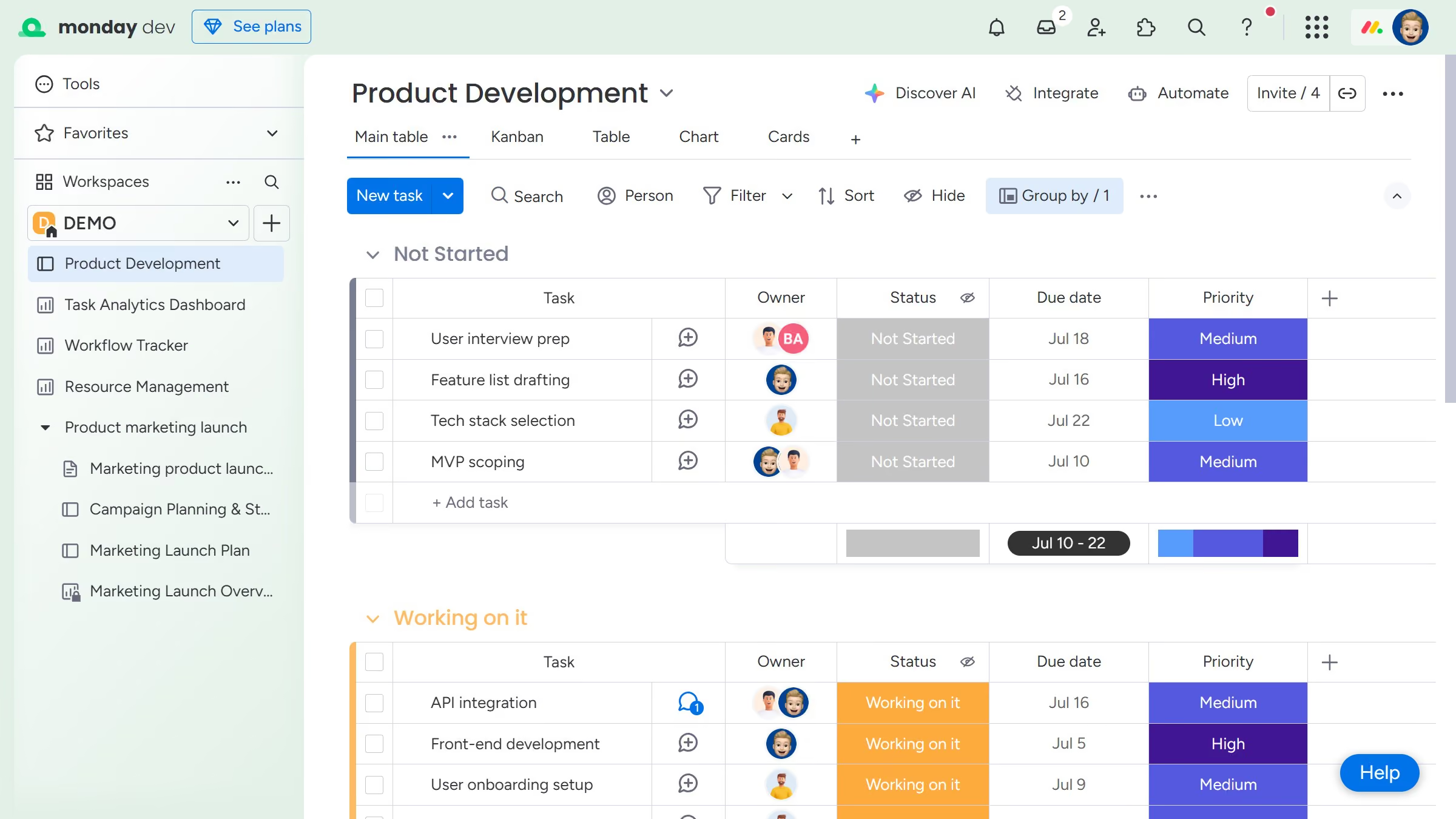
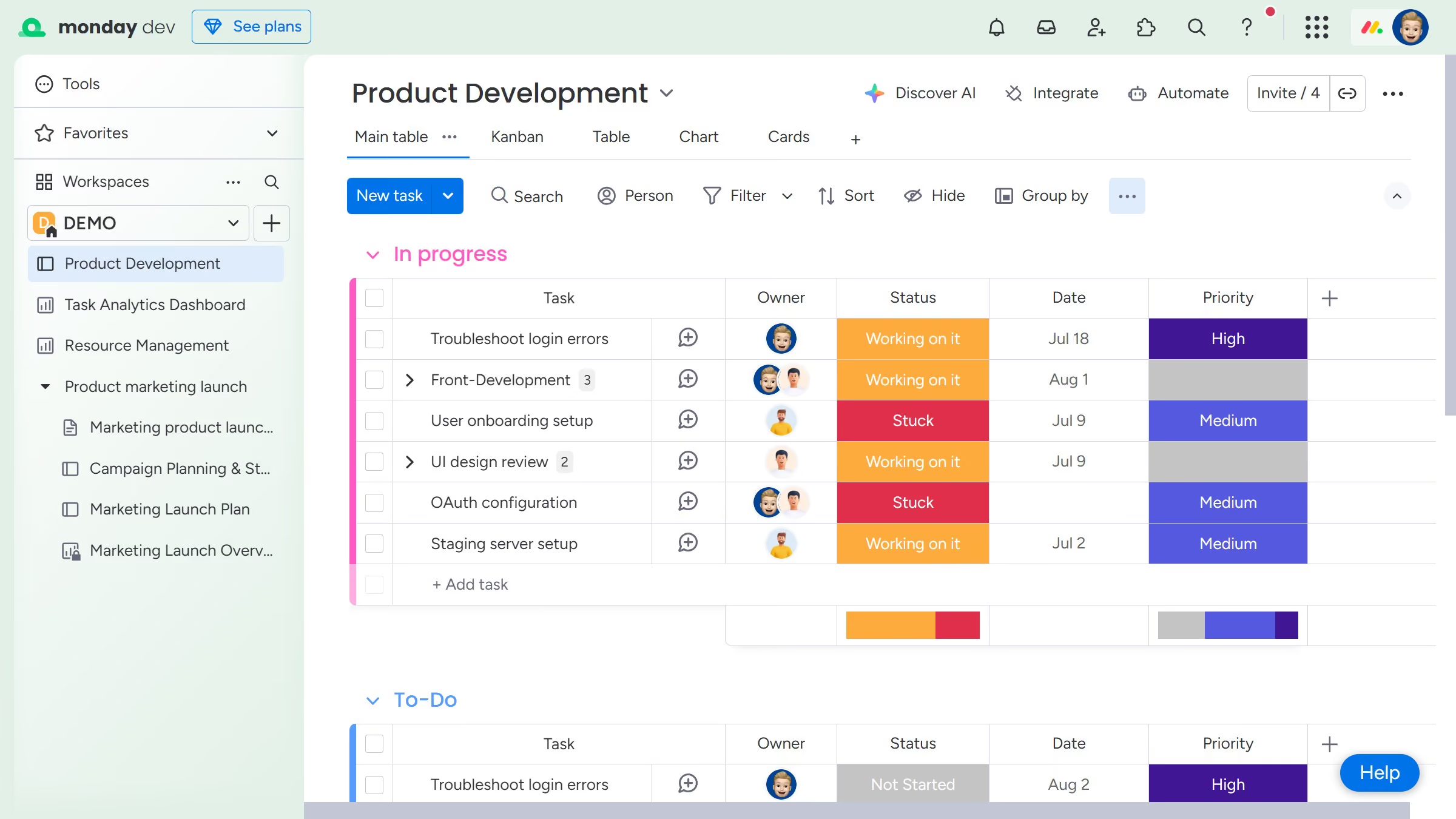
Here is how to change another user’s notification settings in monday.com

  1. First click on your profile picture in the top-right corner of the header
  2. Next click on "Administration" option in the dropdown menu
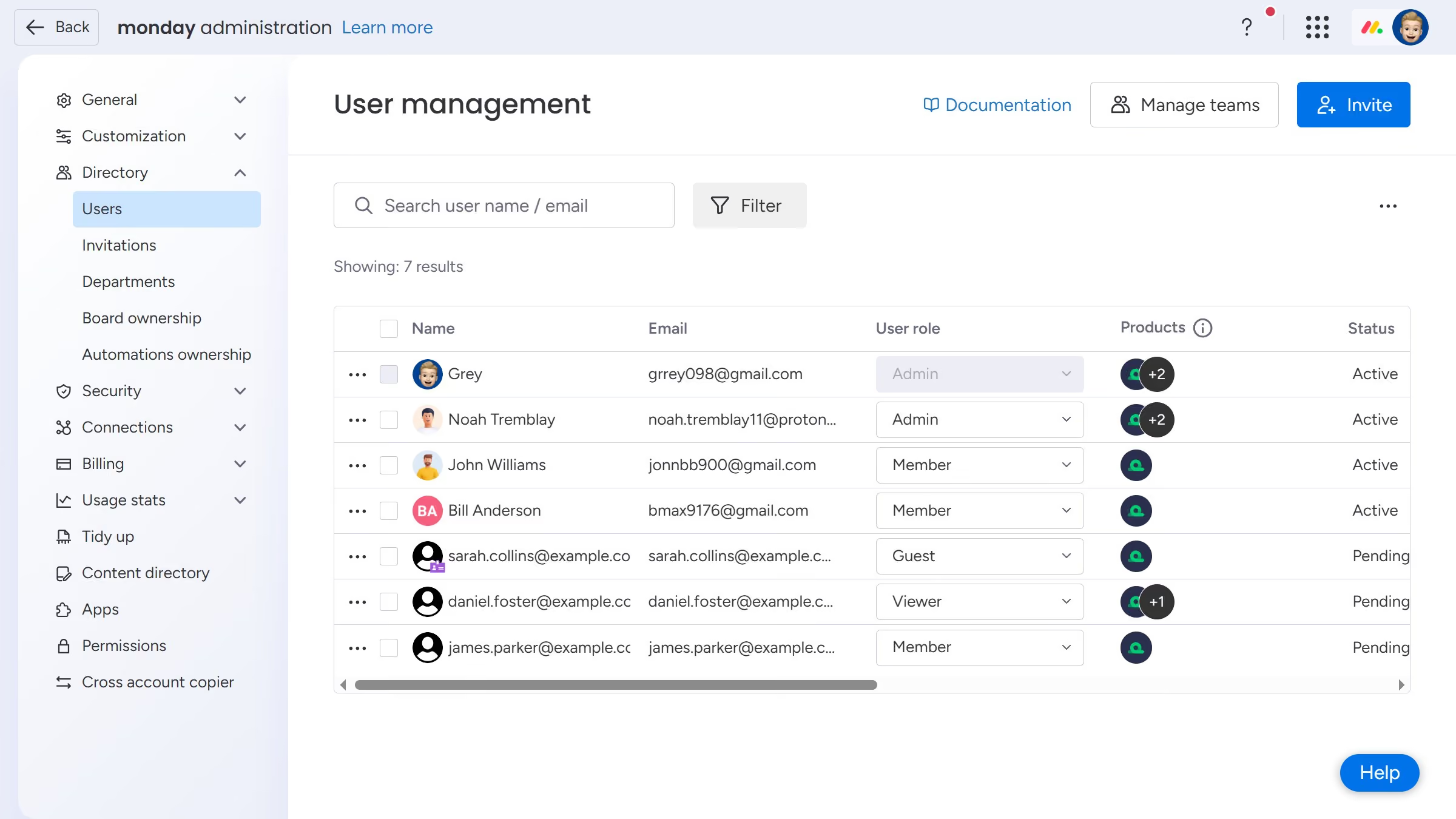
  3. Click on "Directory" item in the left sidebar menu
  4. Then click on "Users" option under Directory section
  5. Locate and click the name of the user whose notification settings you want to manage from the user list
  6. Next in the user profile modal, click on "Notifications" tab
  7. Then, on the Notifications settings page, you’ll see all available notification options
  8. Finally use the toggles to turn specific notifications on or off based on the desired settings

Create your own interactive guide with Guideflow

Why should you change another user’s notification settings in Monday.com

Monday.com is a versatile work management platform designed to boost team collaboration and productivity.

The ability to change another user’s notification settings in Monday.com offers unparalleled convenience for teams. By managing these settings, you ensure that team members receive notifications that are relevant to their roles without unnecessary distractions.

This facilitates clearer communication, keeps everyone aligned with project updates, and enhances overall efficiency. It is particularly beneficial for managers overseeing multiple projects, allowing them to ensure that each team member remains informed and focused.

Last update
July 14, 2026
Cursor MariaA cursor points to a button labeled "James."

Loo oma esimene demo vähem kui 30 sekundiga.