n8n
n8n is a workflow automation platform for technical teams to connect apps, APIs, and AI tools, automate complex workflows, and build integrations with the flexibility of code and the speed of no-code.
Website
Industry
Collaboration
Share this article:

How to add a datetime column in a data table in n8n

Here is how to add a datetime column in a data table in n8n

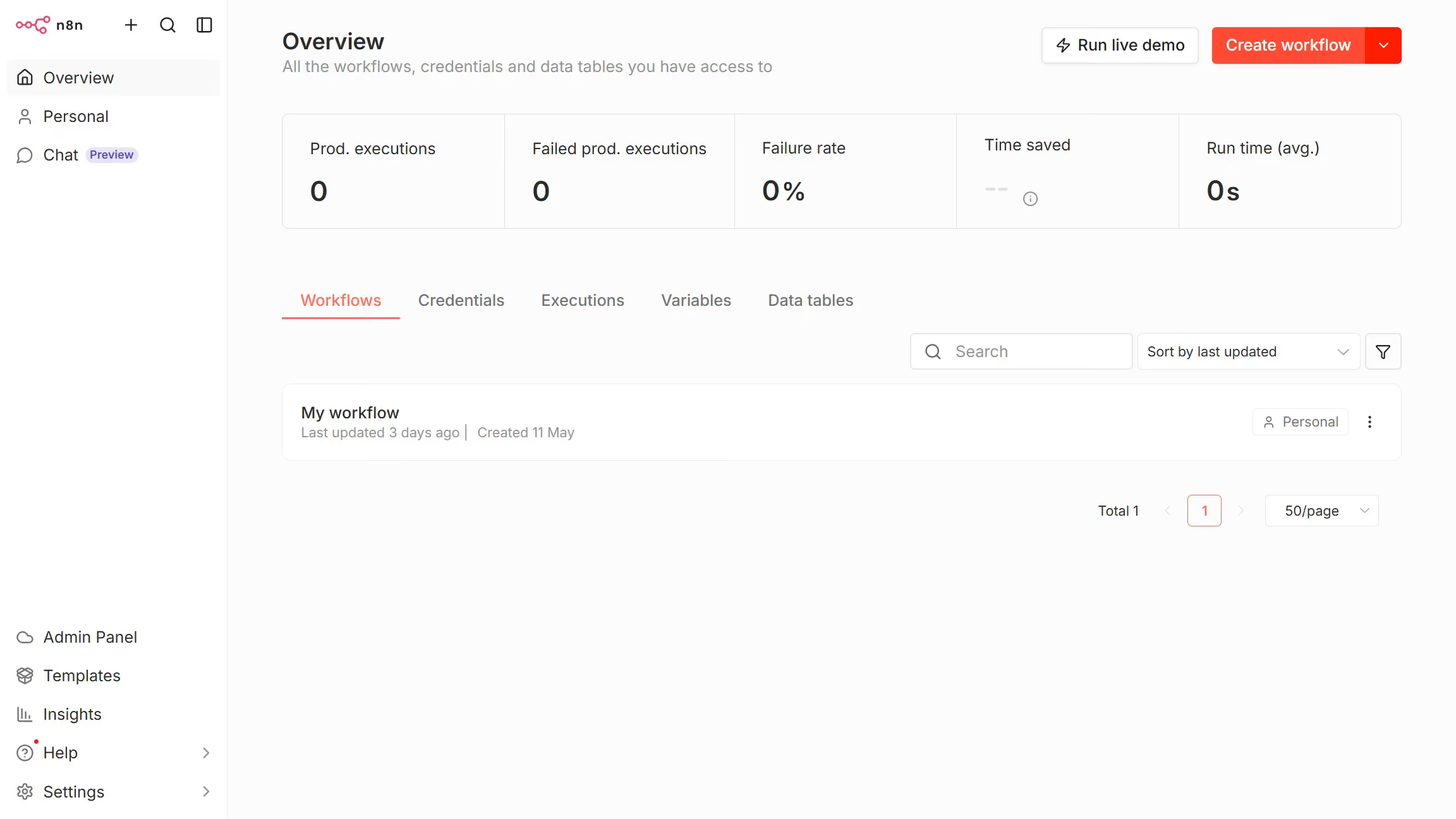
  1. First click on "Personal" item in the left sidebar.
  2. Then click on "Data tables" option in the personal table list.
  3. Then click the data table that you want to edit.
  4. Then click on the "Add Column" button.
  5. Then put the name of your column in the "Name" input field.
  6. Then click the "Type" dropdown.
  7. Then select "datetime" from the Type dropdown options.
  8. Finally click on the "Add Column" button.

Create your own interactive guide with Guideflow

Why should you add a datetime column in a data table in n8n

n8n is a powerful workflow automation tool that connects different apps and services to automate tasks without code.

Adding a datetime column in a data table in n8n enhances data tracking and management significantly. It allows users to timestamp each entry, providing a clear chronological order of events.

This feature is invaluable for monitoring the timing of operations, ensuring better data insights and accuracy. It promotes efficient workflow management by allowing seamless integration of time-sensitive tasks.

Last update
July 14, 2026
Cursor MariaA cursor points to a button labeled "James."

Loo oma esimene demo vähem kui 30 sekundiga.